Tenants
1Overview
This chapter describes the detailed operations on the Tenants management page, including creating a Tenant, editing and deleting a Tenant, managing tenant types, and importing or exporting tenants in bulk. It also explains how the Chinese Name, English Name, Floor, Location, Logo, and Direction Logo of a Tenant are displayed in Screen Design.
2Tenants Main Page
The Tenants page lets you manage tenant information and configurations.
Click on Tenants
Manage tenant information and configurations. The page is organized into the following sections:
- Section 1Page header information
- Section 2Filter
- Section 3List of Tenants information
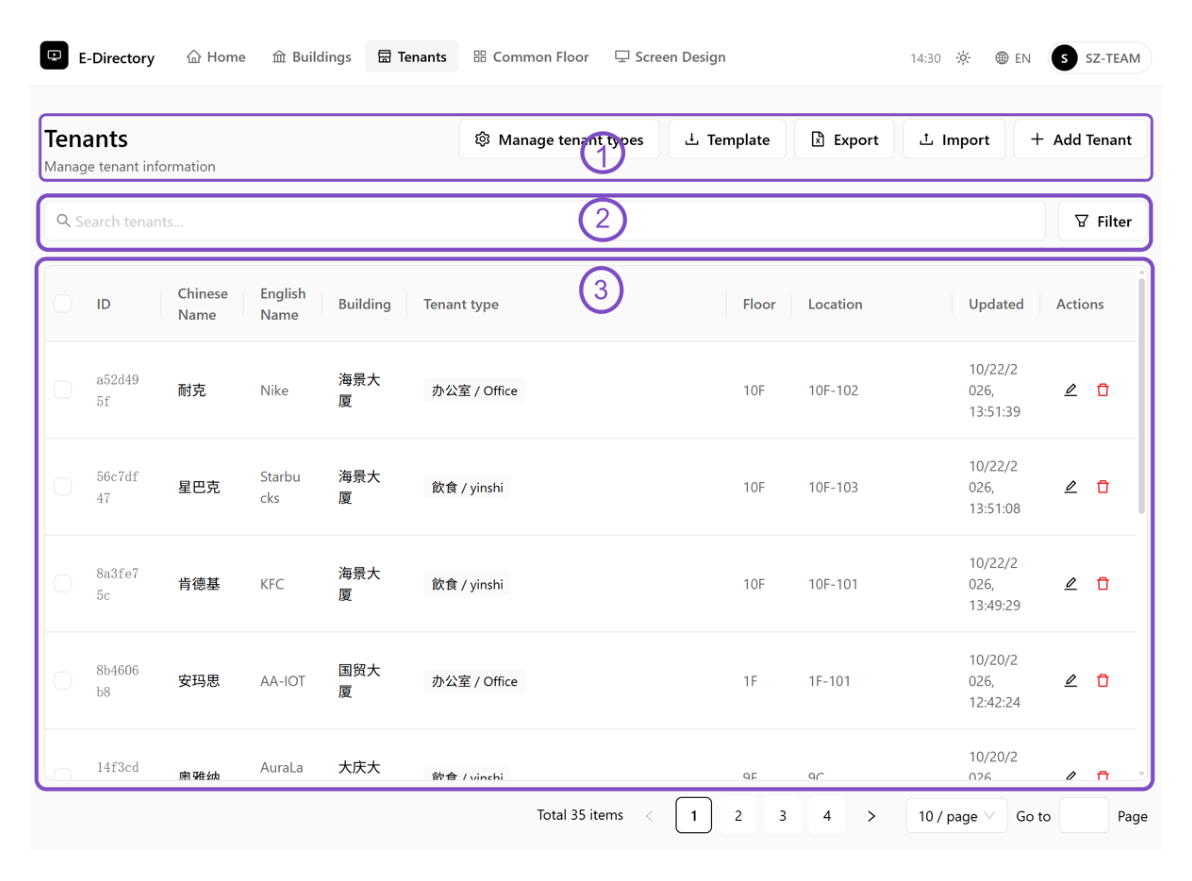 Tenants main page
3Add Tenant
Create a new Tenant and configure its Name, Floor, Location, Logo, and Direction Logo.
Click on + Add Tenant
Click the "+ Add Tenant" button to create a new Tenant.
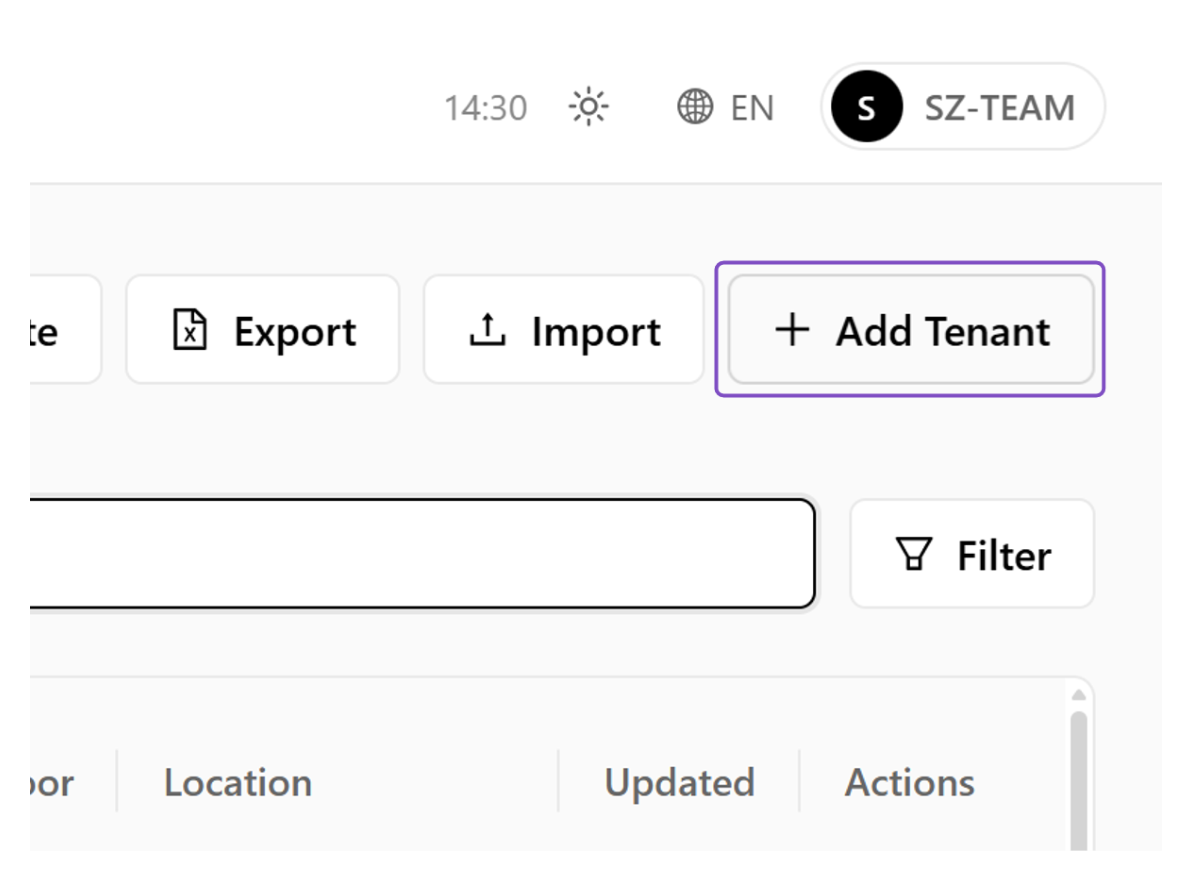 Add Tenant button
Correspondence between Tenant Configuration and Screen Design
This page describes the display positions of Chinese Name, English Name, Floor, Location, Logo, and Direction Logo of a Tenant within Screen Design.
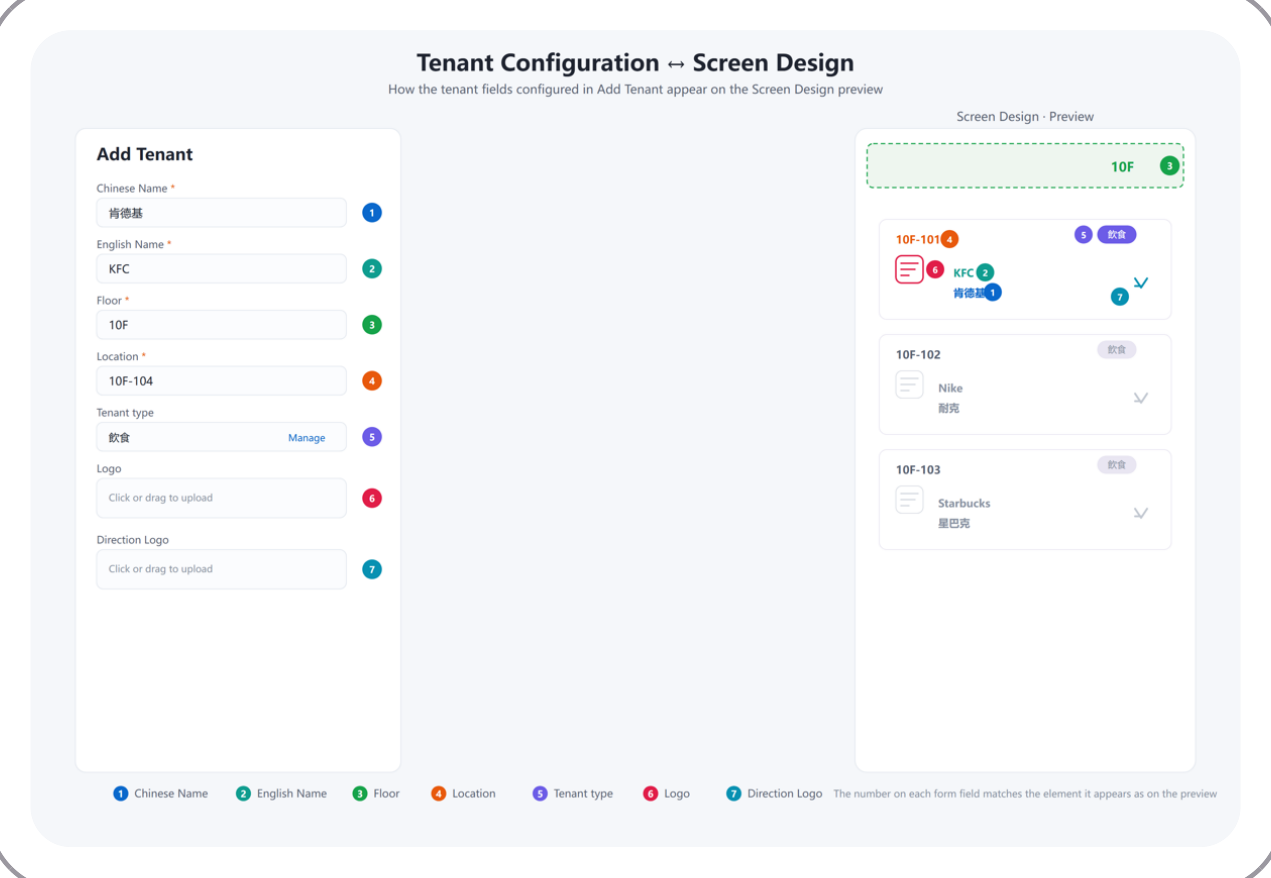 Config to Screen Design mapping
Fill in relevant information
Fill in the relevant information correctly according to the actual on-site situation, and upload the corresponding Logo.
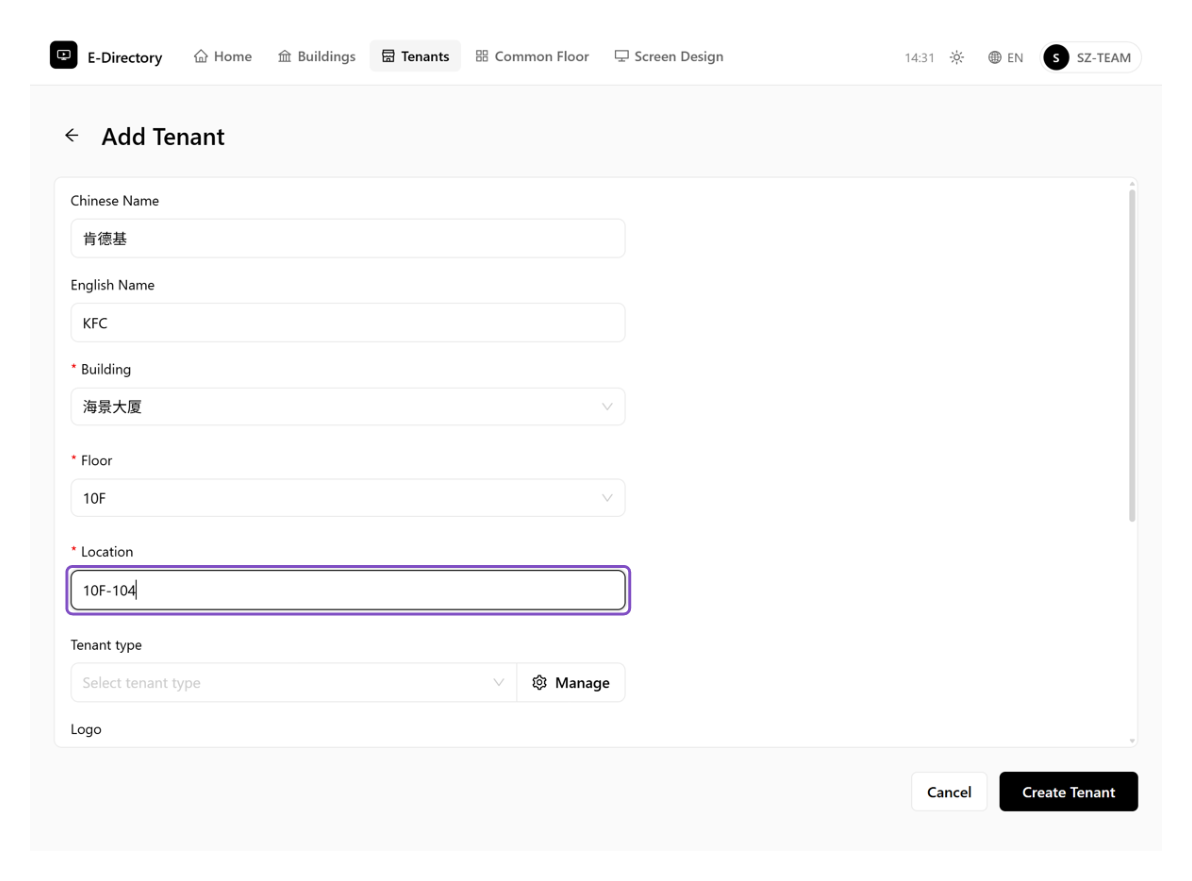 Fill in tenant information
Click on Create Tenant
Click "Create Tenant". A new Tenant will be created and can be viewed in the Tenant List.
 Create Tenant
4Edit Tenant
Modify an existing Tenant's information, such as its names and Logo.
Click on Edit
When you need to modify information such as the Chinese name, English name, or Logo, click the Edit icon to enter the editing page.
 Edit icon
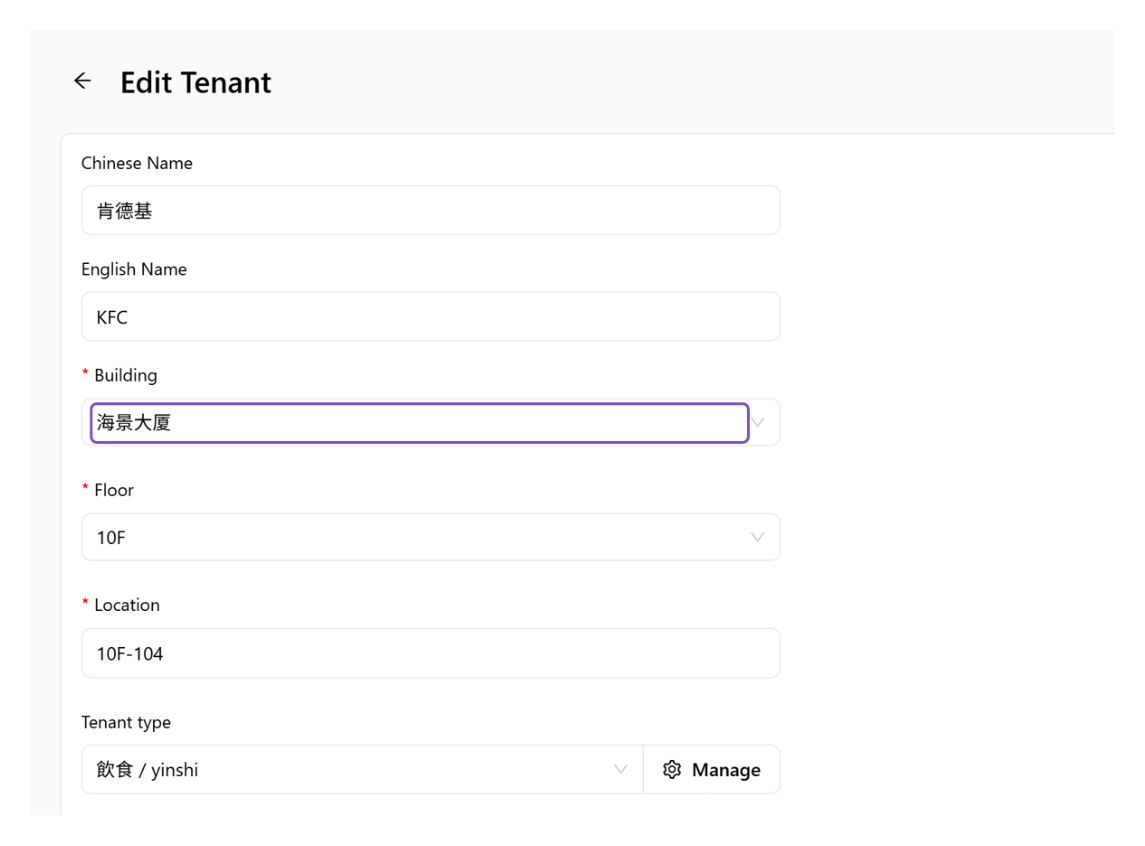
Click on Building
Modify according to your actual situation. The interface content is the same as that of Add Tenant.
 Edit Tenant page
Click on Save Changes
Click "Save Changes" after modification to save the changes.
 Save Changes
5Delete Tenant
Remove a Tenant when it is no longer needed.
Click on Delete
A. Click the Delete icon. B. Click "Delete" to confirm the removal.
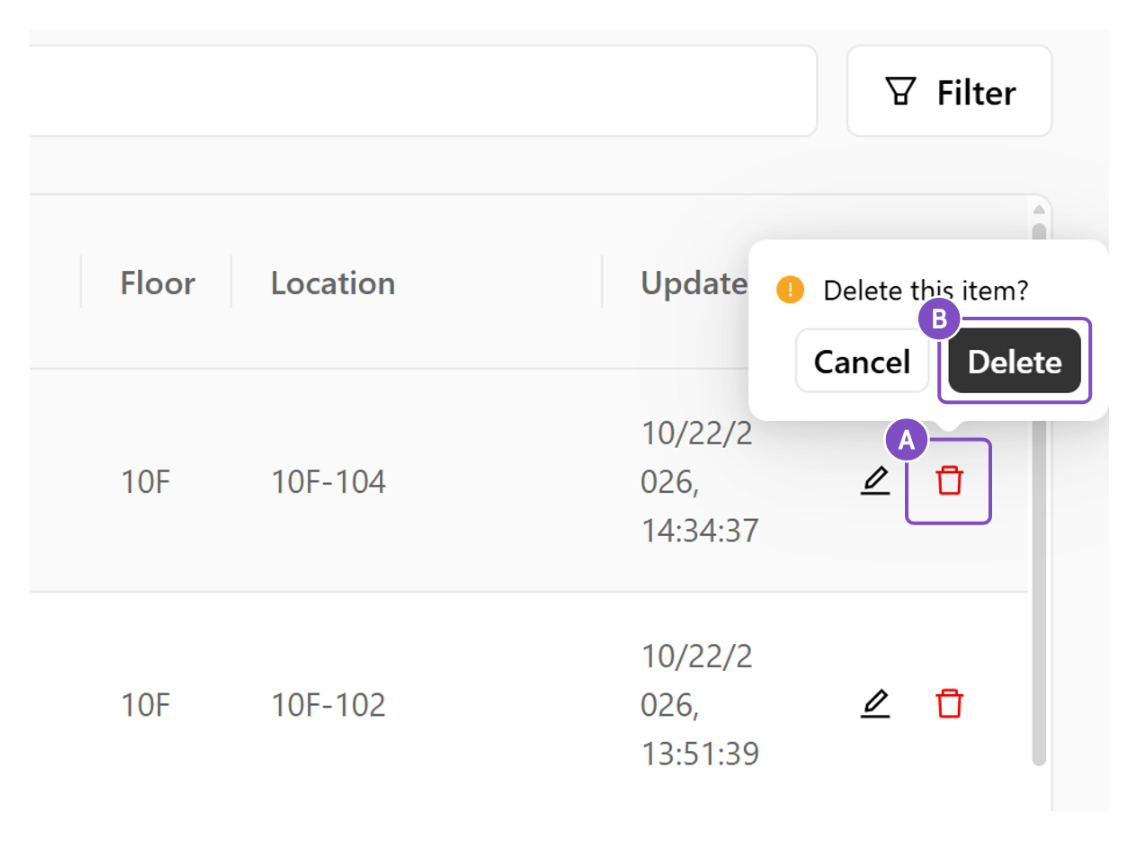 Confirm delete
Click on Cancel
A. Click the Delete icon. B. Click "Cancel" to dismiss the dialog and keep the Tenant.
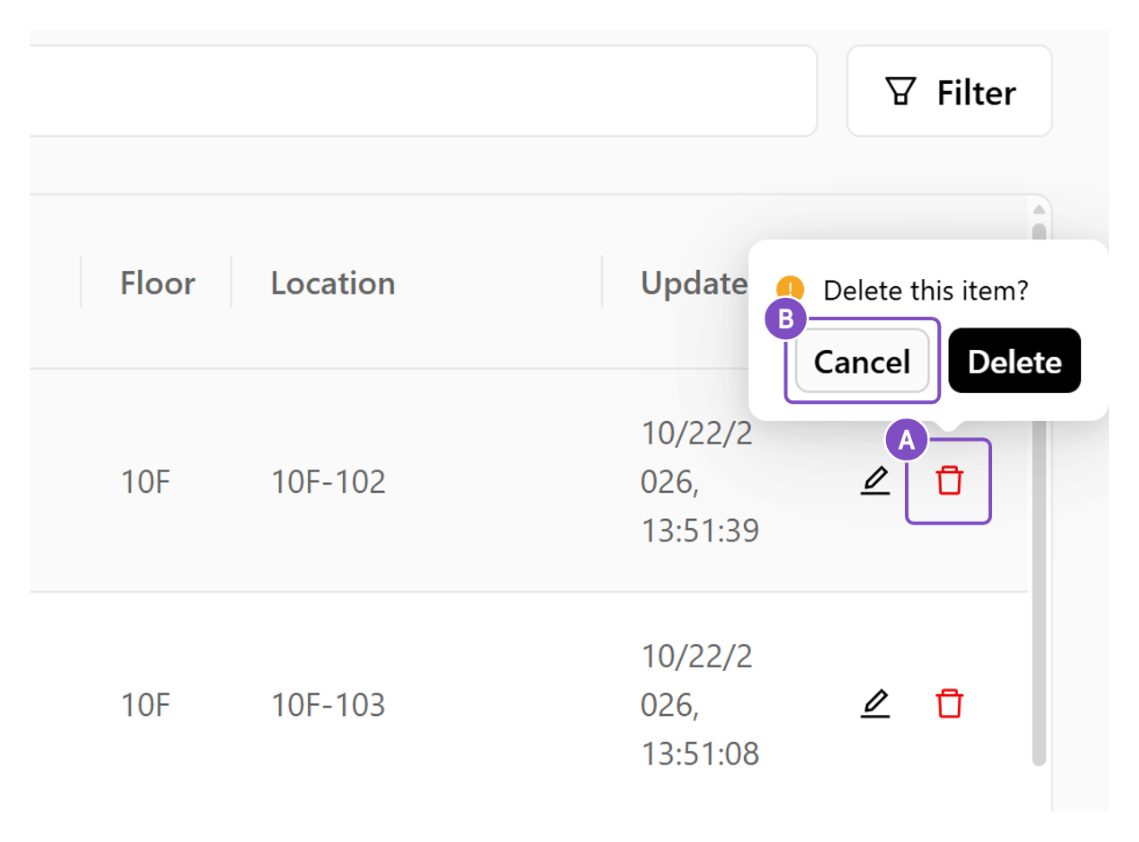 Cancel delete
6Manage Tenant Types
Manage the tenant type options that can be selected when creating or editing a Tenant.
Click on Manage tenant types
Open the tenant-type management panel.
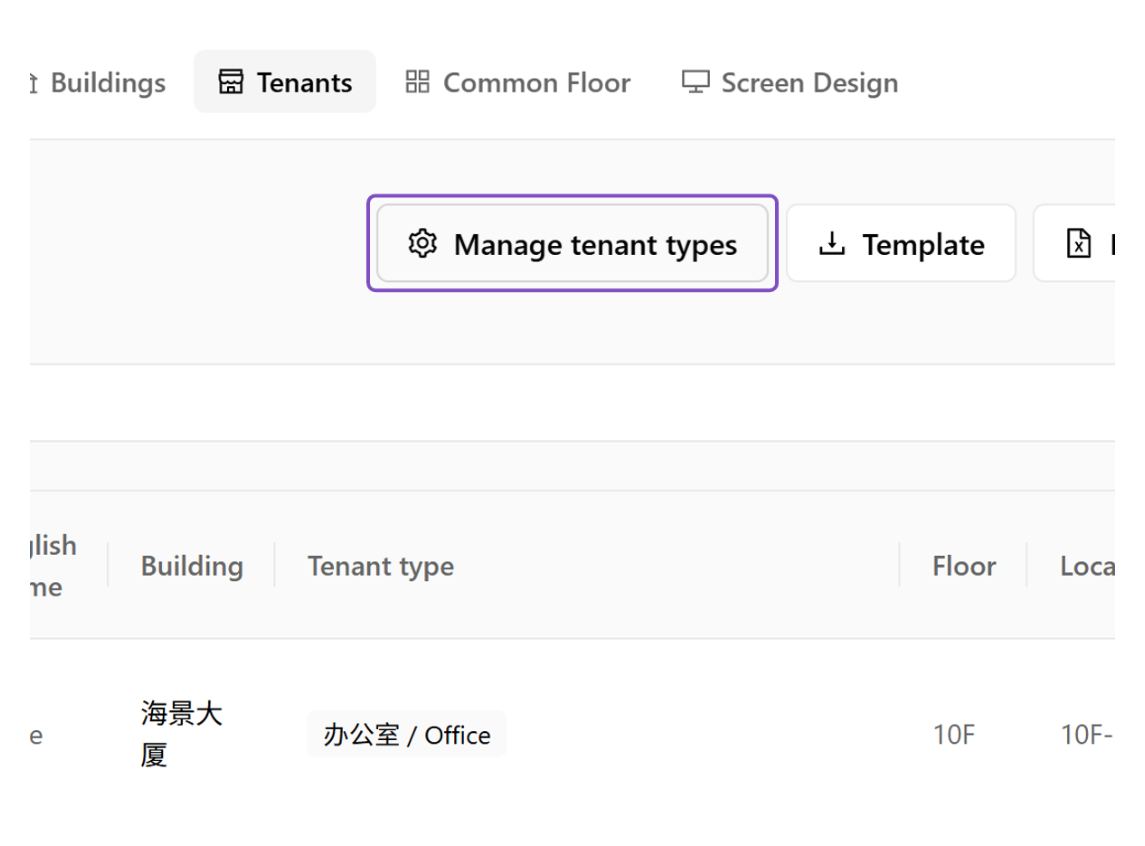 Manage tenant types entry
Click on + Add type
Click "Add type" to create a new tenant type.
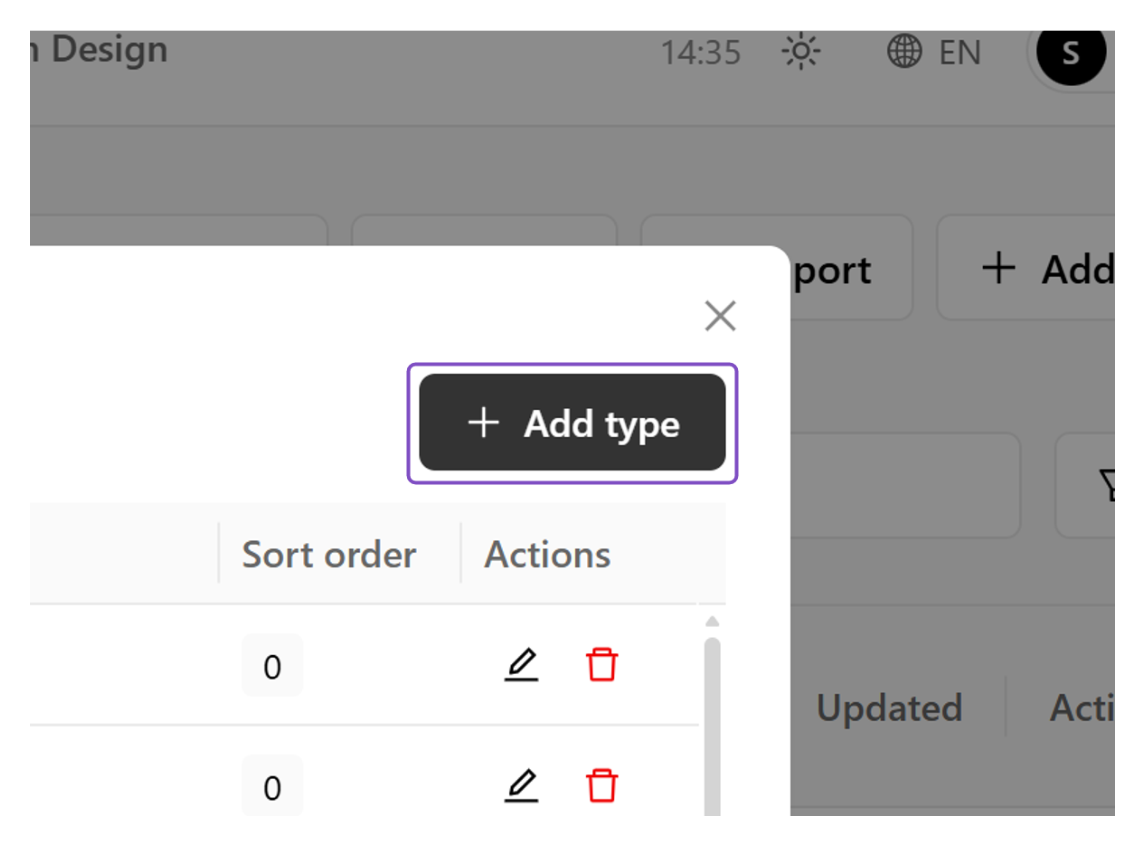 Add type button
Type the type names
A. Type the Type name (CN). B. Type the Type name (EN).
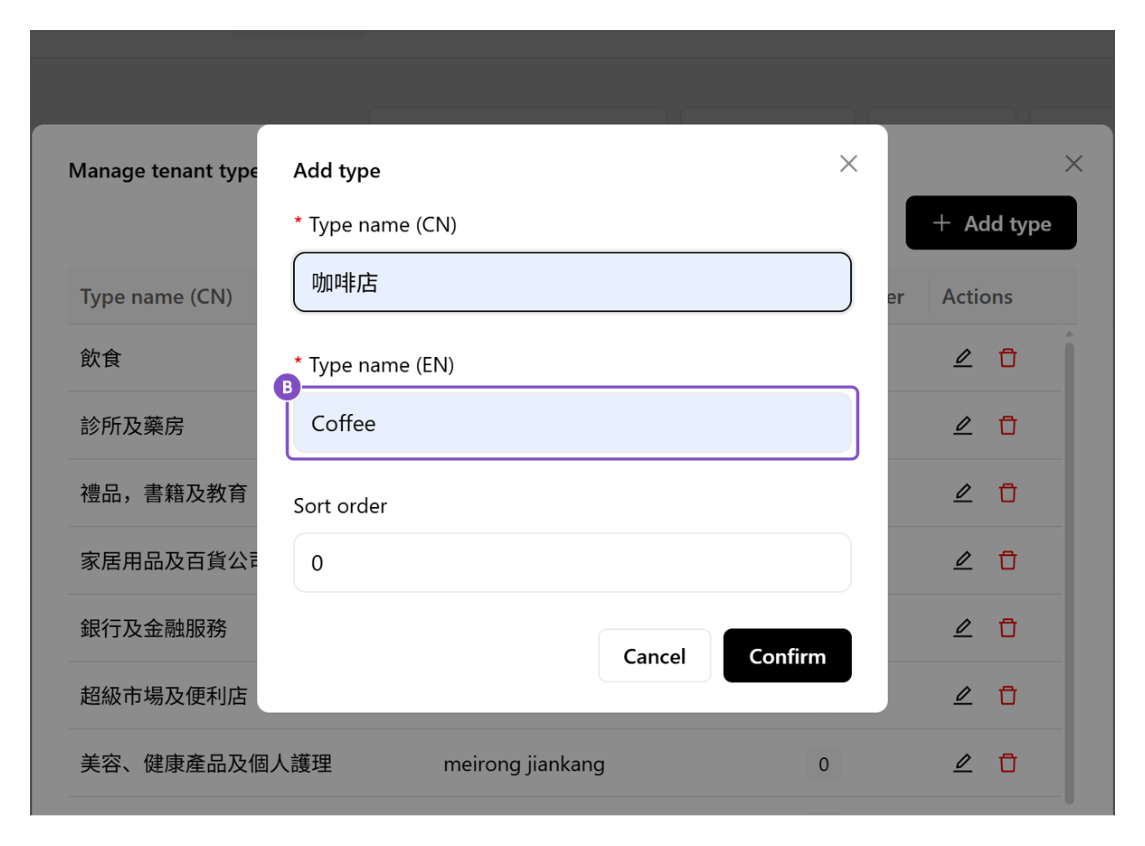 Enter the type name
Click on Confirm / Cancel
A. Click "Confirm" to save the new type. B. Click "Cancel" to discard it.
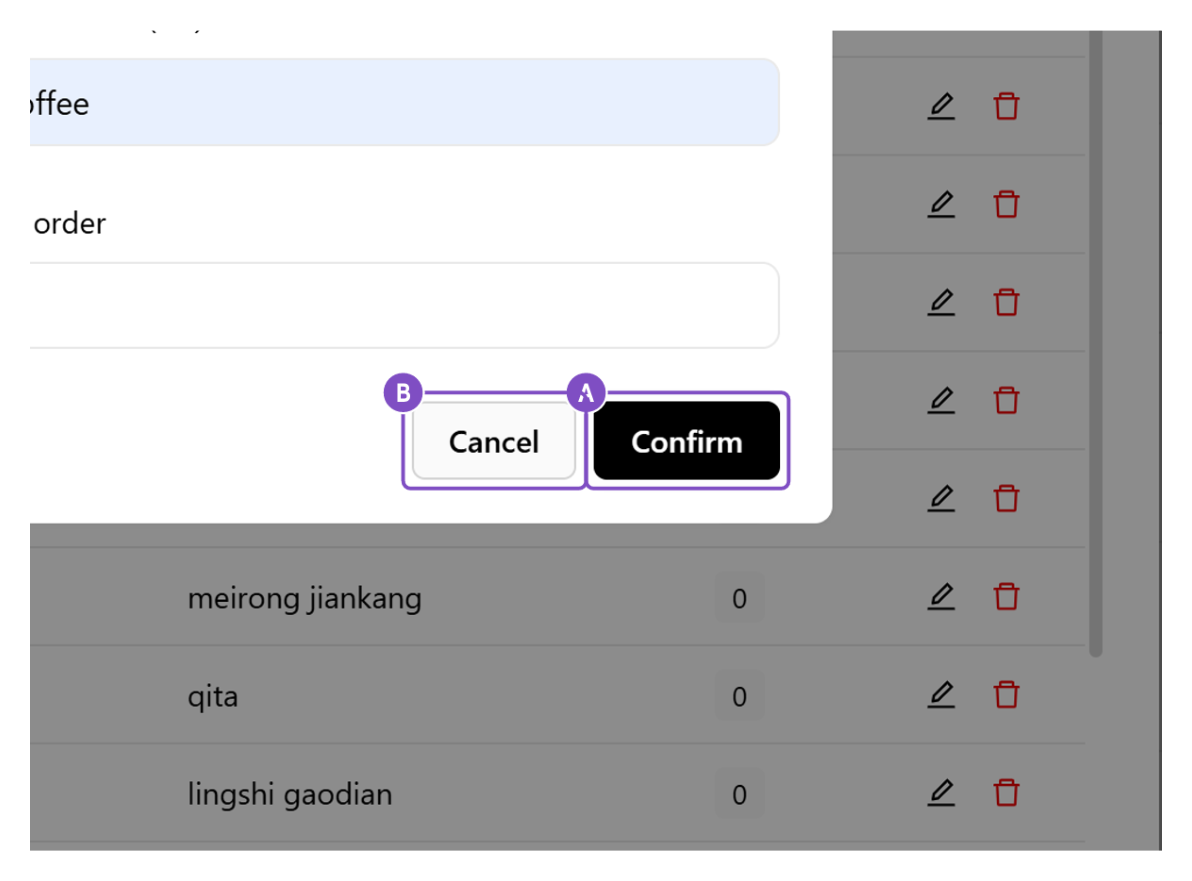 Confirm or cancel
Click on Close
Close the tenant-type management panel.
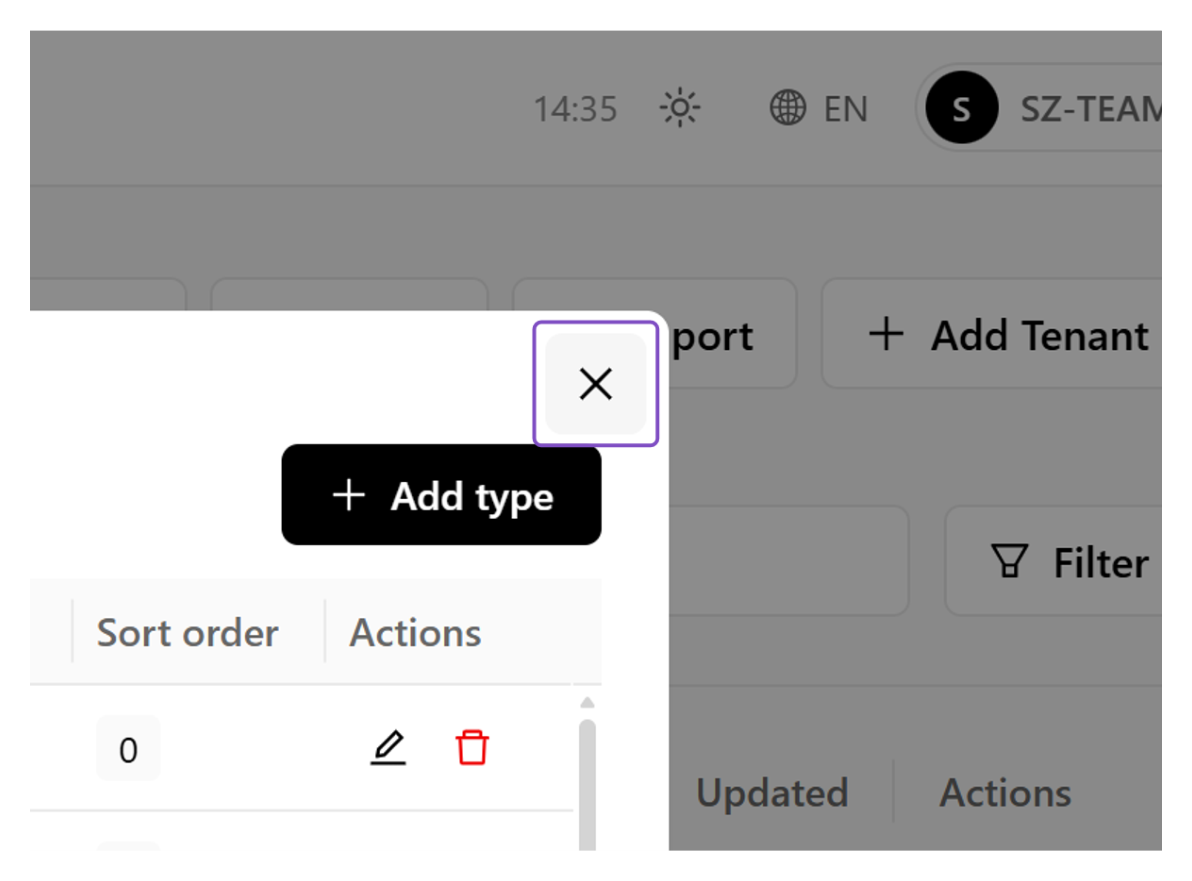 Close the panel
7Export Template
Export an Excel template as the basis for bulk tenant import.
To import tenants in bulk, export the provided Excel template, fill in the tenant data according to it, and use the completed file as the basis for the subsequent bulk import.
Click on Template
Click "Template" to download the Excel template.
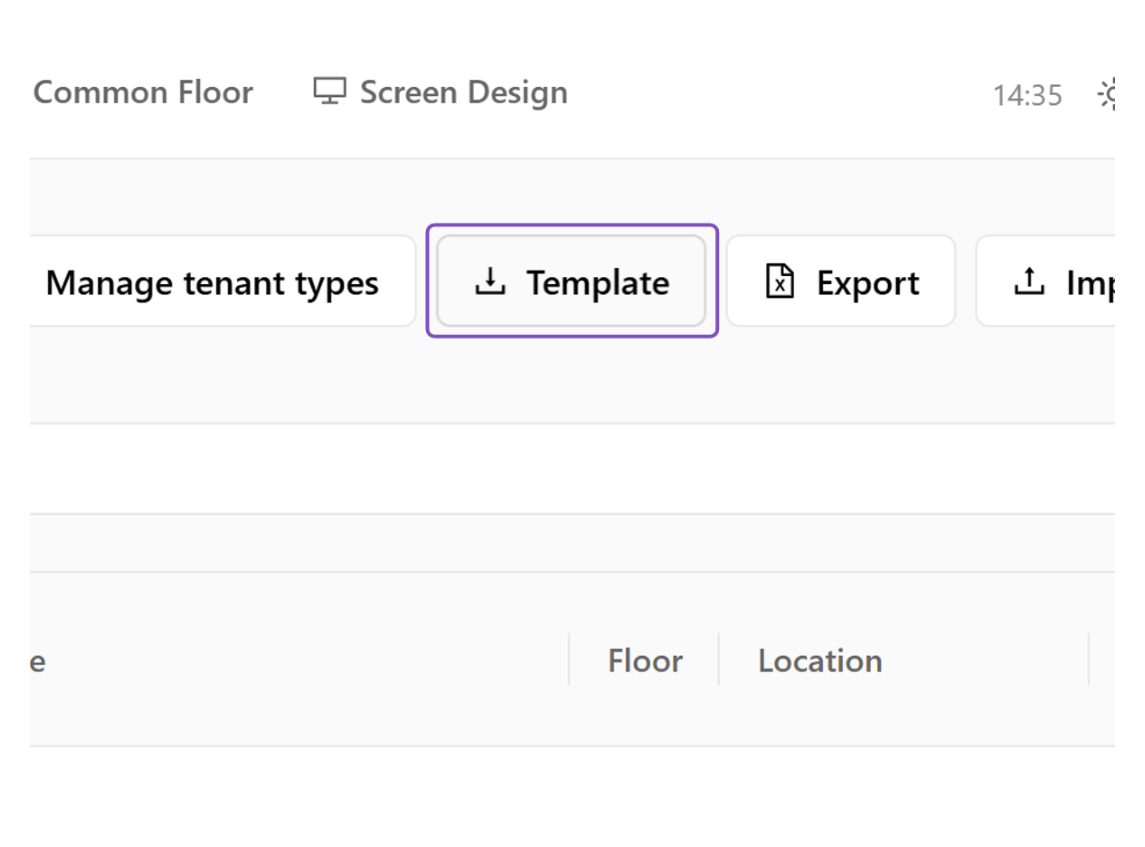 Template button
Template Excel
The template style that opens after export.
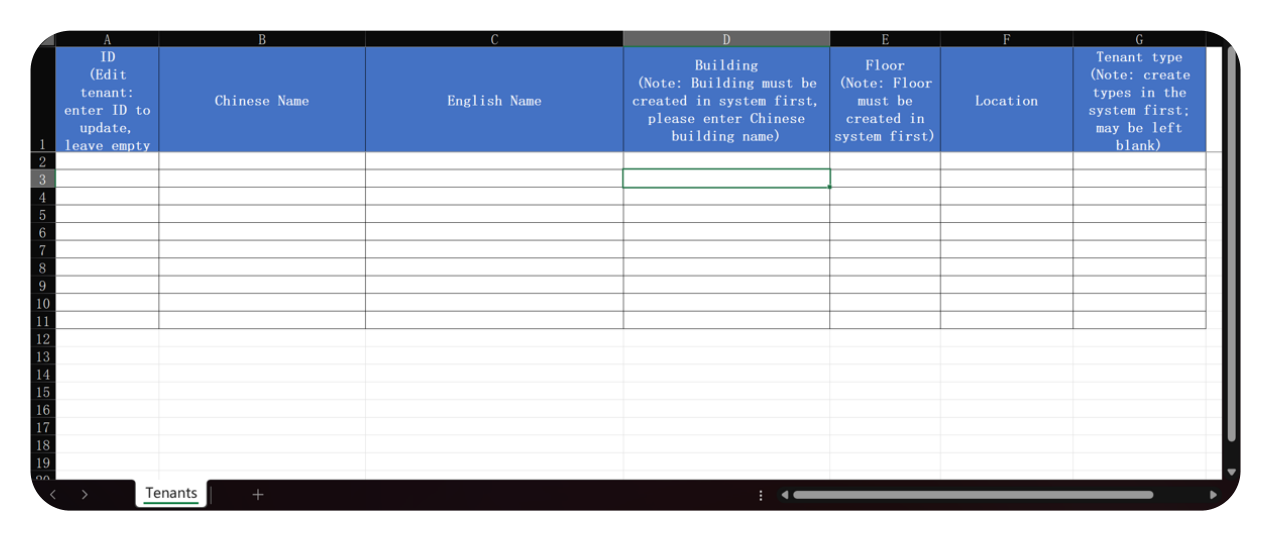 Excel template
8Export Tenants
Export all current tenants to your local computer.
Click on Export
Clicking "Export" will automatically export all tenants to the local computer.
 Export button
Export (Excel)
All tenants are exported as an Excel file.
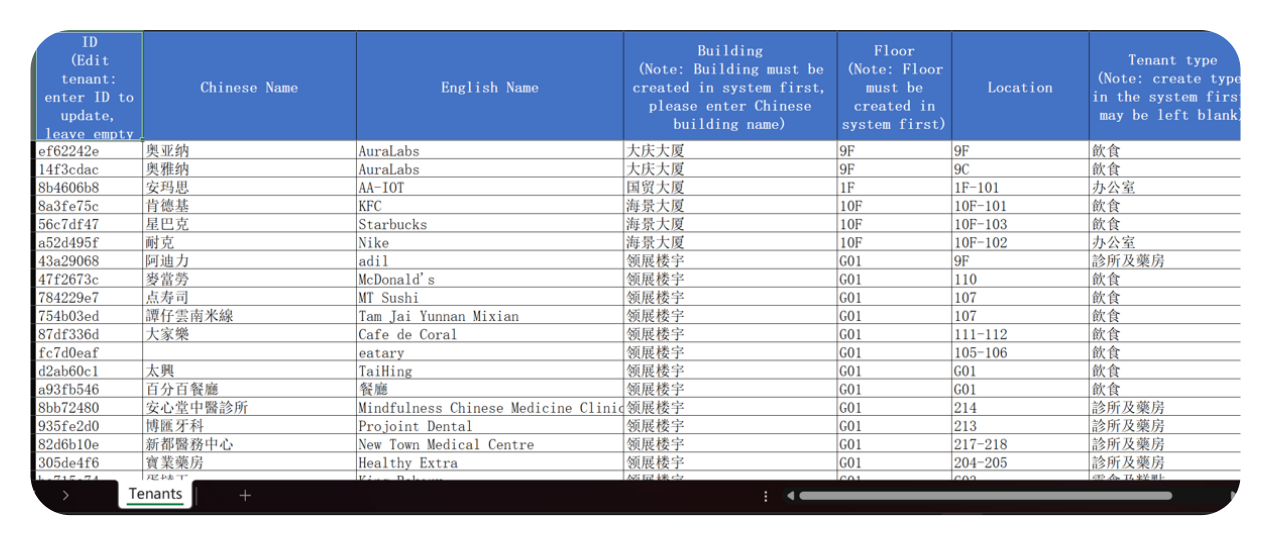 Exported Excel file
9Import Tenants
Import tenants in bulk from an Excel file.
You can export tenants in batches and use the Excel template created in Export Template as the import resource.
Click on Import
Click "Import" to start the bulk import.
 Import button
Choose an import method
Download the template, fill it in, and import it.
Tenant Logo and Direction Logo need to be uploaded manually.
Export tenants to edit, modify, and re-import.
Logo changes need to be uploaded manually.
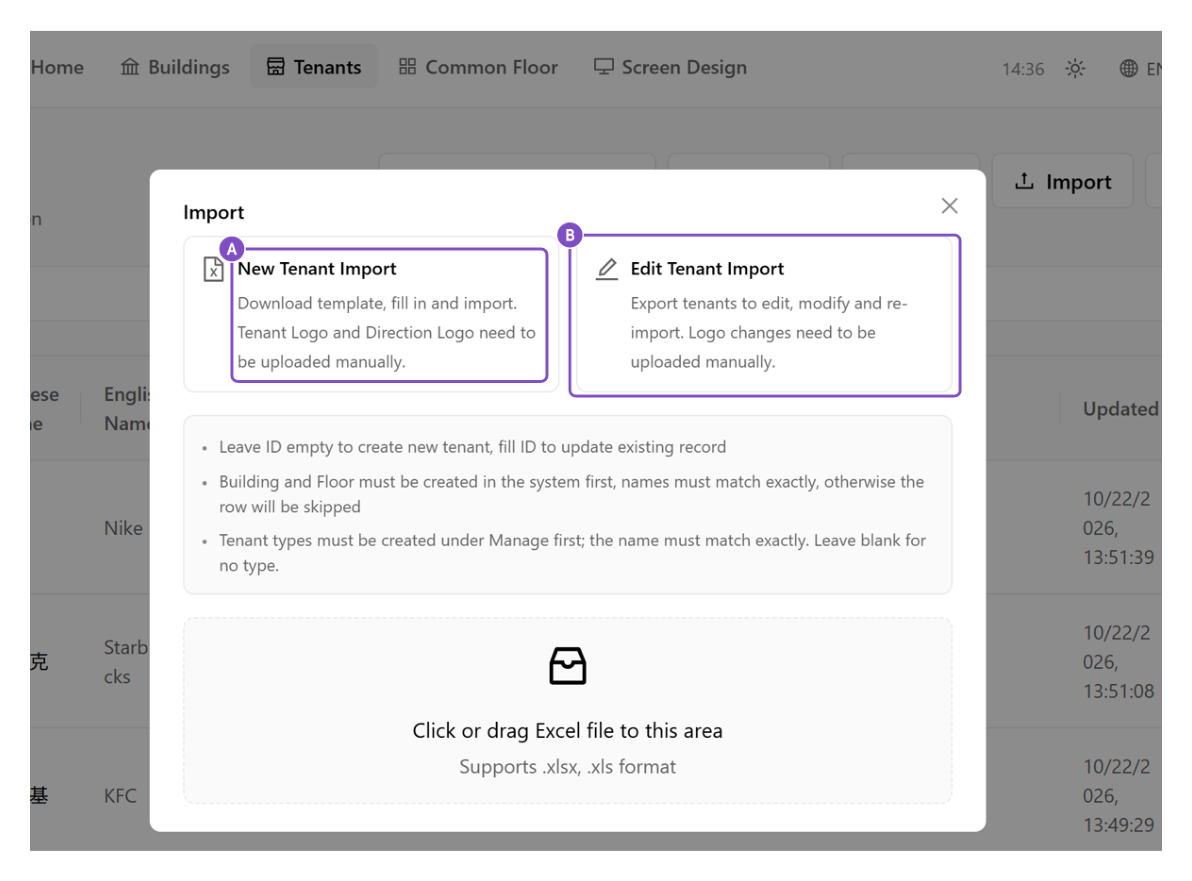 Import options
Select the Excel template
After clicking, you can select the Excel template to upload.
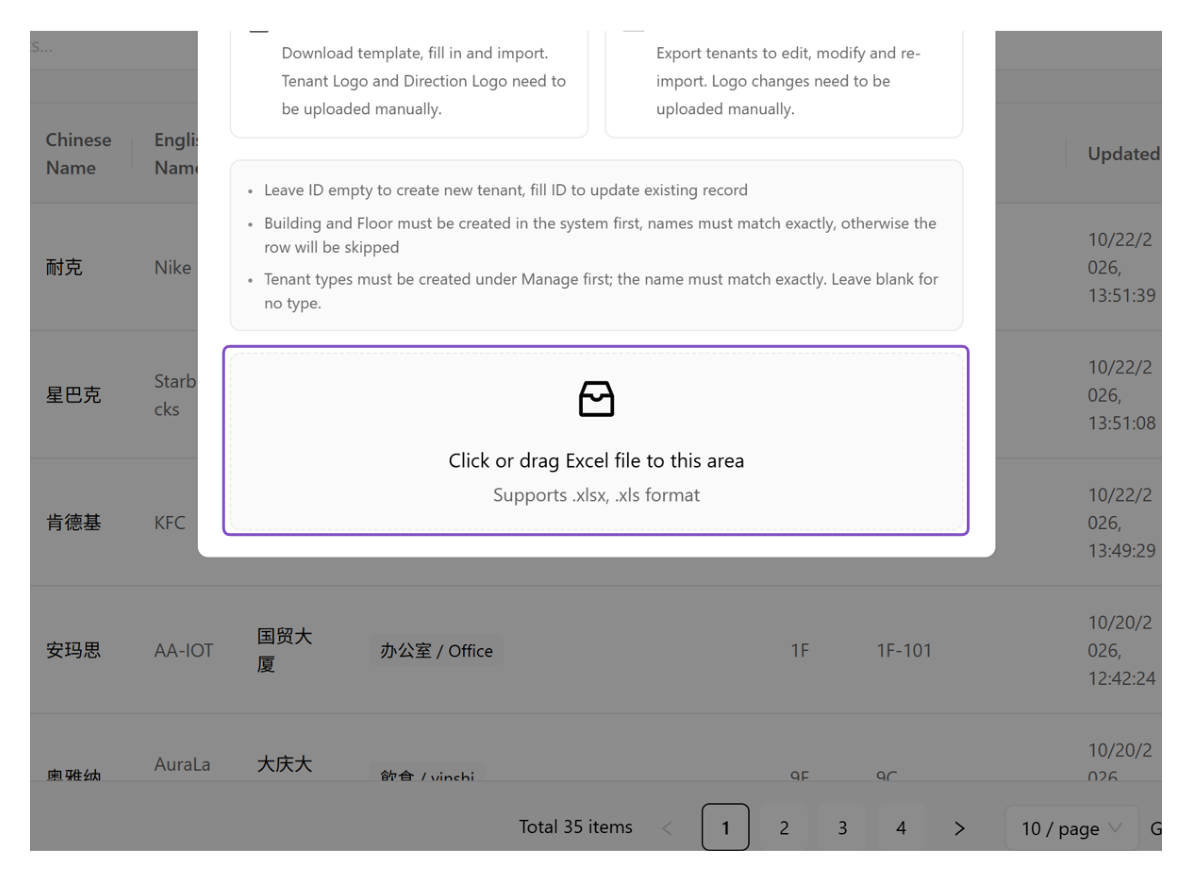 Select Excel file
Click on Close
Close the import dialog once the import is complete.
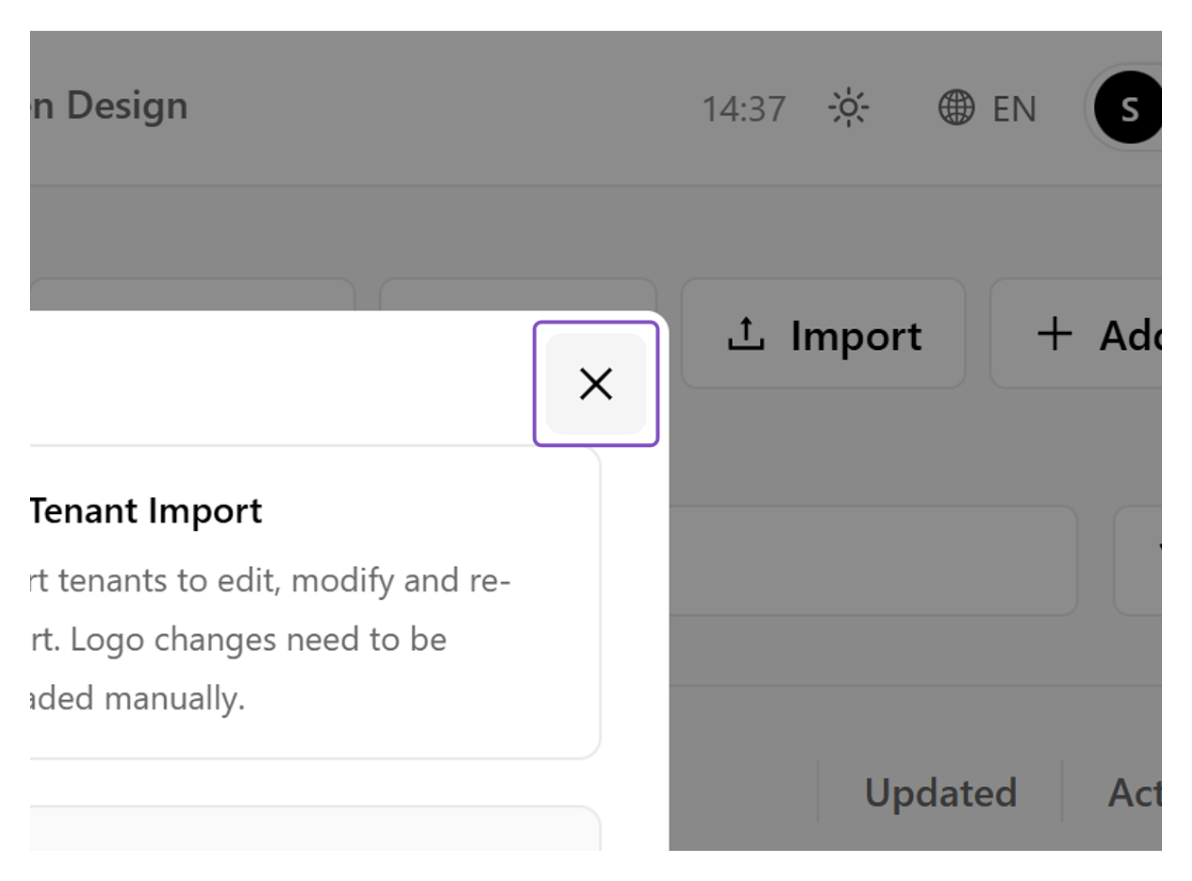 Close the import dialog