Screen Design
1Overview
This chapter walks you through configuring a Screen Design in E-Directory: creating a design from a template, selecting the building and floor to display, and fine-tuning the style, public floors, logo, font, color and border settings until the on-screen directory looks right.
2Screen Design Main Page
Open the Screen Design page to configure screen display settings.
Click on Screen Design
Click the "Screen Design" entry to open the page. It is organized into the following sections:
- Section 1Page header information
- Section 2Filter
- Section 3List of Screen Designs
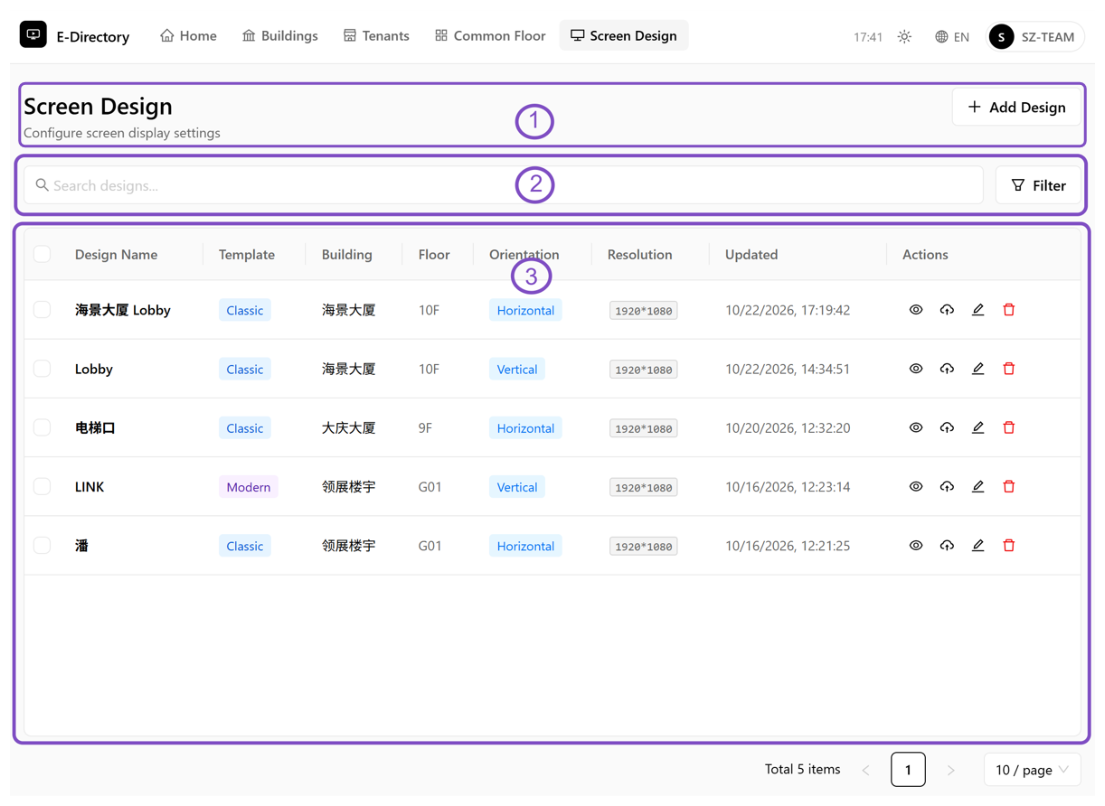 Screen Design main page
3Add Design
Create a new Screen Design, select the building and floor, and configure its display settings.
Click on + Add Design
Click the "+ Add Design" button to create a new Screen Design.
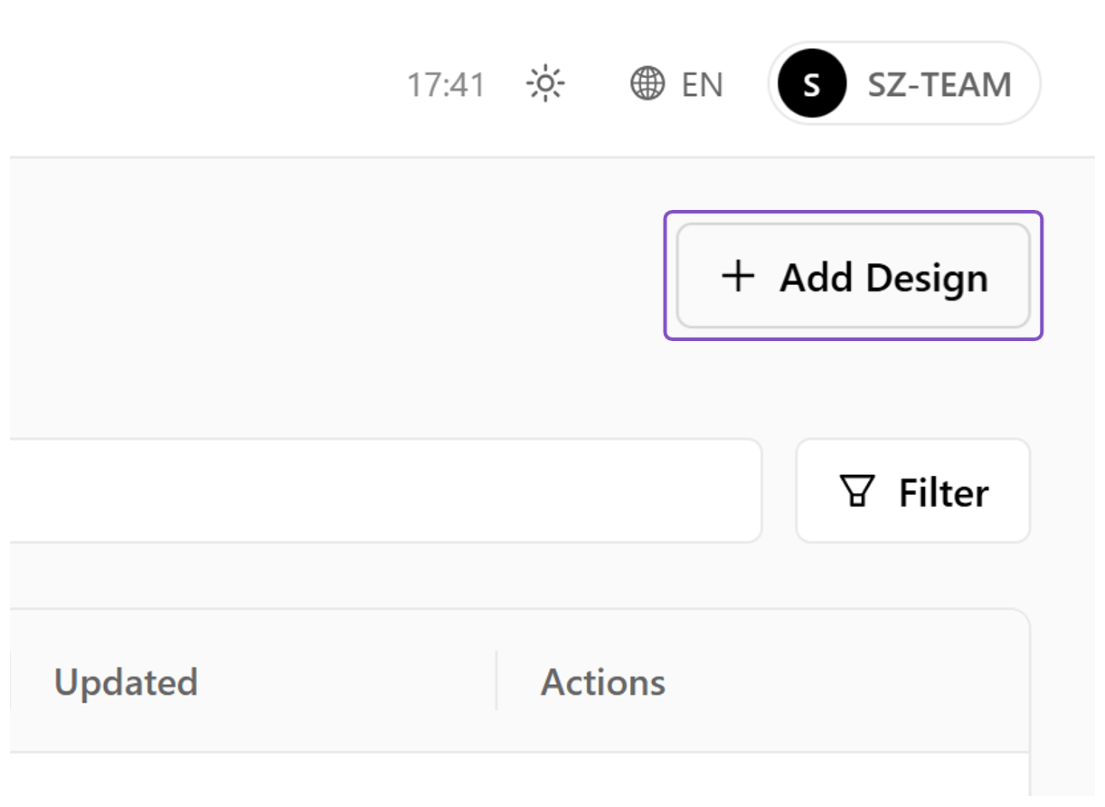 Add Design button
Select a Template & Click on Next
A. In the "Select Template" step, choose a screen layout template, then continue to edit content and styles. B. Click "Next" to proceed.
Top logo + floor label, single-column tenant list
A single-column tenant directory under a top logo and floor label.
Directory style: categories in two columns, name + floor, logo bottom-right
A directory-style layout with categories in two columns and the logo at the bottom-right.
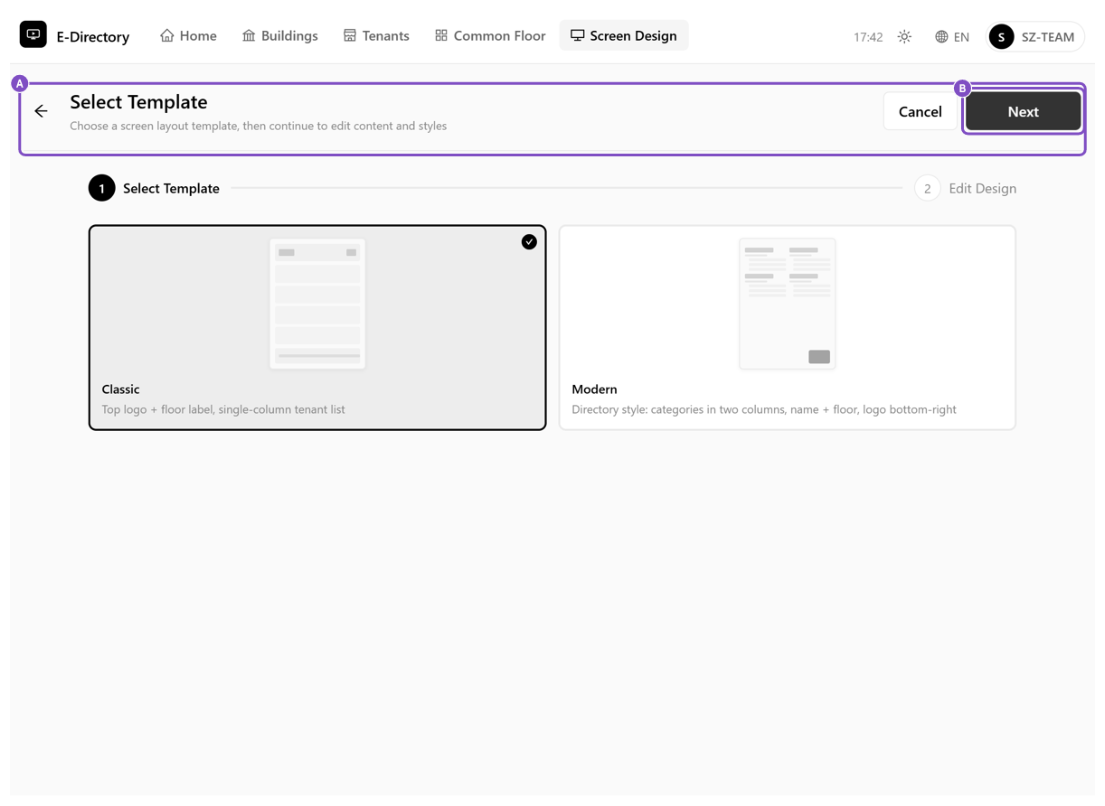 Select Template step
Type Design Name
Type a name for the design so it is easy to recognize later — for example, "Lobby 海景大厦".
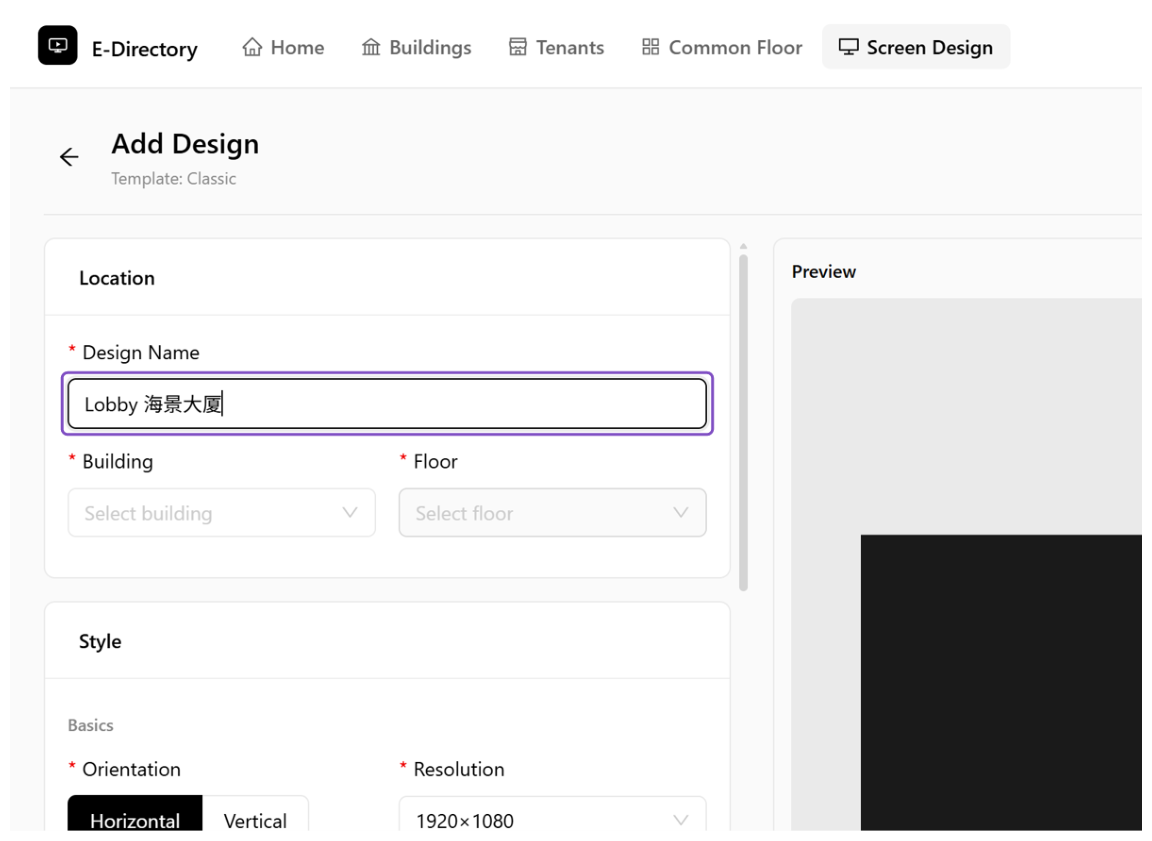 Type the design name
Click on Building
Click the "Building" field to open the building list.
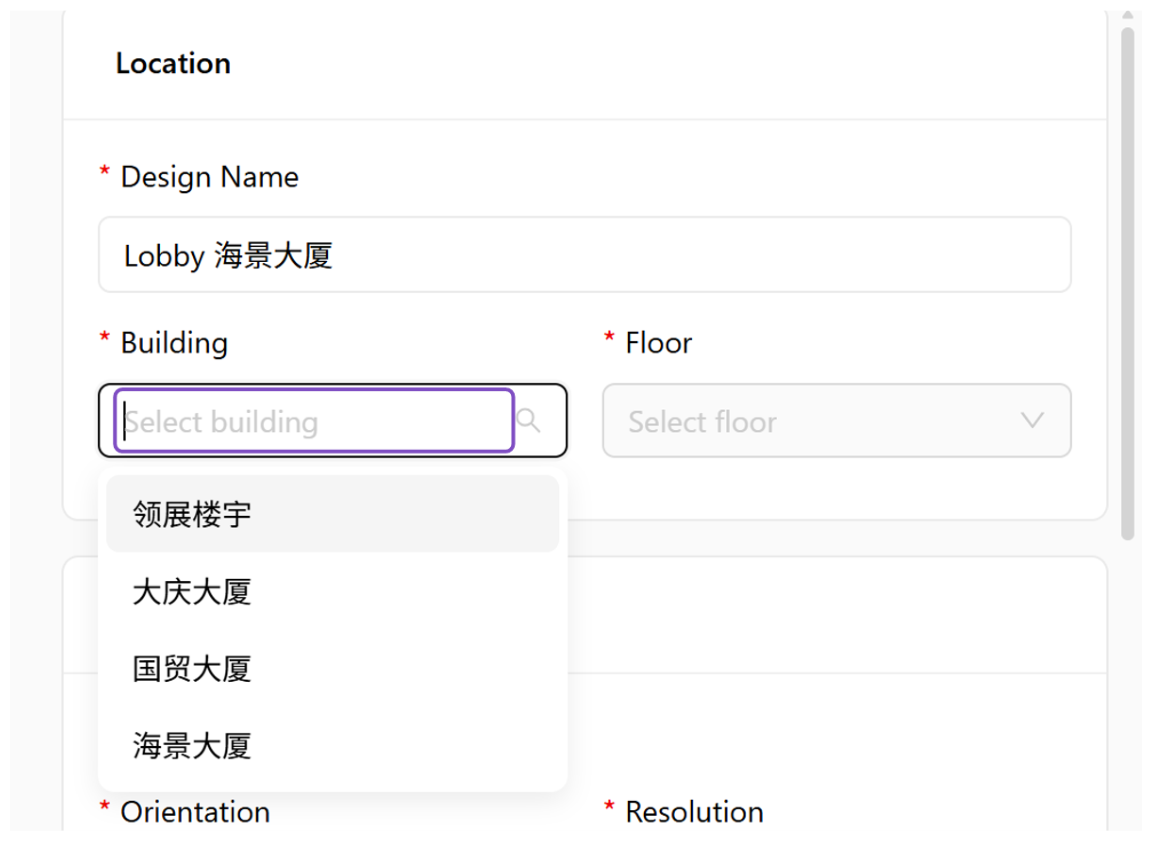 Building dropdown
Click on a company
Select the building whose tenants will be displayed — for example, 海景大厦.
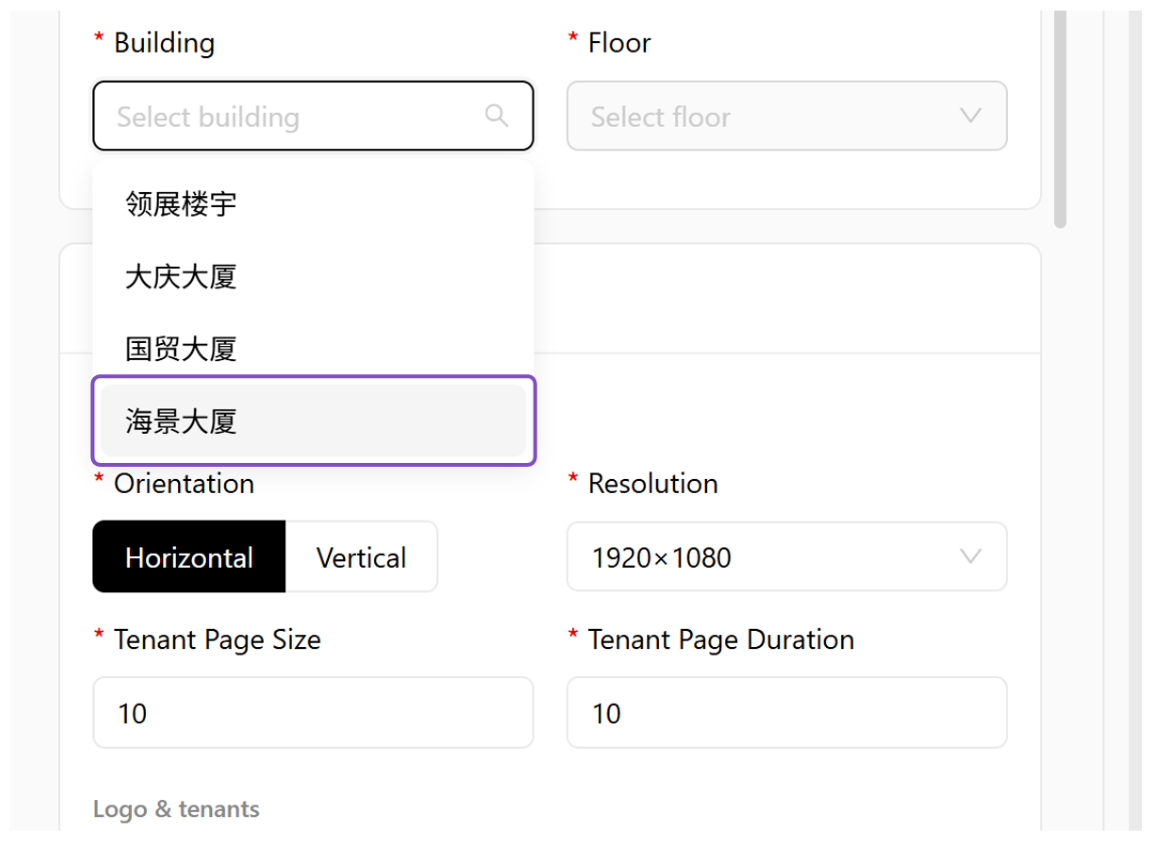 Select the building
Click on Floor
Click the "Floor" field to open the floor list.
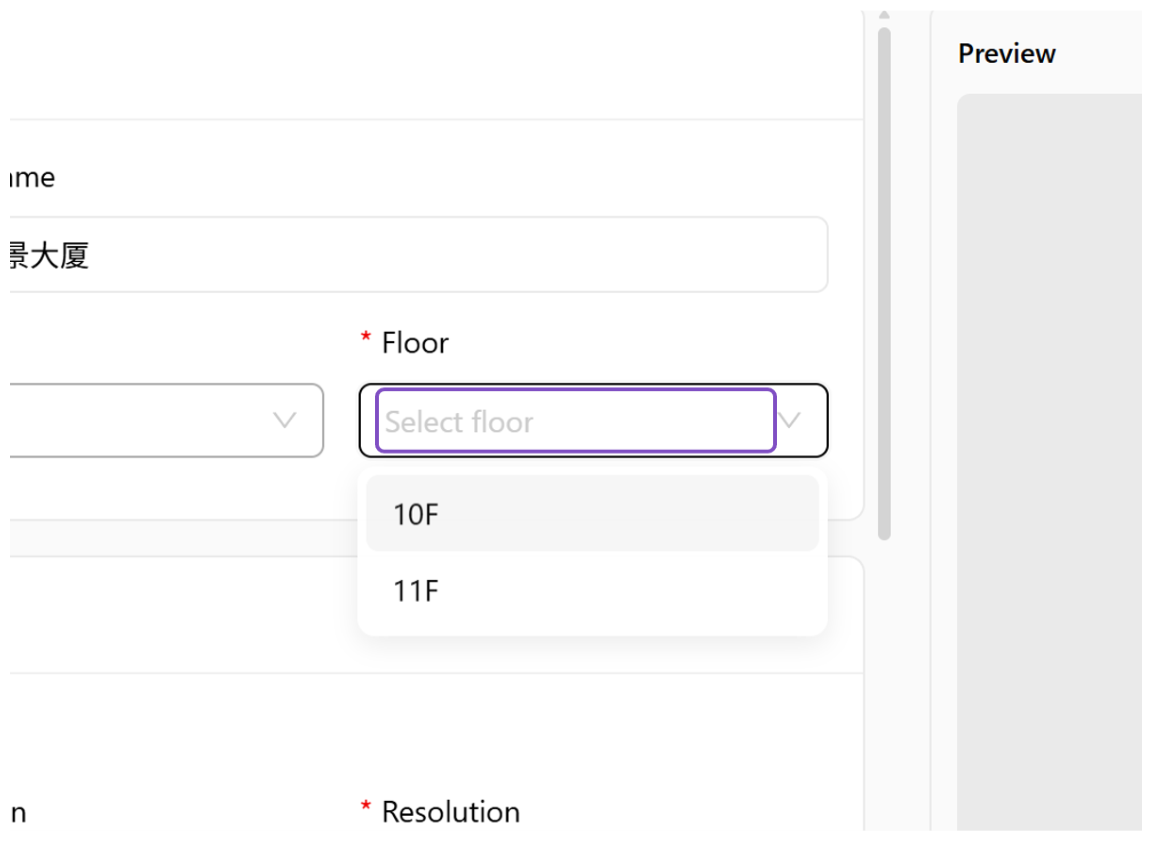 Floor dropdown
Click on 10F
Select the floor to display on this screen — for example, 10F.
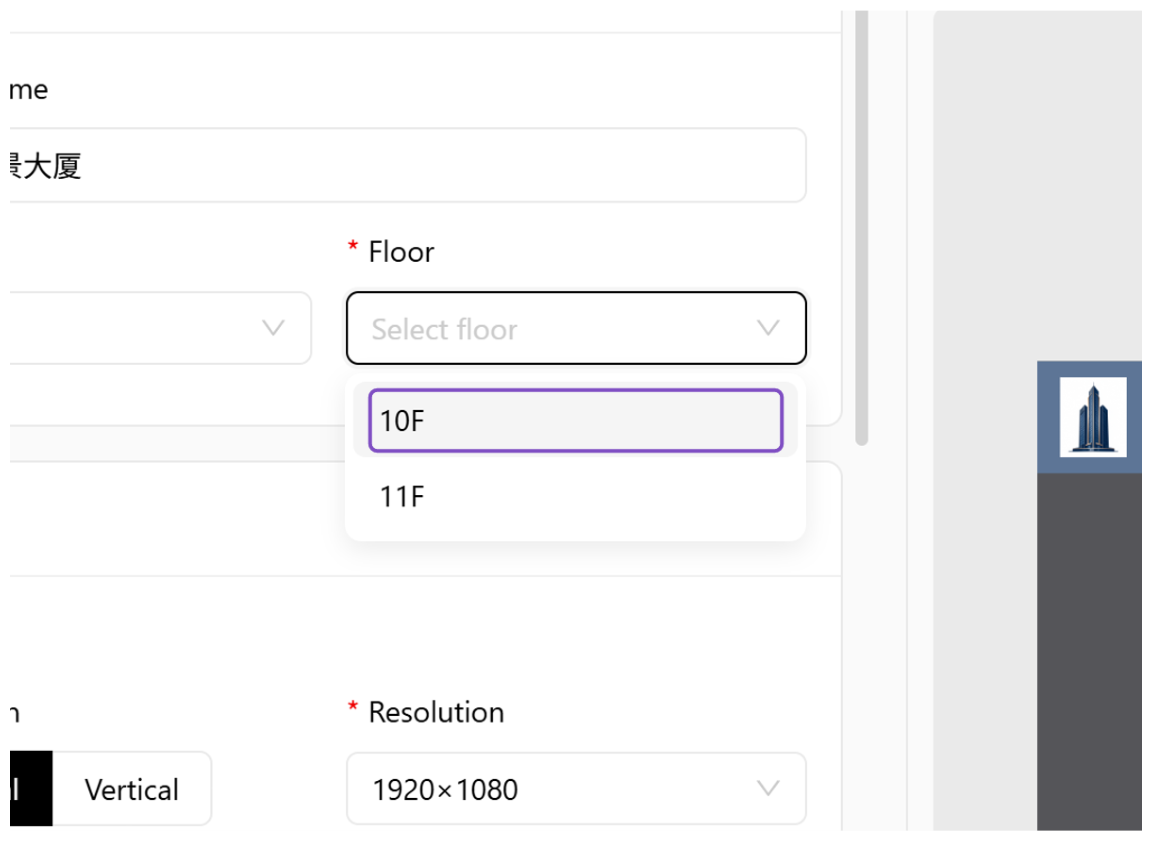 Select the floor
Configure the Style
A. Click on "Style" and set the Orientation, Resolution, Tenant Page Size and Tenant Page Duration. B. Under "Logo & tenants", set the Logo Width and Logo Height. C. Under "Font family", choose the Tenant English Font and the Tenant Chinese & Other Font.
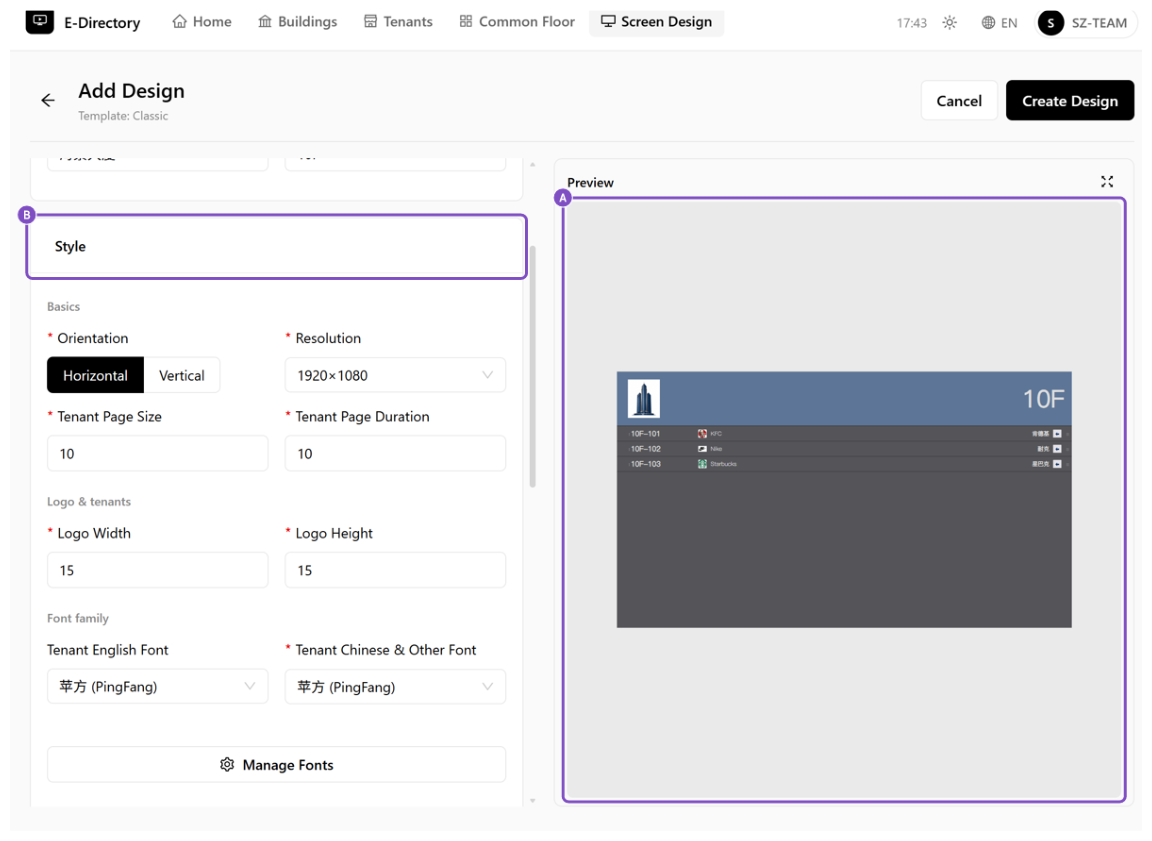 Style, logo and font settings
Configure Public floors
Click on "Public floors" and set the Common Floor Page Size, Common Floor Page Duration, Common Floor Area Height and Background Fit Mode.
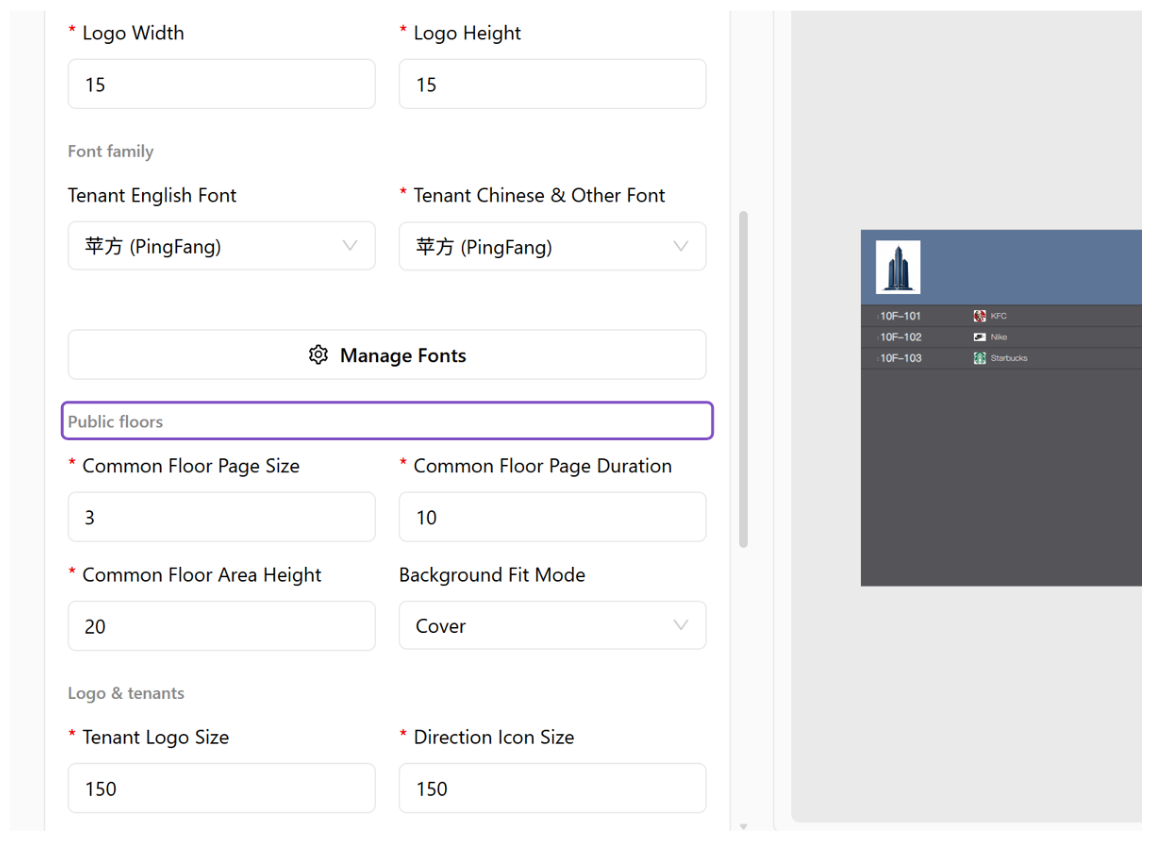 Public floors settings
Configure Logo & tenants
Click on "Logo & tenants" and set the Tenant Logo Size, Direction Icon Size, Floor Font Size, Tenant Font Size, Location Font Size and Common Floor Font Size.
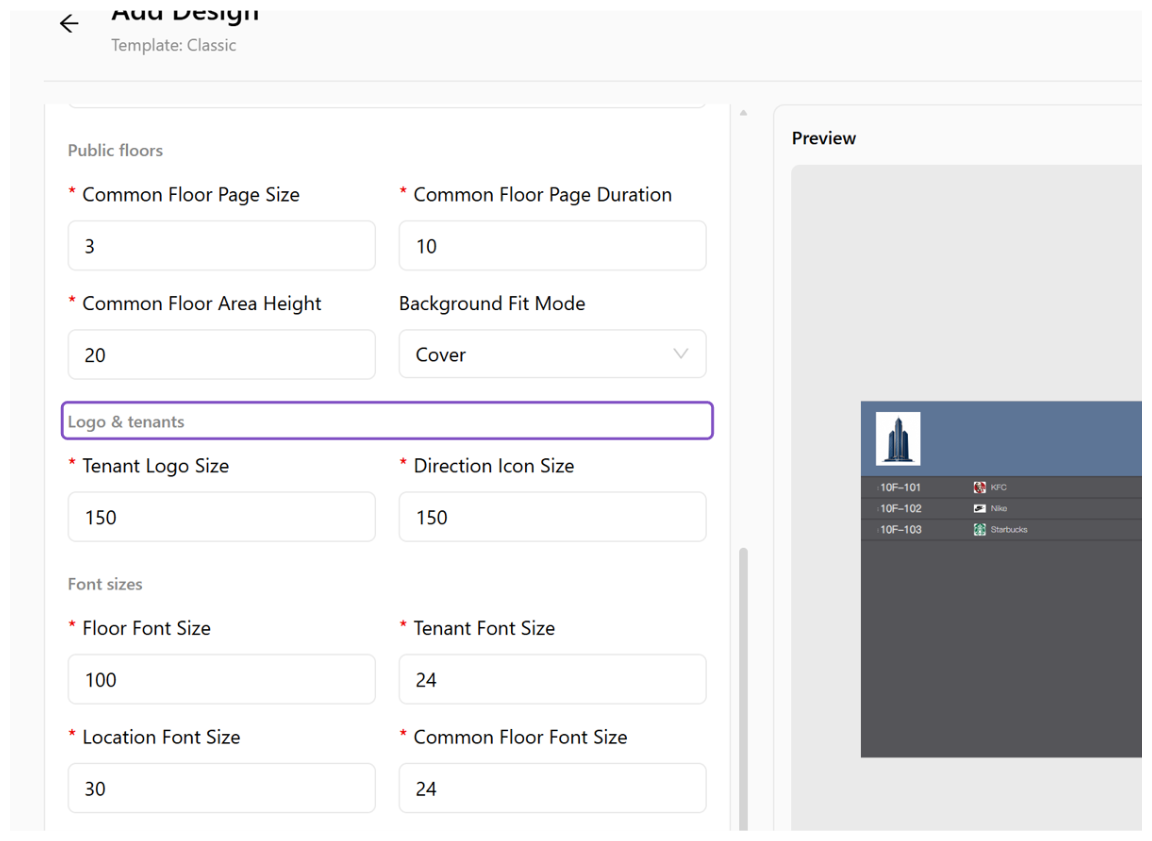 Logo and tenant settings
Configure Colors
Click on "Colors" and set the Floor Font Color, Tenant Font Color, Tenant Border Color and Common Floor Font Color.
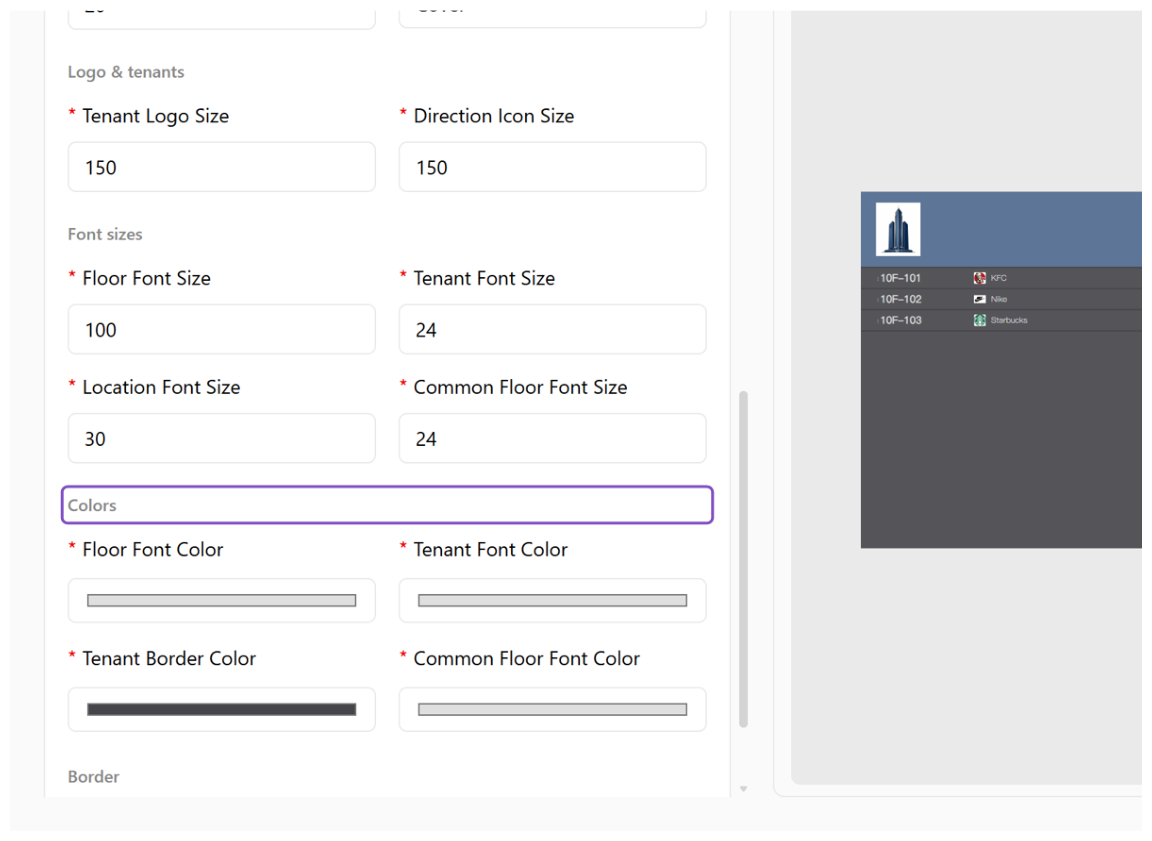 Color settings
Configure Border
Click on "Border" and set the Tenant Border Width.
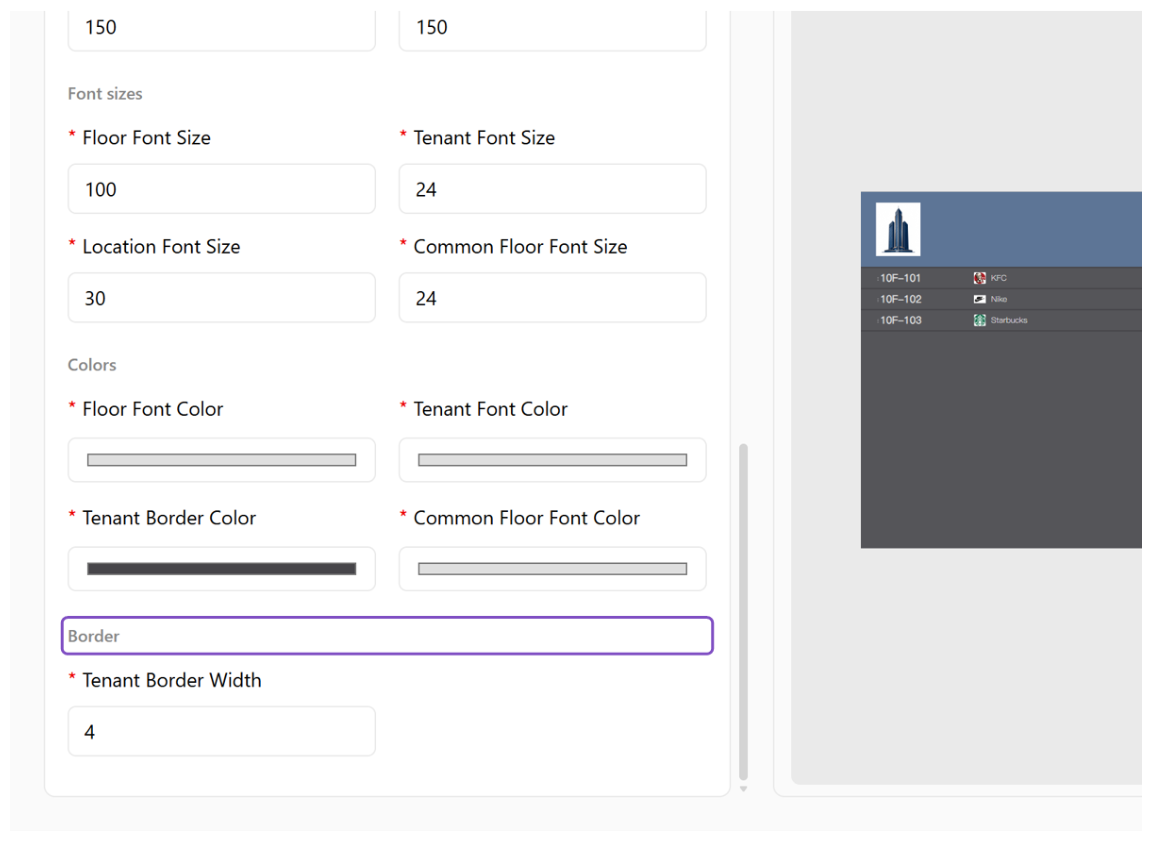 Border settings
Click on Create Design
Once all the settings are configured, click "Create Design" to save the Screen Design.
Create Design4Edit Design
Modify an existing Screen Design's settings.
Click on Edit icon
When you need to modify a design, click the Edit icon to enter the editing page.
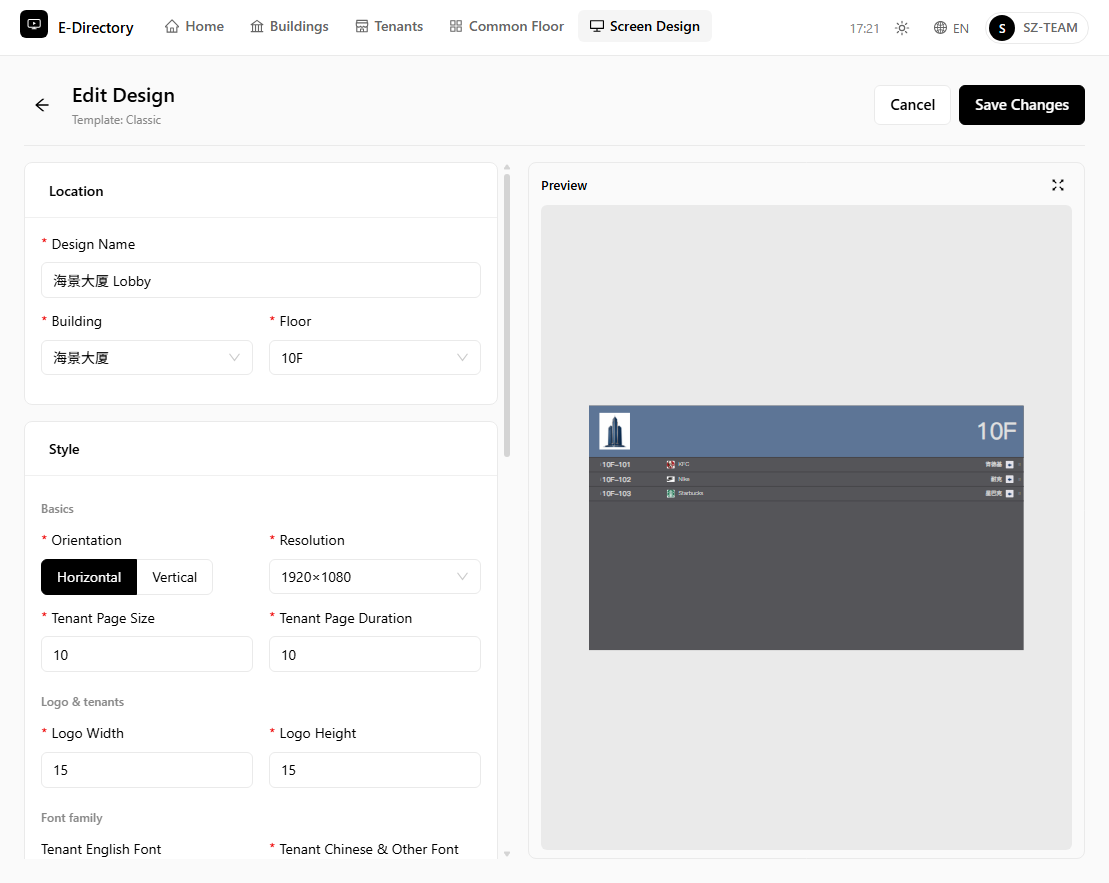 Edit Design page
Click on Save Changes
The Edit Design page is the same as the Add Design page, with the existing settings pre-filled (Design Name, Building, Floor, and all style settings). Modify the settings as needed, then click "Save Changes" to apply them.
5Preview
View the finished screen design in full screen.
Click on Preview icon
Click the Preview icon to open the full-screen preview of the design, showing the tenants of the selected floor with their room number, logo, English and Chinese names.
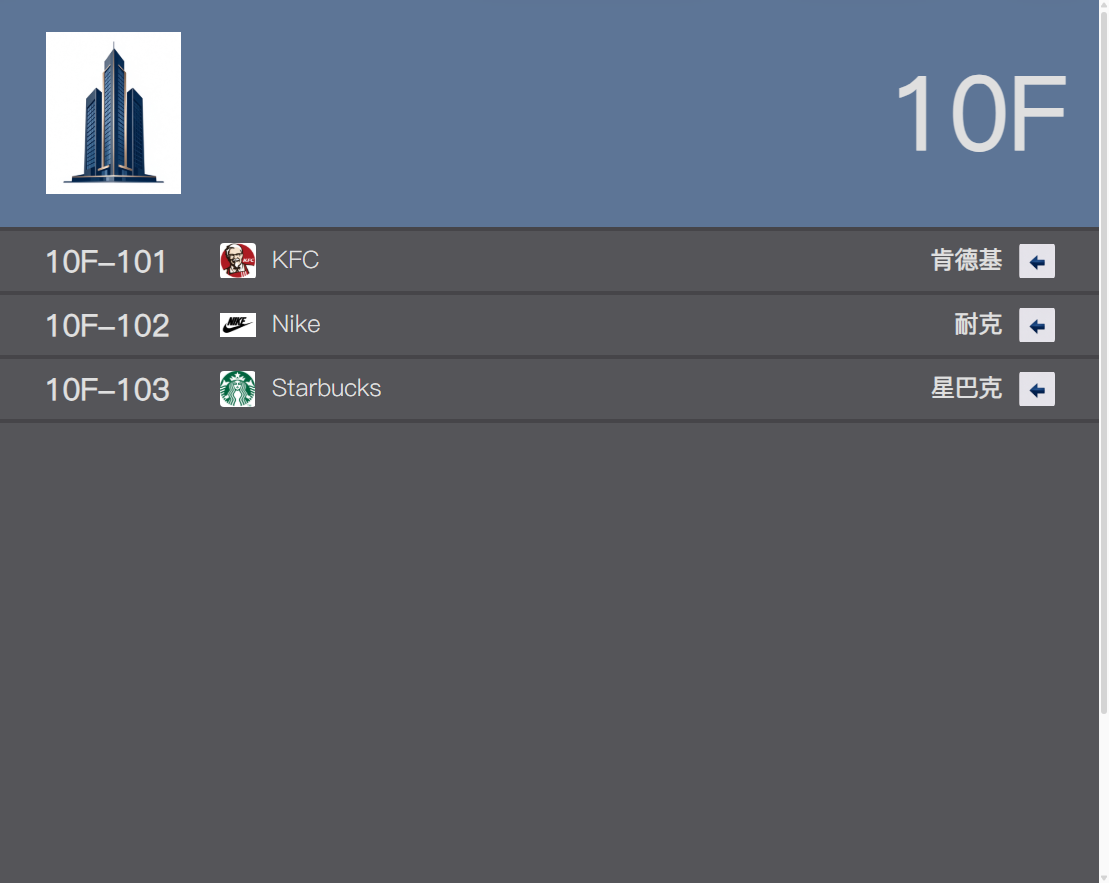 Full-screen preview
6Save to Media Library
Save the design to the Media Library so it can be published to a player.
Save the designed E-Directory to the Media Library folder so that it can be published as a Vispoint resource to the corresponding player.
Click on Save to first Media Library folder
Click the Save icon on the design row to save the design to the first Media Library folder.
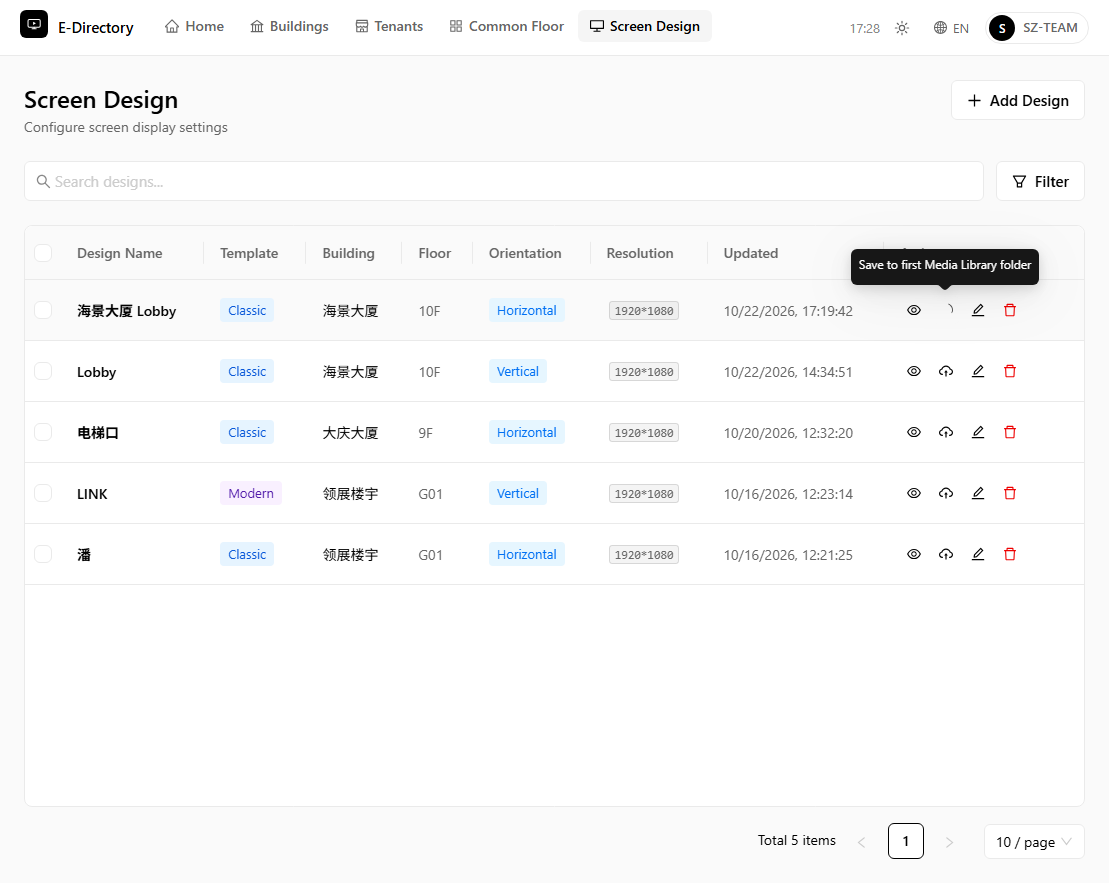 Save to first Media Library folder
7Delete
Remove a design when it is no longer needed.
Click on Delete icon
A. Click the Delete icon. B. In the confirmation dialog, click "Delete" to remove the design, or "Cancel" to keep it.
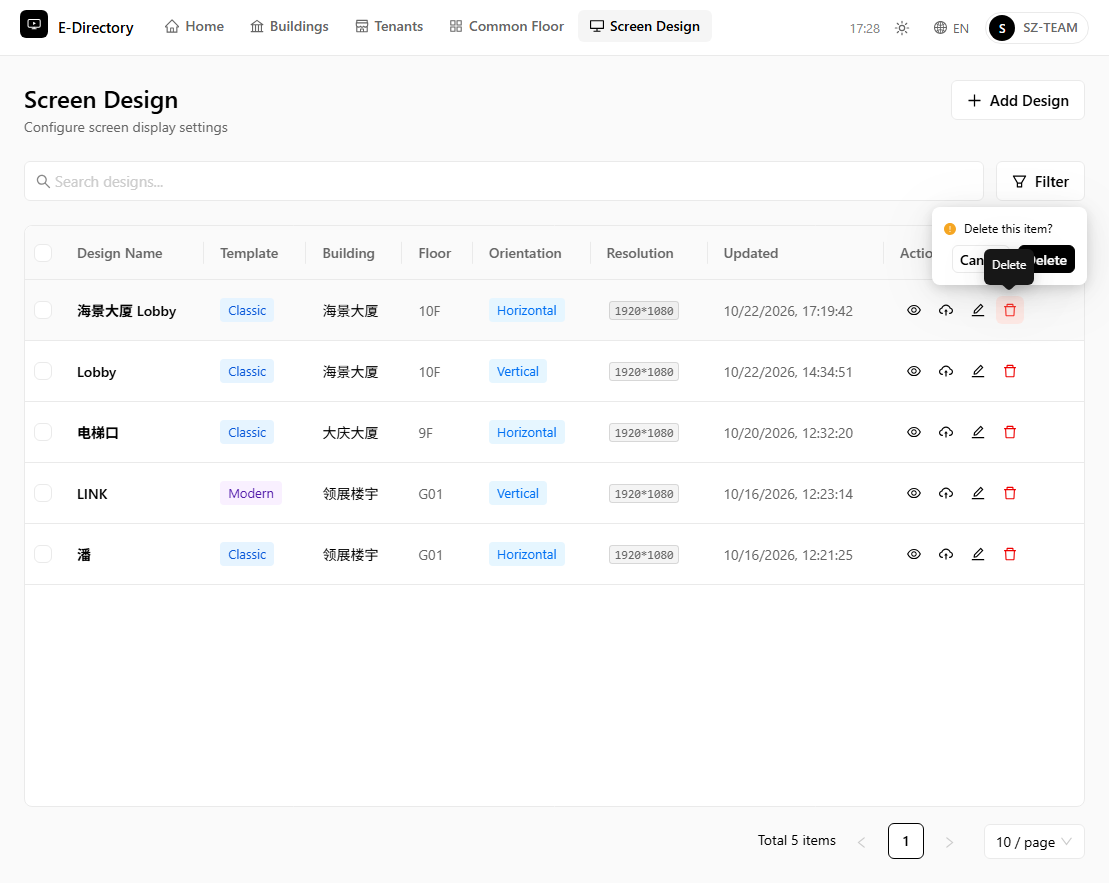 Confirm delete