Buildings
1Overview
This chapter describes the detailed operations on the Buildings management page, including creating a Building, modifying Building information, deleting a Building, and how the Logo, Background (Image/Video), and Top Background within a Building are displayed in Screen Design.
2Buildings Main Page
The Buildings page lets you manage building information and configurations.
Click on Buildings
Manage building information and configurations. The page is organized into the following sections:
- Section 1Page header information
- Section 2Filter
- Section 3List of Buildings information
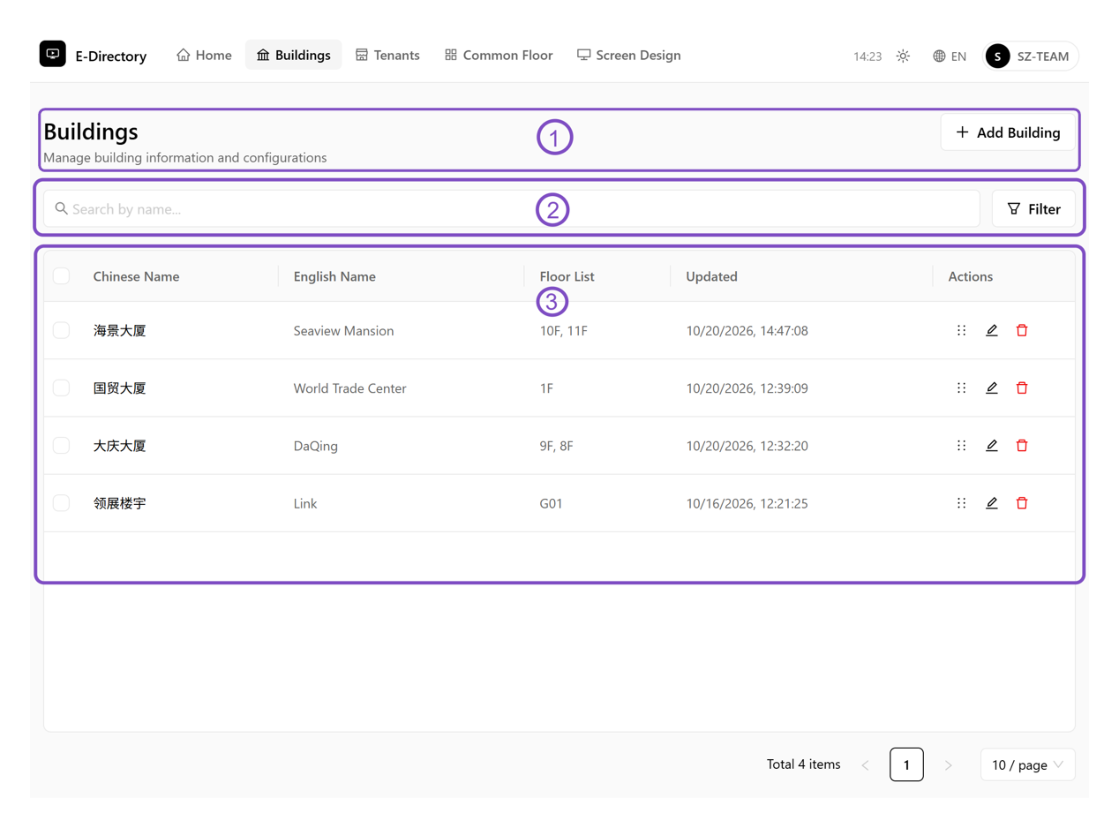 Buildings main page
3Add Building
Create a new Building and configure its Logo, Background, and Top Background.
Click on + Add Building
Click the "+ Add Building" button to create a new Building.
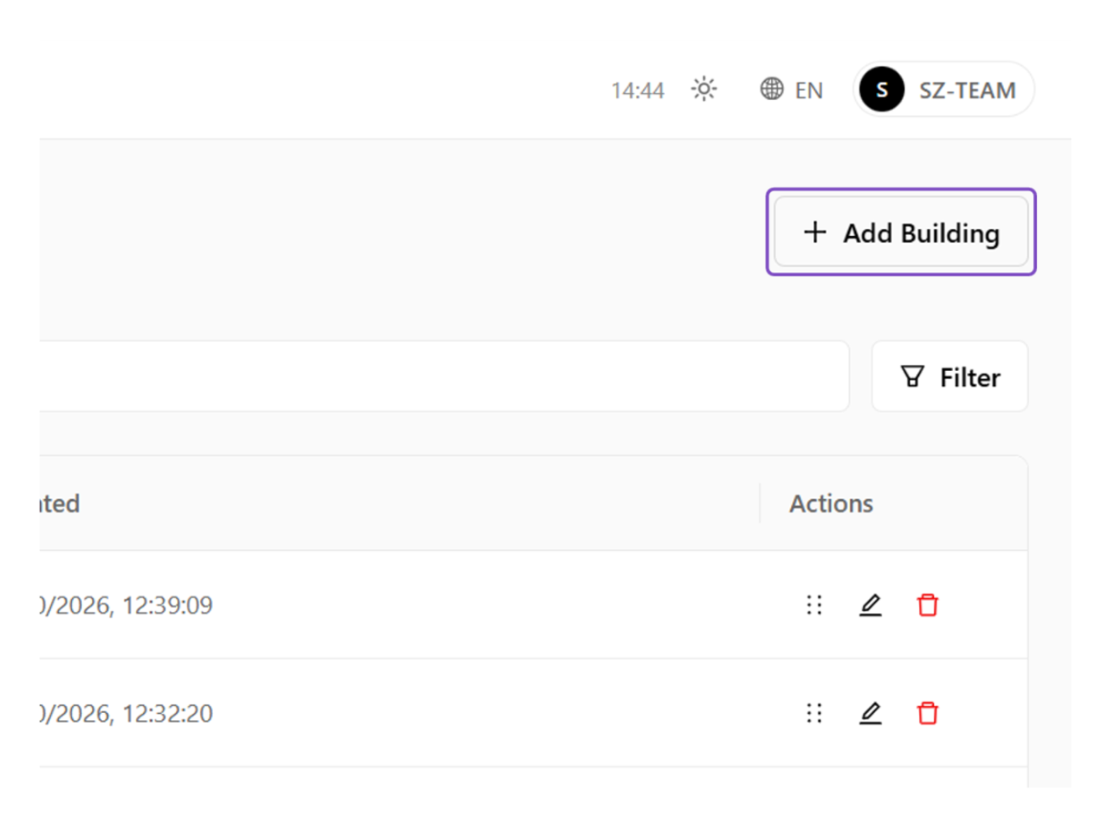 Add Building button
Correspondence between Building Configuration and Screen Design
This page describes the display positions of Logo, Background (Image/Video), and Top Background Image in a Building within Screen Design.
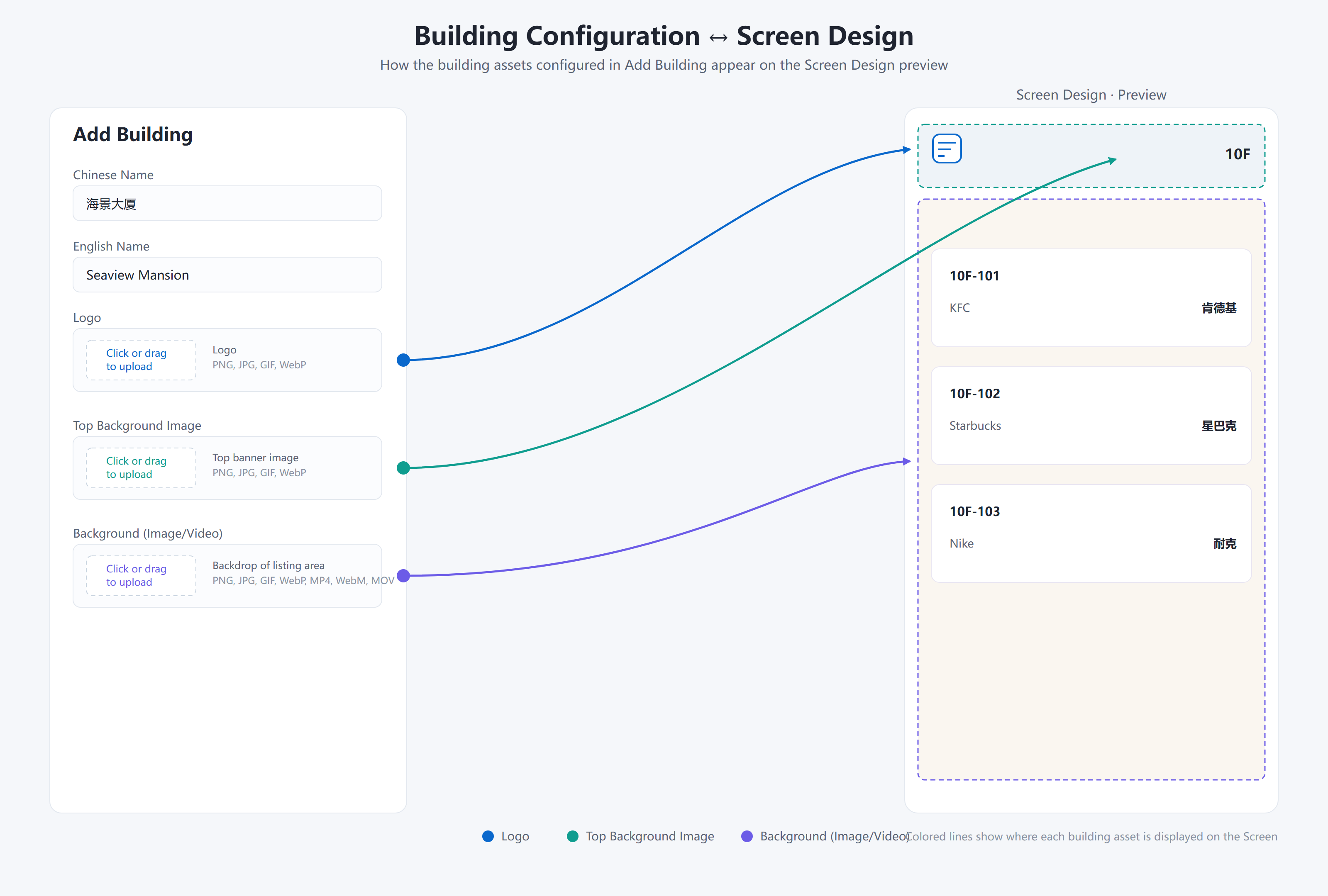 Config to Screen Design mapping
Click on Create Building
Enter the Chinese name and English name according to your actual situation, configure the Logo, Background and Top Background Image, then click "Create Building". A new Building will be created and can be viewed in the Building List.
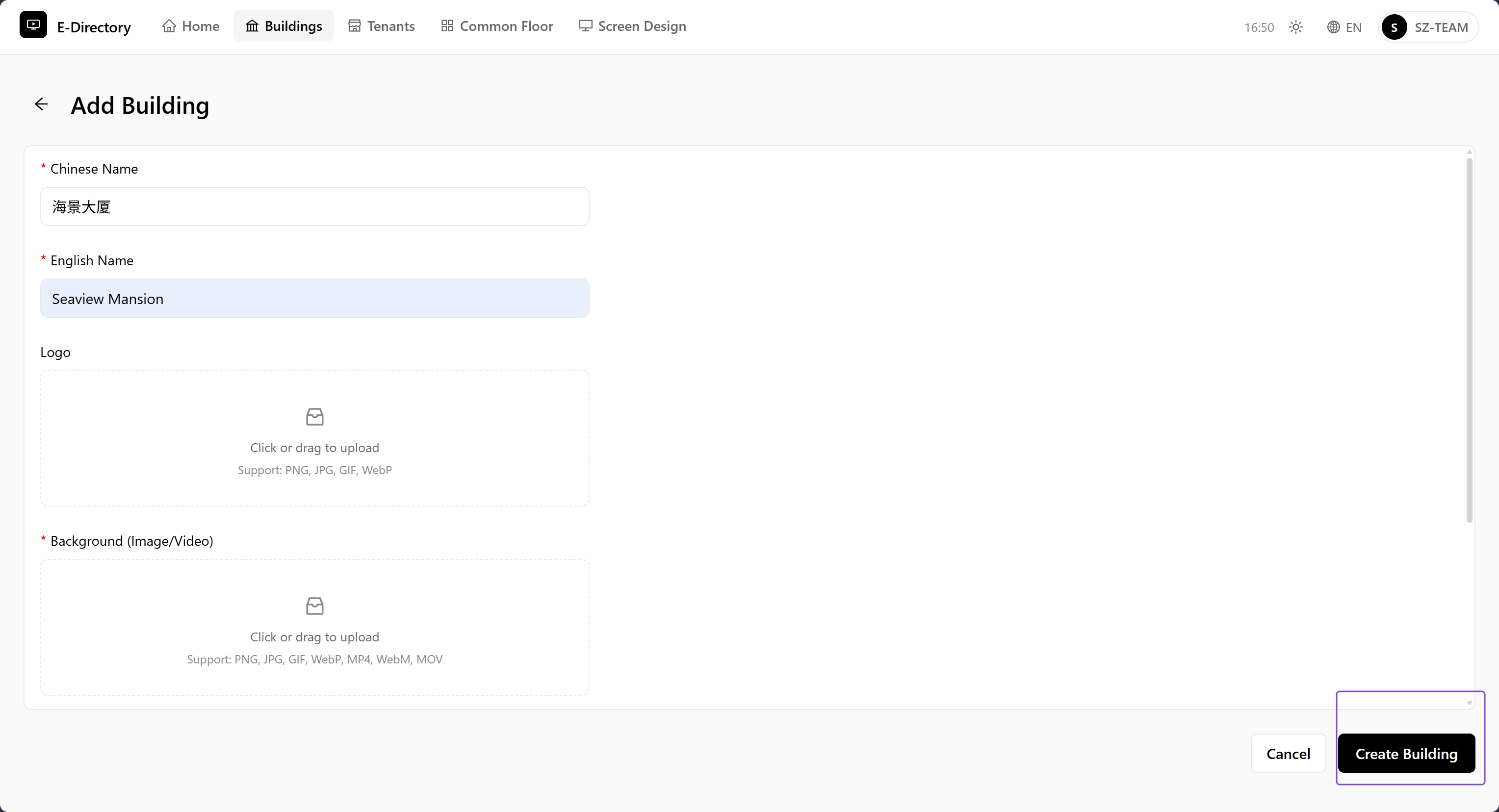 Create Building form
4Manage Floor
Add floors under a Building by entering their floor identifiers.
Click on Manage Floor List
Click "Manage Floor List" on the right side of the building column created in the previous step.
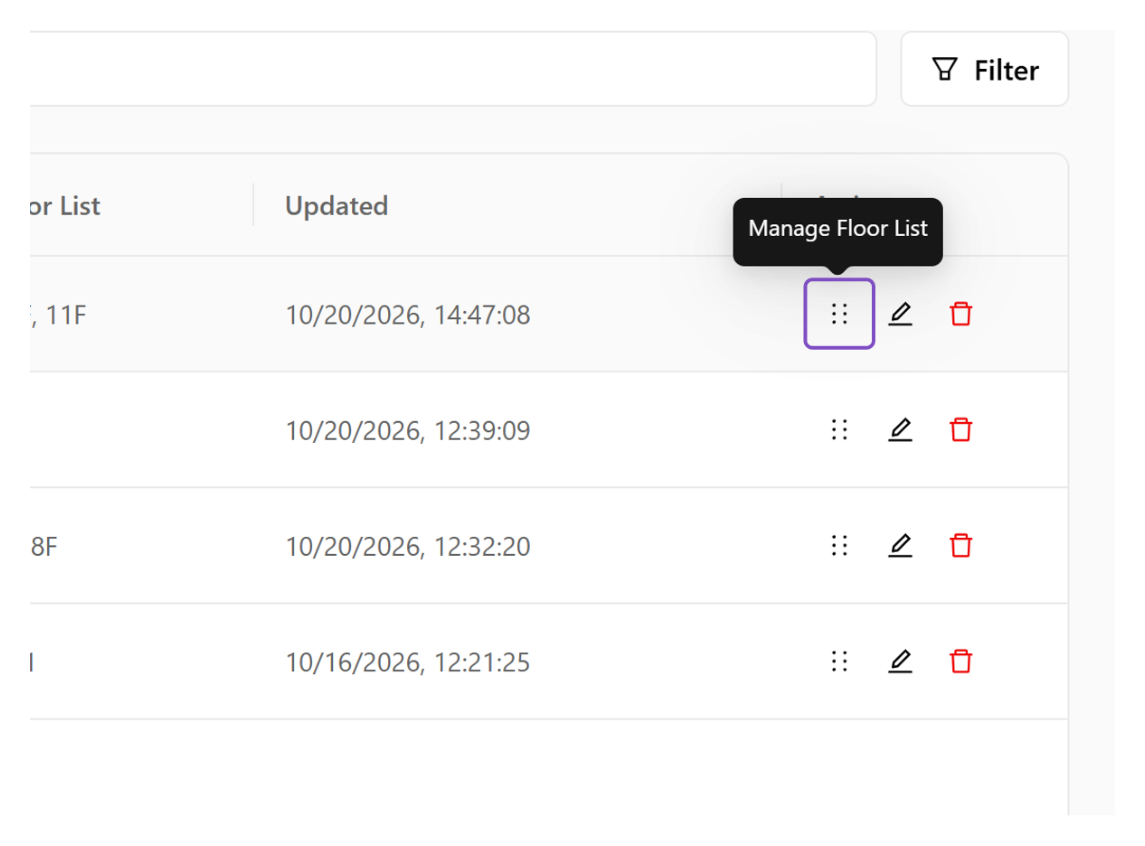 Manage Floor List entry
Manage Floor List
Enter the corresponding floor identifier according to the actual situation.
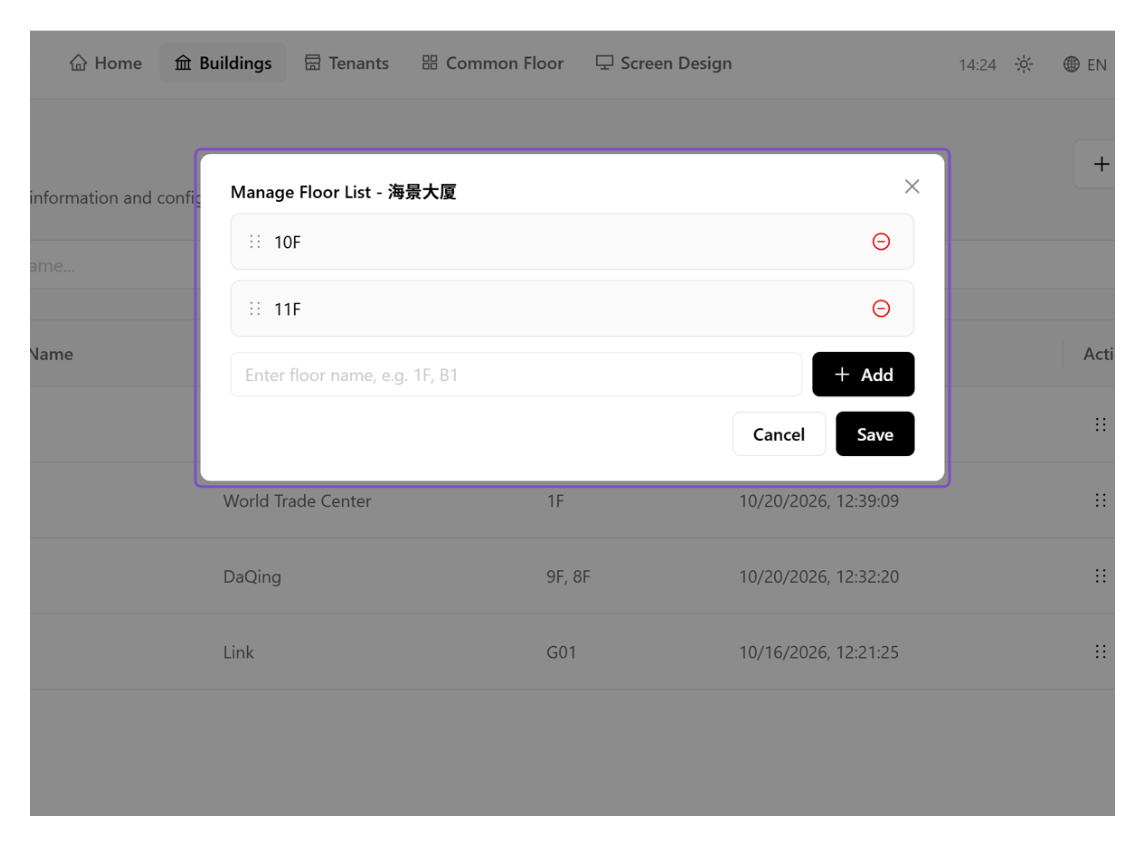 Enter floor identifier
5Edit Building
Modify an existing Building's information, such as its name, Logo, and Background.
Click on Edit
Click the Edit icon to enter the Edit page for modification when you want to change information such as the Building name, Logo, and Background.
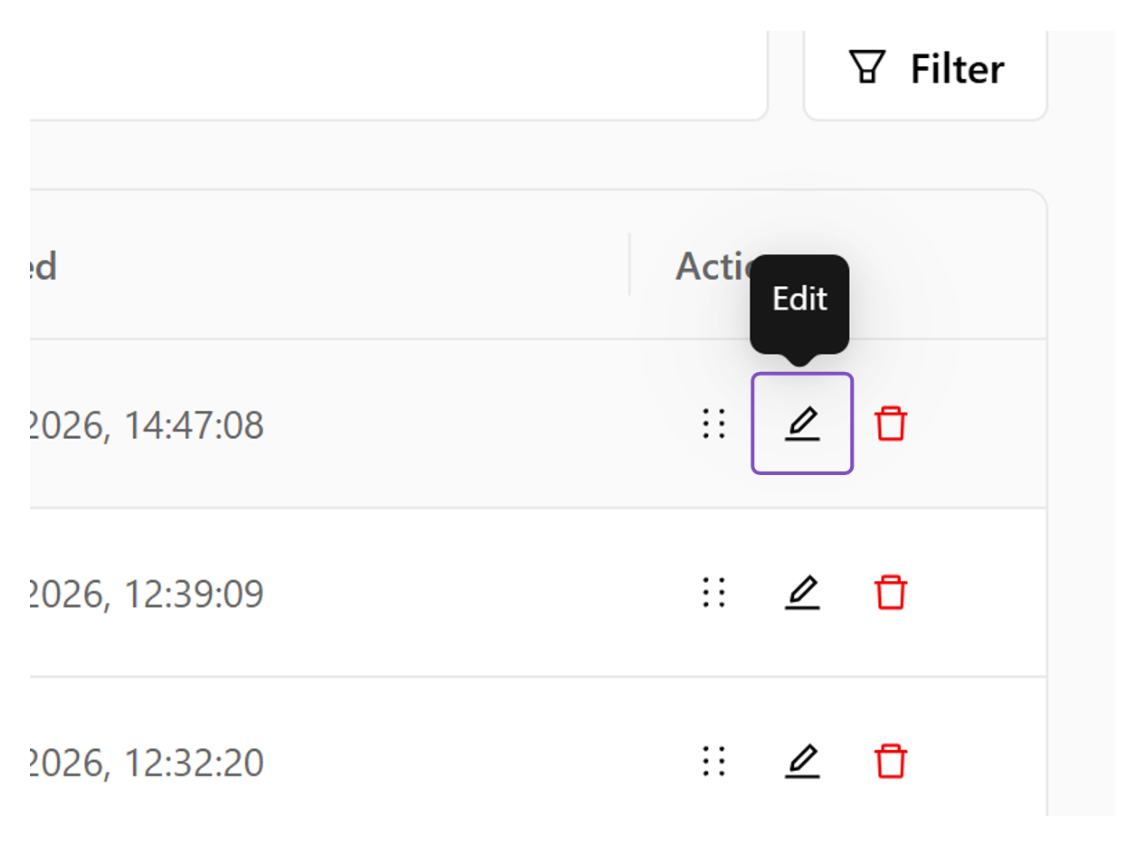 Edit icon
Edit Building Page
The content of the Edit Building page is the same as that of the Add Building page.
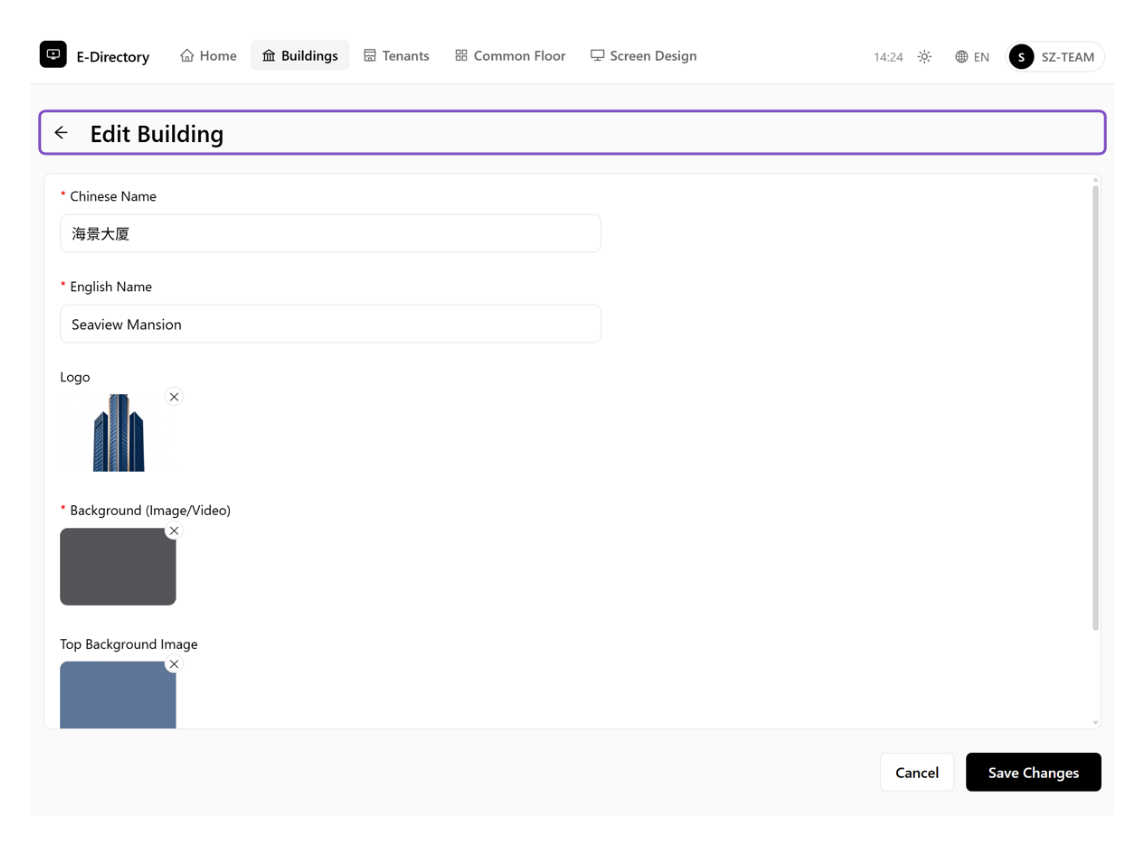 Edit Building page
Click on Save Changes
Save the changes once modifications are completed.
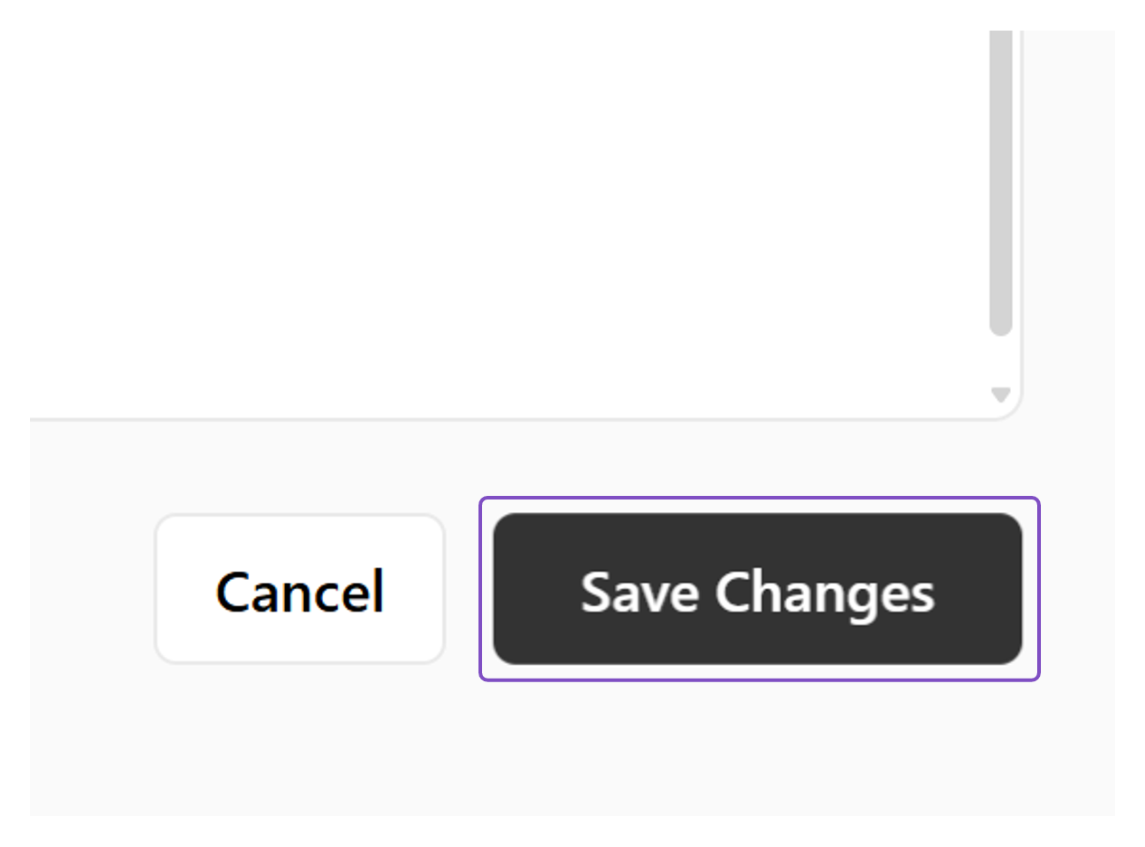 Save Changes
6Delete
Delete a Building, or resolve the constraint that blocks deletion.
Delete
Use the Delete operation to remove a Building.
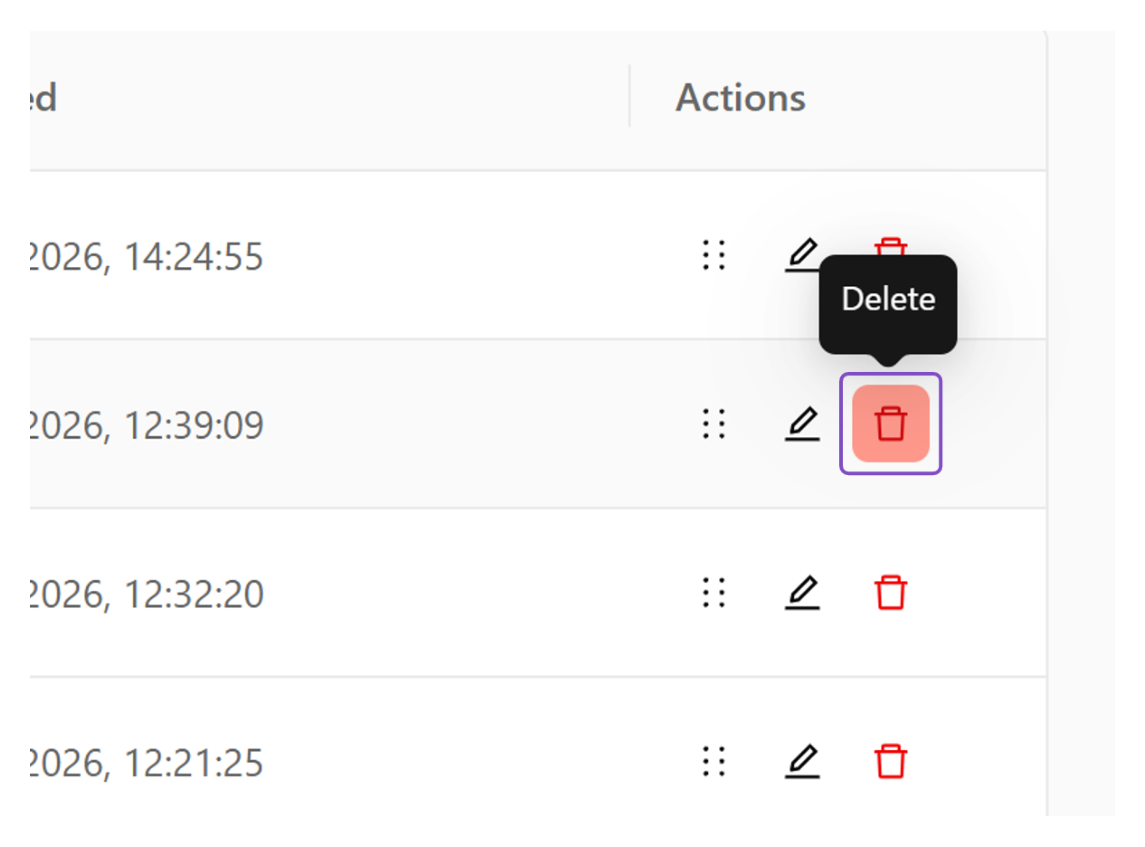 Delete option
Click on Delete Icon, then Click on Delete
Click the Delete icon, then confirm the deletion by clicking "Delete".
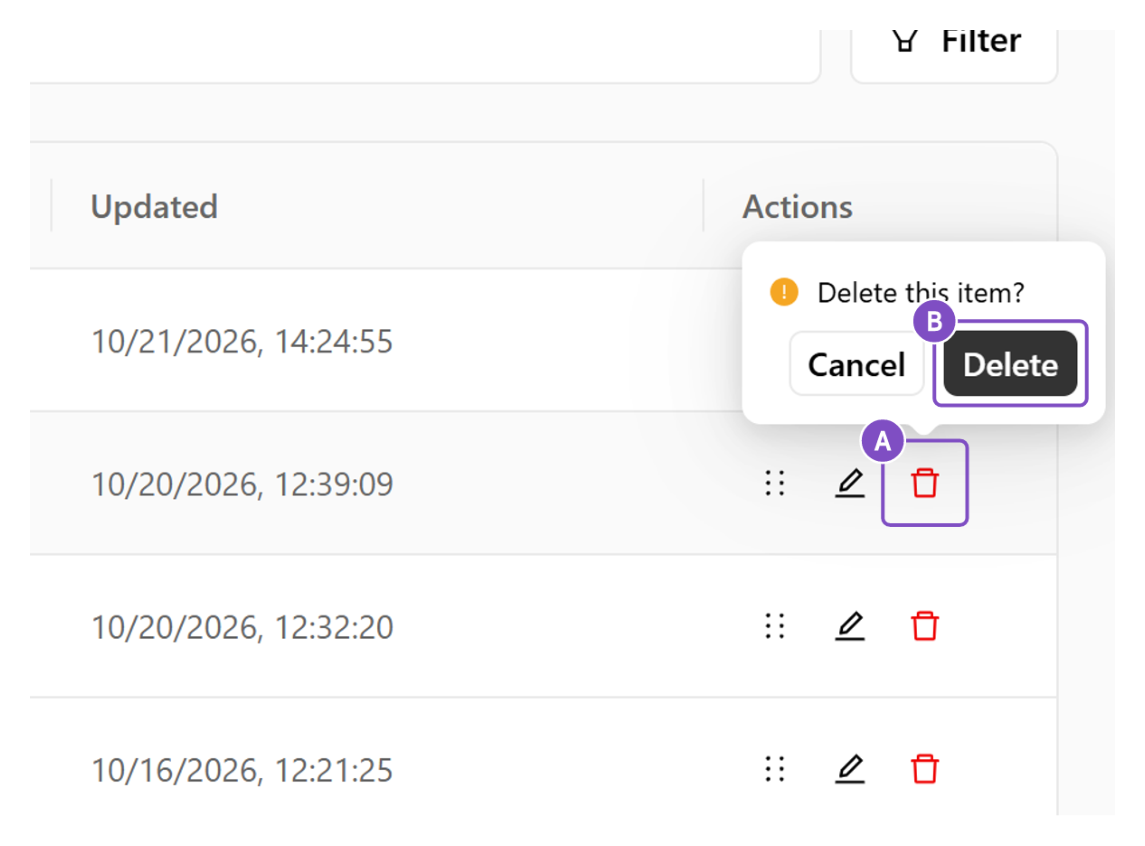 Confirm delete
Cannot delete building with tenants
If the current Building has associated tenants, it cannot be deleted. Go to the tenant management page to disassociate the tenants from the Building before deletion can proceed normally.
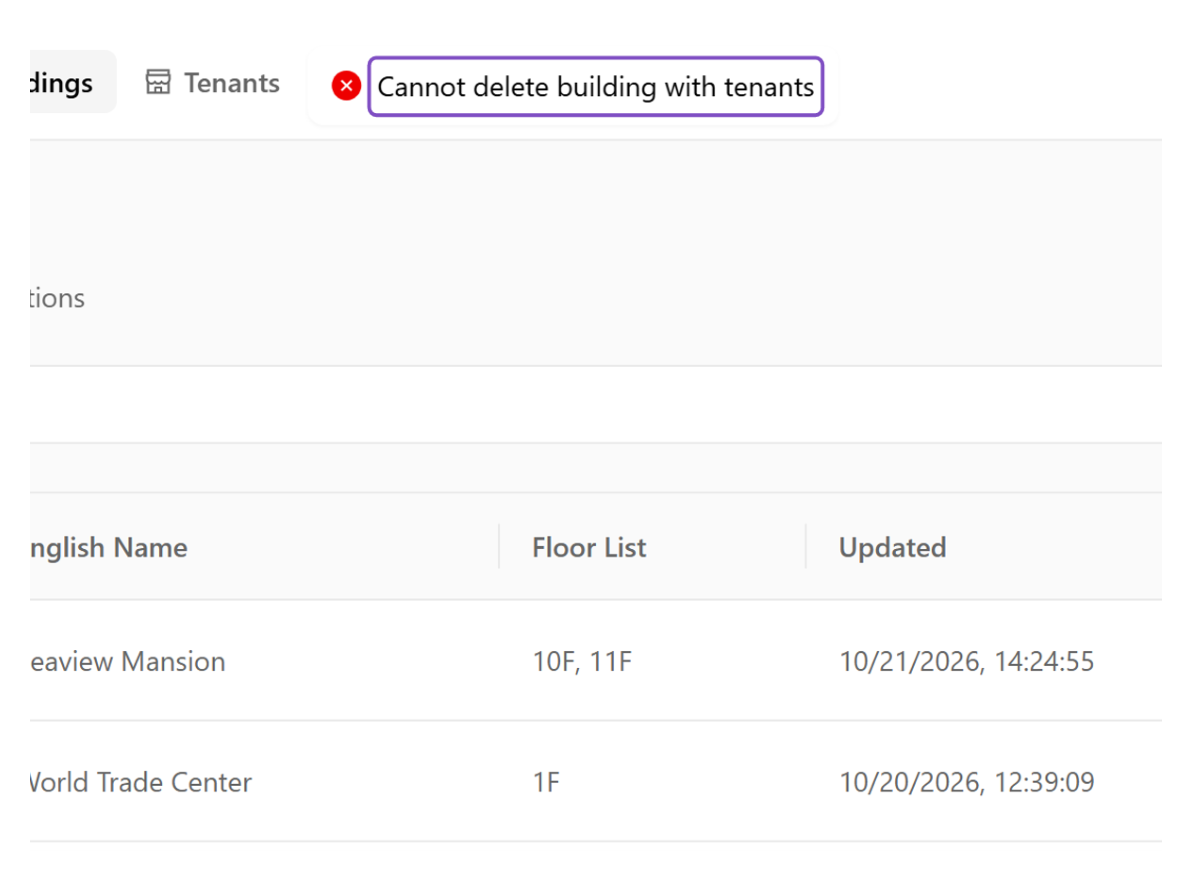 Cannot delete building with tenants