Common Floors
1Overview
A Common Floor refers to the common areas on a floor that do not belong to any tenant, such as corridors, elevator lobbies and so on. This chapter explains the detailed operations, including creating and managing Common Floor entries, enabling them for a building, and previewing the result in Screen Design.
2Common Floor Main Page
Open the Common Floor management page to view and manage common areas.
Click on Common Floor
Click the "Common Floor" entry to enter its management page.
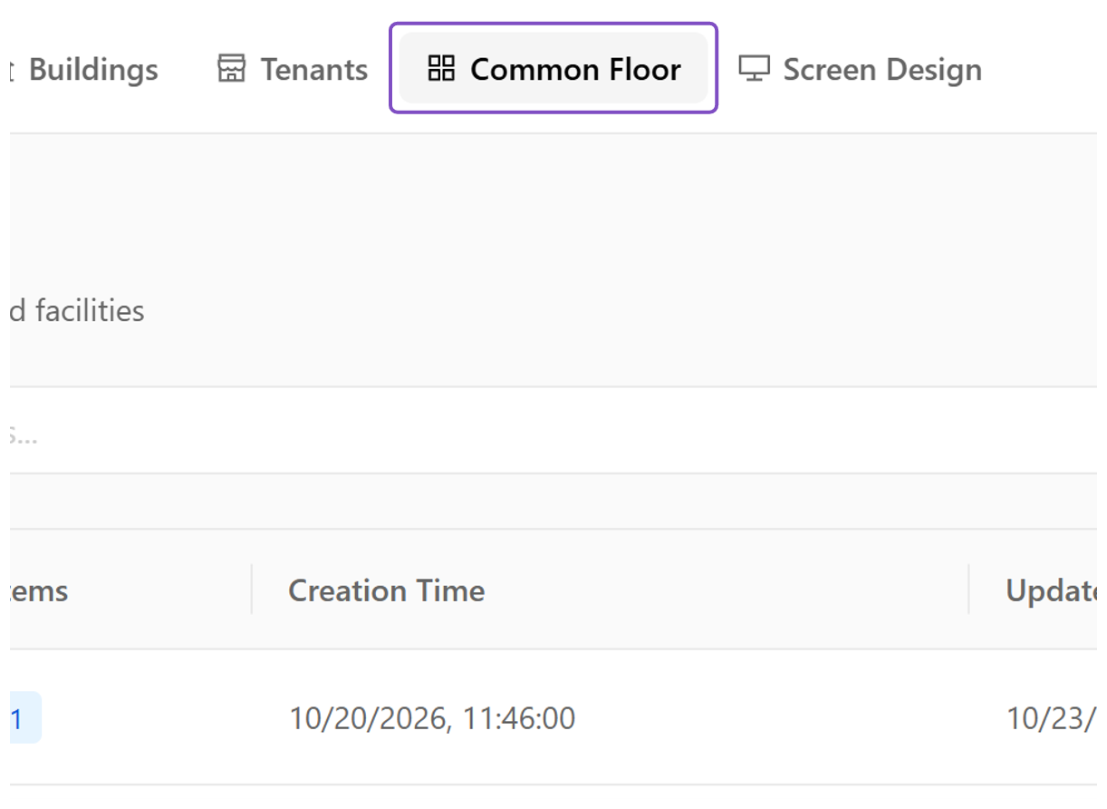 Common Floor entry
Common Floor Main Page
The page is organized into the following sections:
- Section 1Page header information
- Section 2Filter
- Section 3List of Common Floors
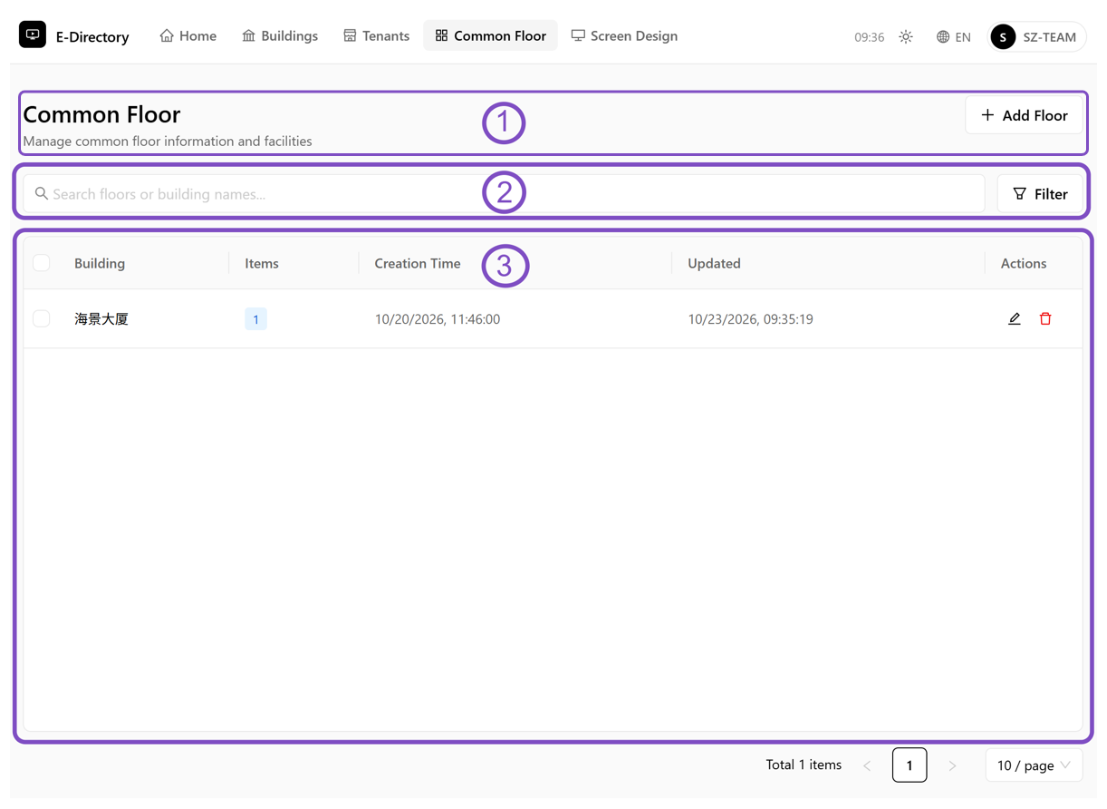 Common Floor main page
3Add Floor
Add a Common Floor entry, define its icon and floor, and give it a recognizable name.
Click on + Add Floor
Click the "+ Add Floor" button to create a new Common Floor.
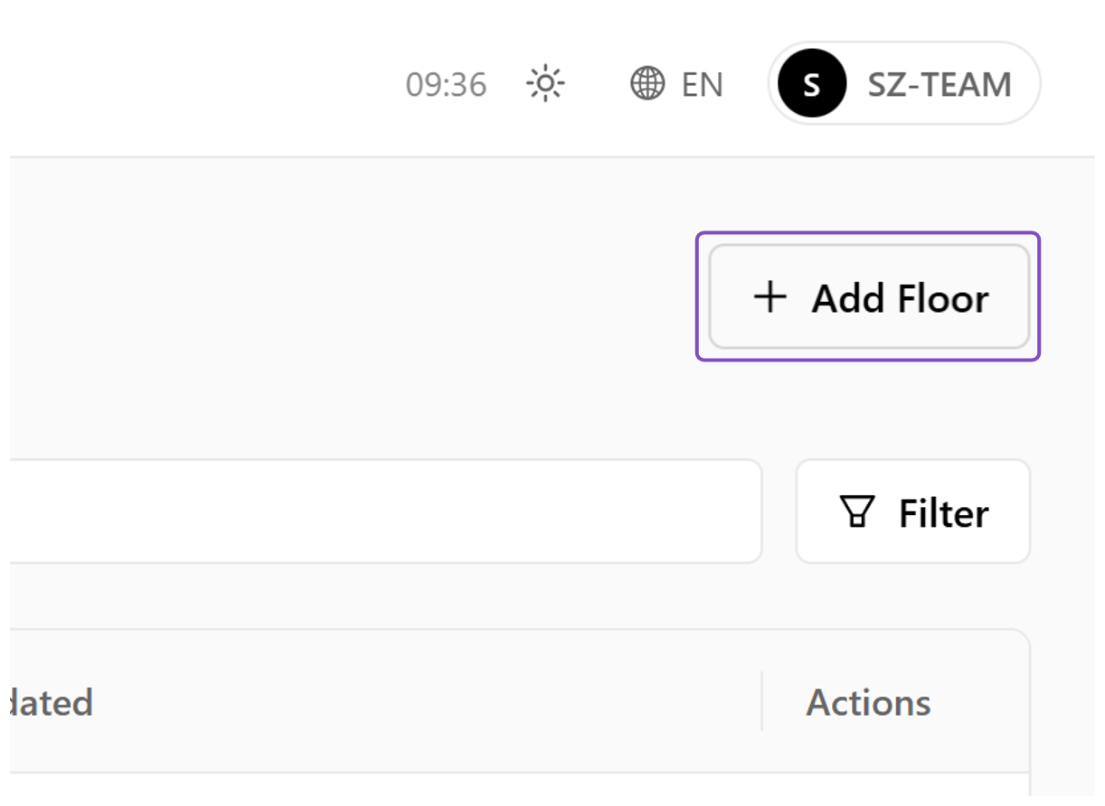 Add Floor button
Click on Building
Select the Building to indicate which Building's Screen the public floor will be displayed on.
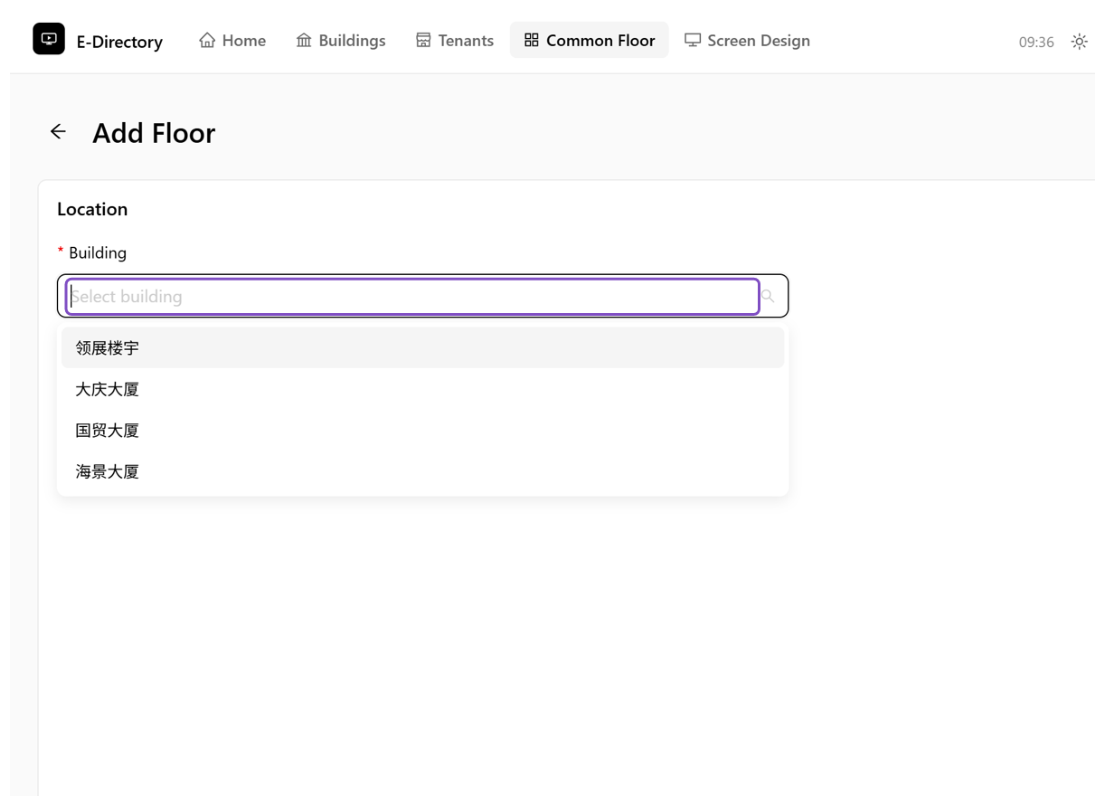 Select the building
Click on + Add Item
Click "+ Add Item" to add the common floor information.
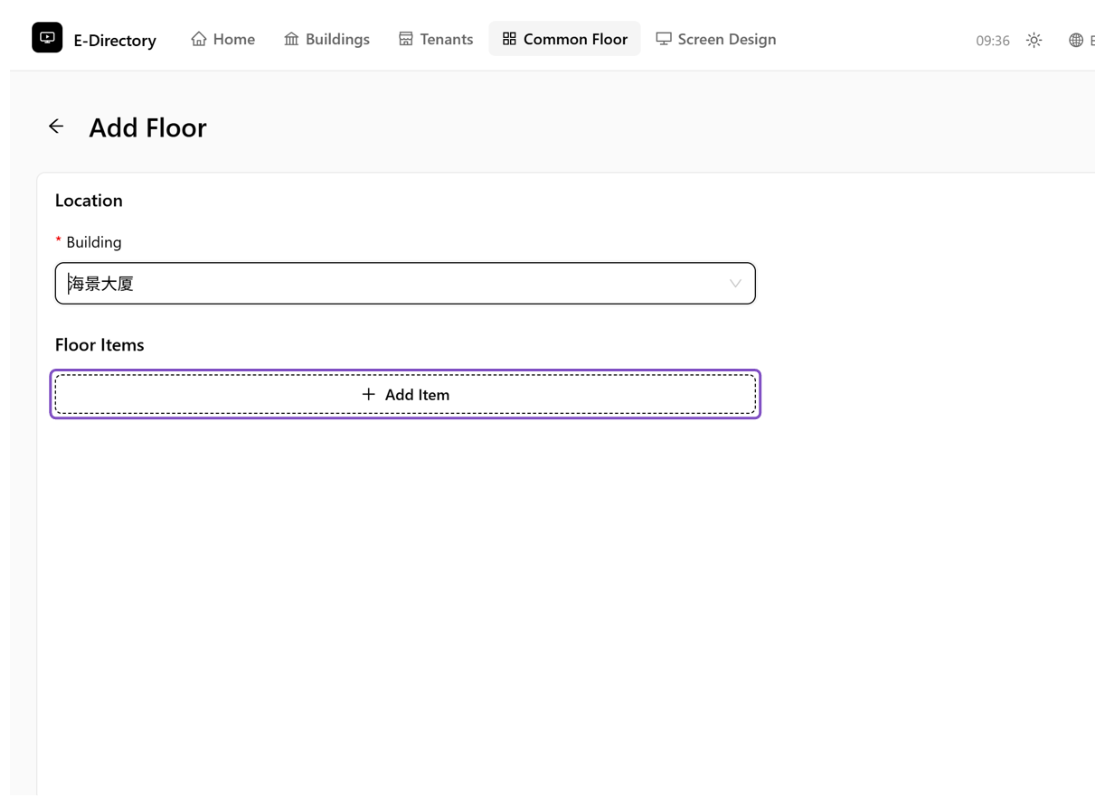 Add Floor item
Upload the icon
Click the icon area and upload the icon from your local computer. You need to prepare the icon in advance — it will be displayed on the Screen.
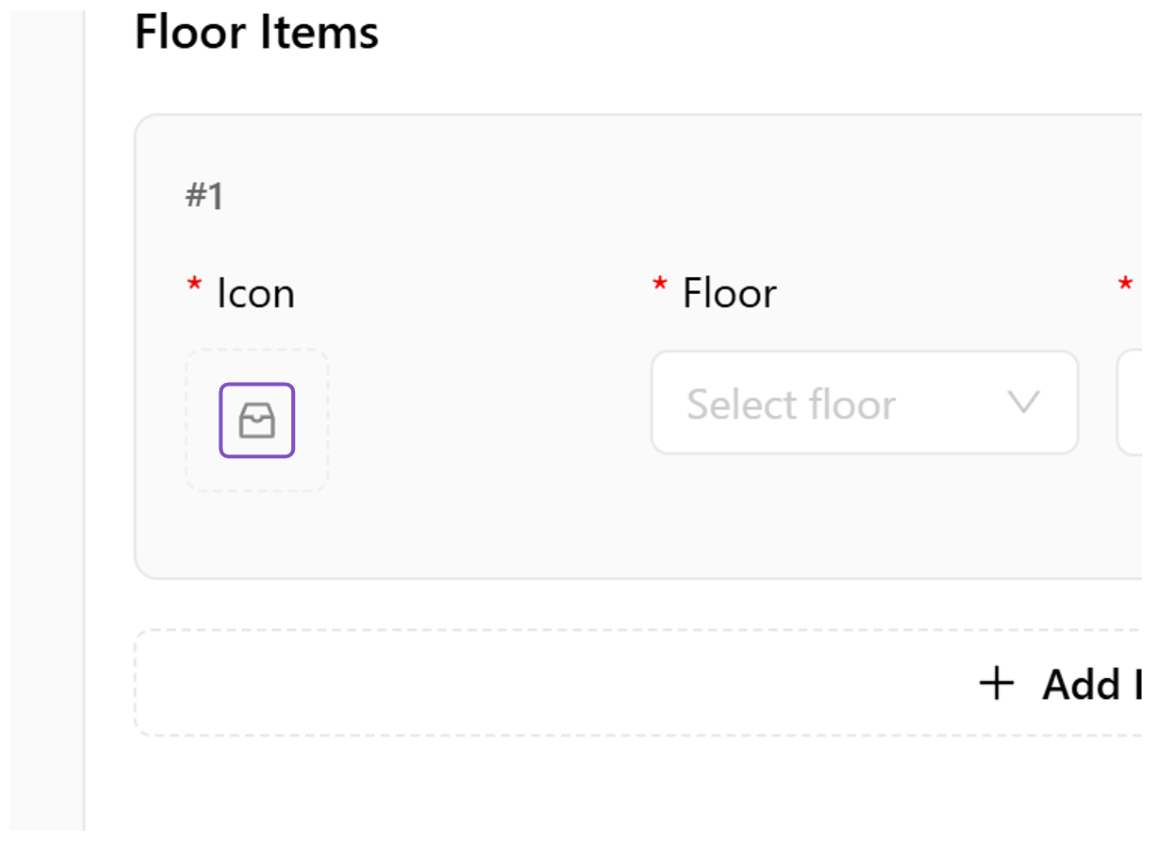 Upload the icon
Click on Floor
Select the Floor — this indicates that this is a common area belonging to a certain floor.
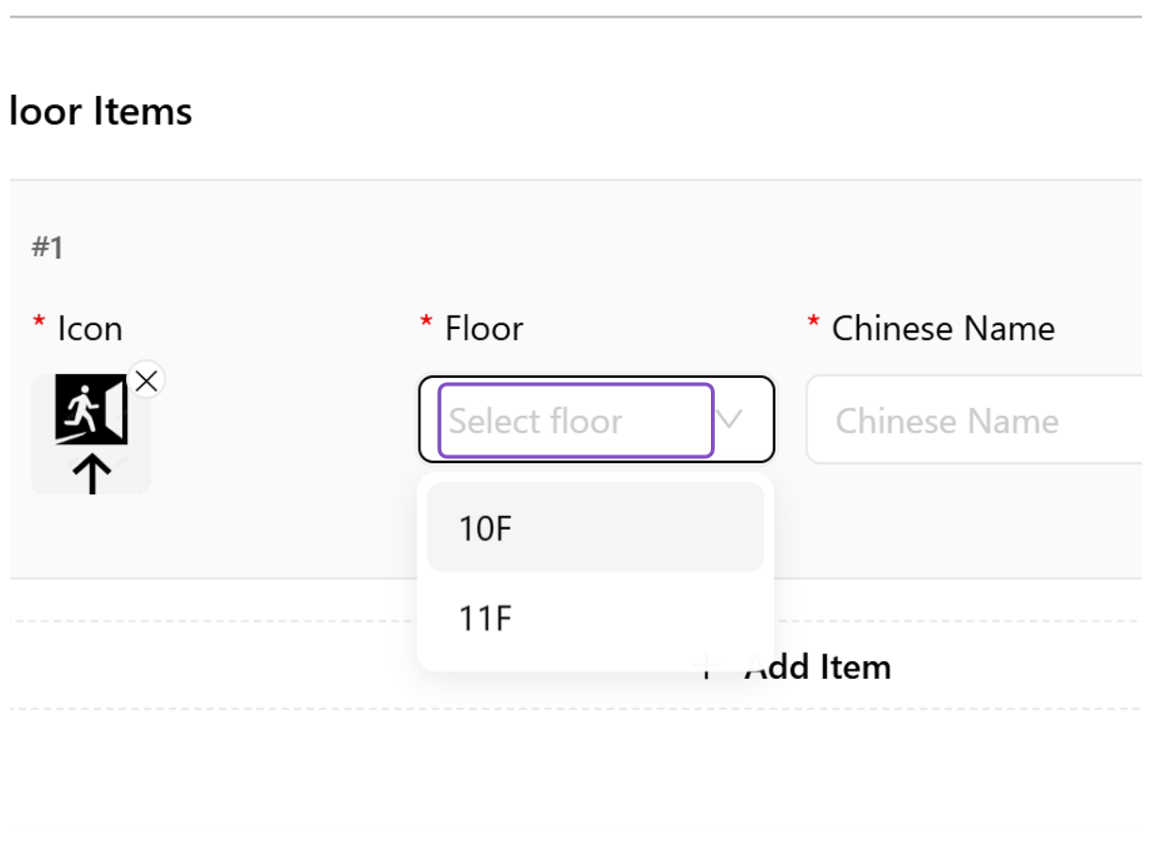 Select the floor
Type Chinese Name
Enter a friendly and easily recognizable Chinese name for the common area — for example, 走廊.
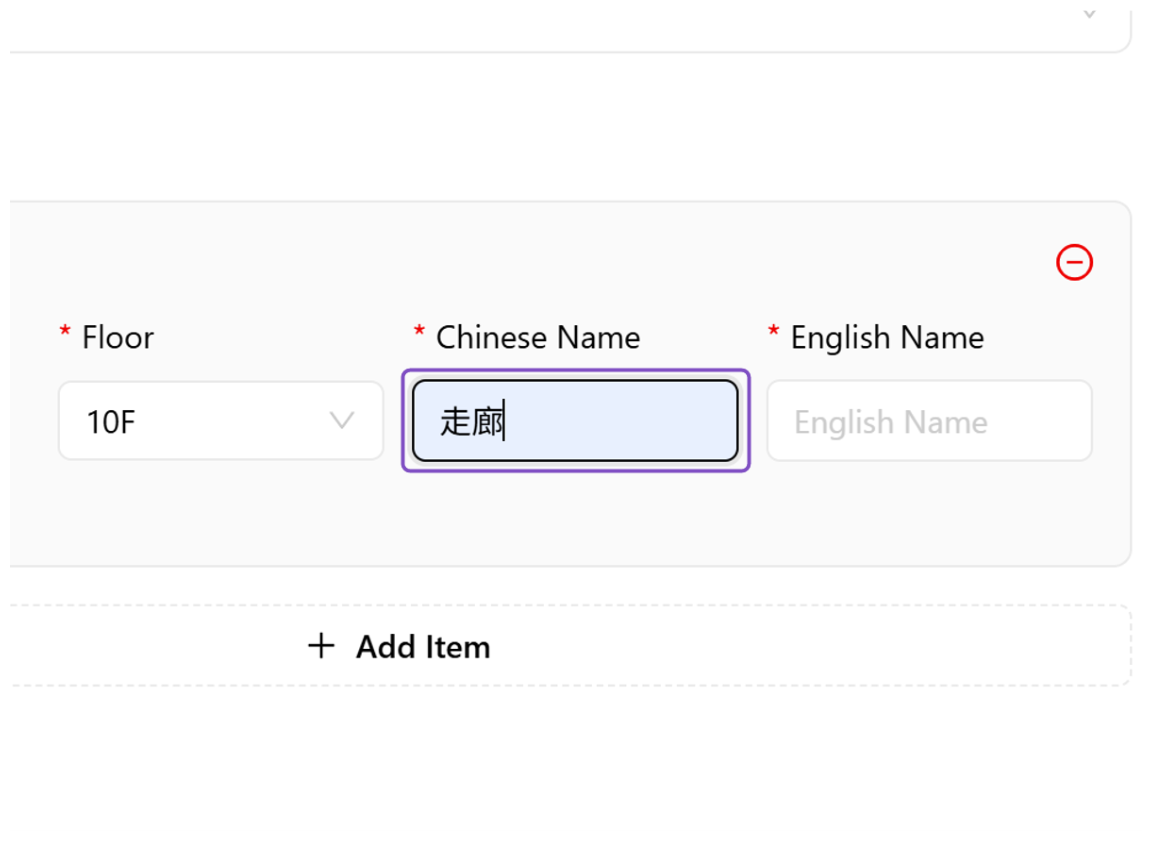 Type the Chinese name
Type English Name
Enter a friendly and easily recognizable English name — for example, Corridor.
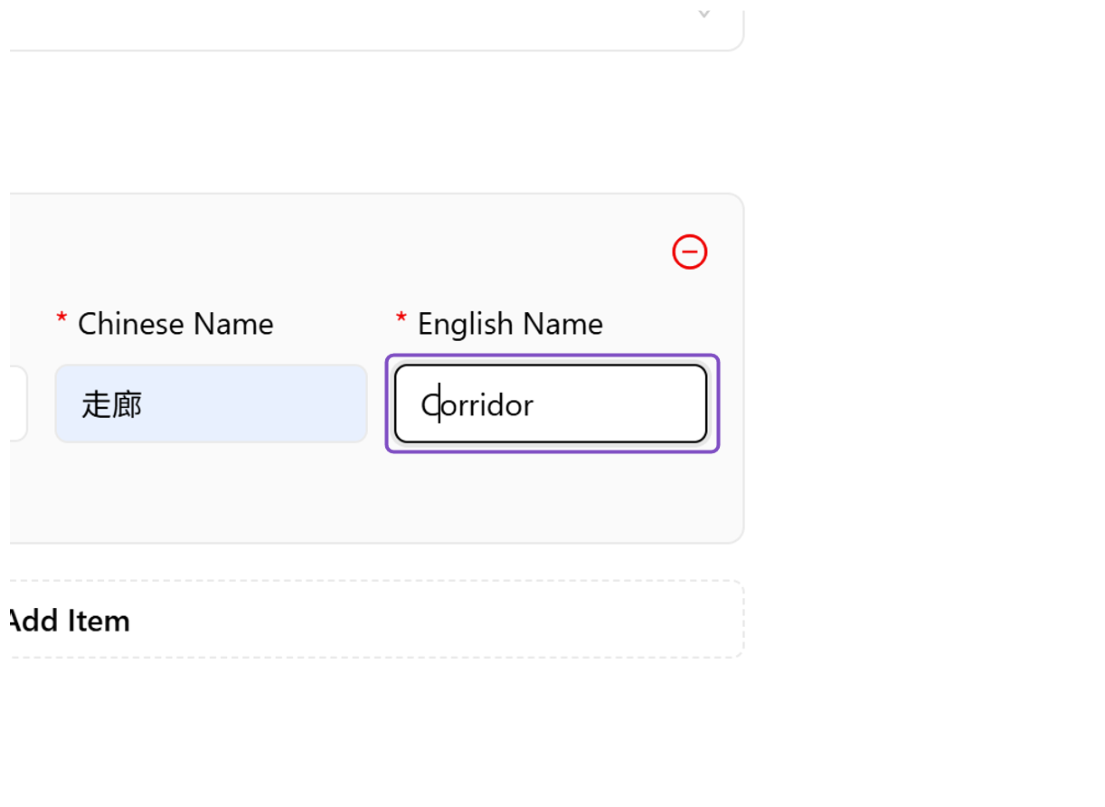 Type the English name
Click on Create Floor
Once all the information is filled in, click "Create Floor" to save the Common Floor.
 Create Floor
4Delete
Remove a Common Floor when it is no longer needed.
Click on Delete
A. Click the Delete icon on the Common Floor row. B. In the confirmation dialog, click "Delete" to remove it, or "Cancel" to keep it.
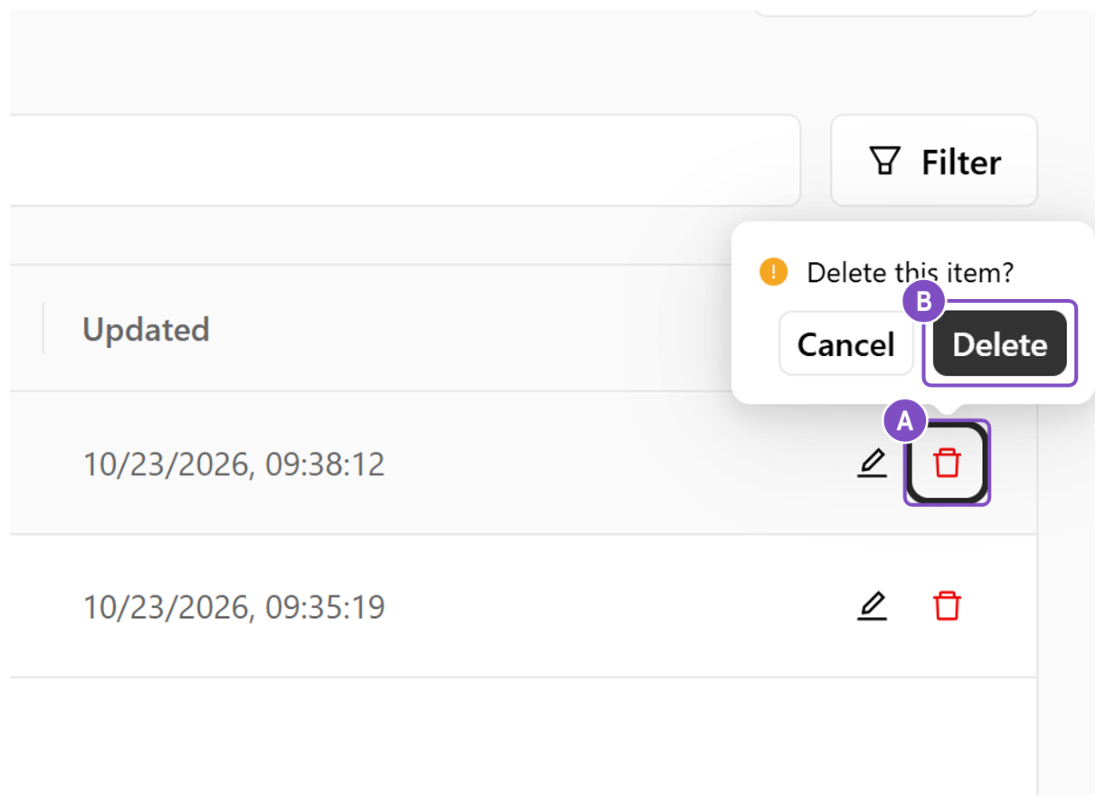 Confirm delete
5Edit Common Floor
Modify an existing Common Floor's settings.
Click on Edit icon
When you need to modify a Common Floor, click the Edit icon to enter the editing page.
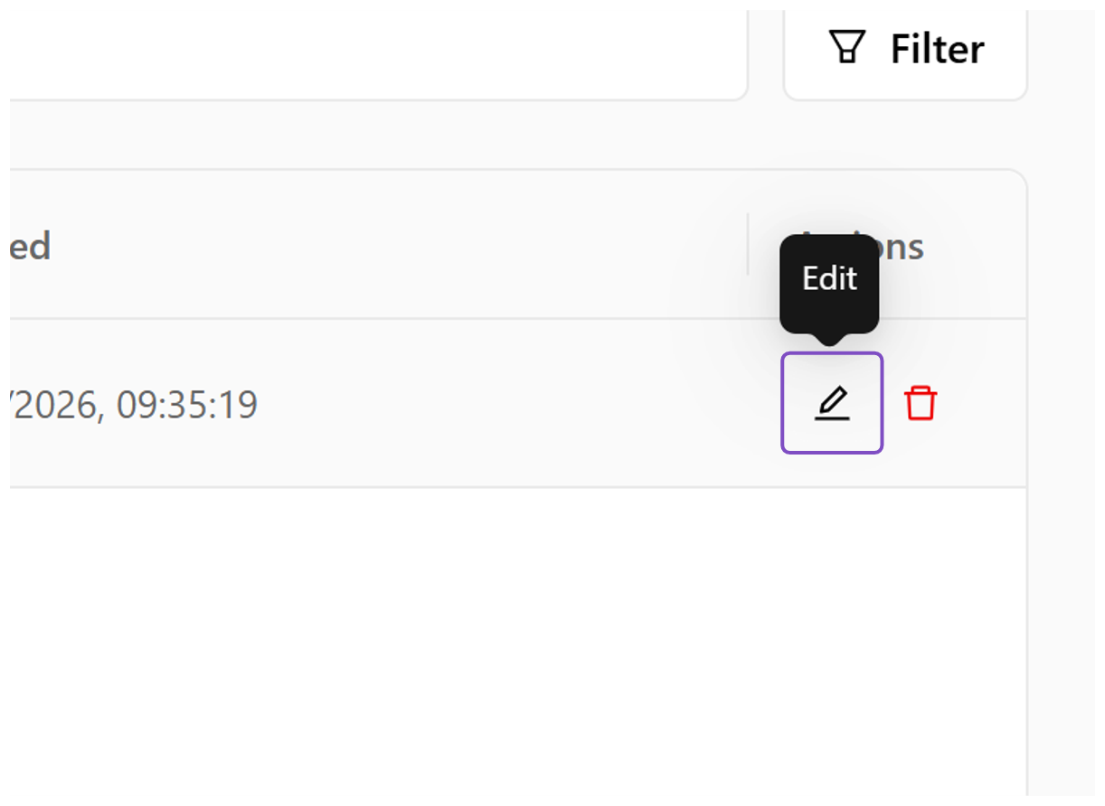 Edit icon
Click on Building
Click the "Building" field to choose a different building if the Common Floor should be displayed on another Building's Screen.
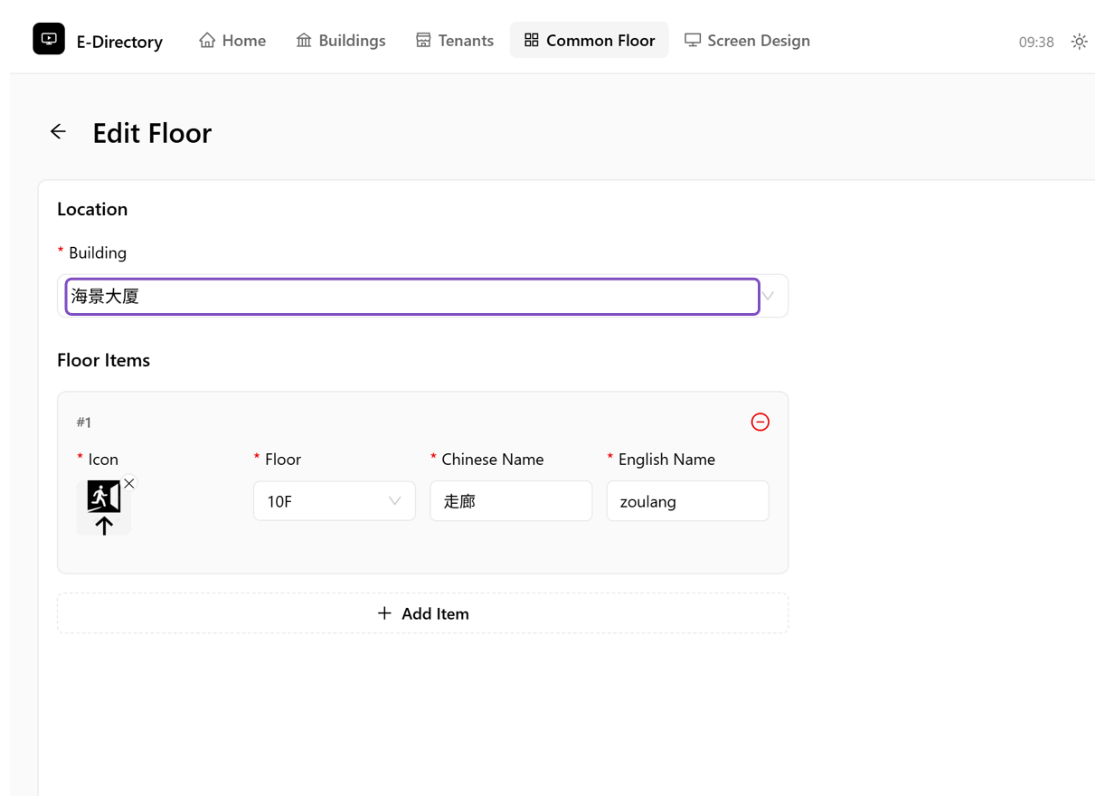 Select the building
Click on Save Changes
The edit page is consistent with the new page. After modifying the settings as needed, click "Save Changes" for the modifications to take effect.
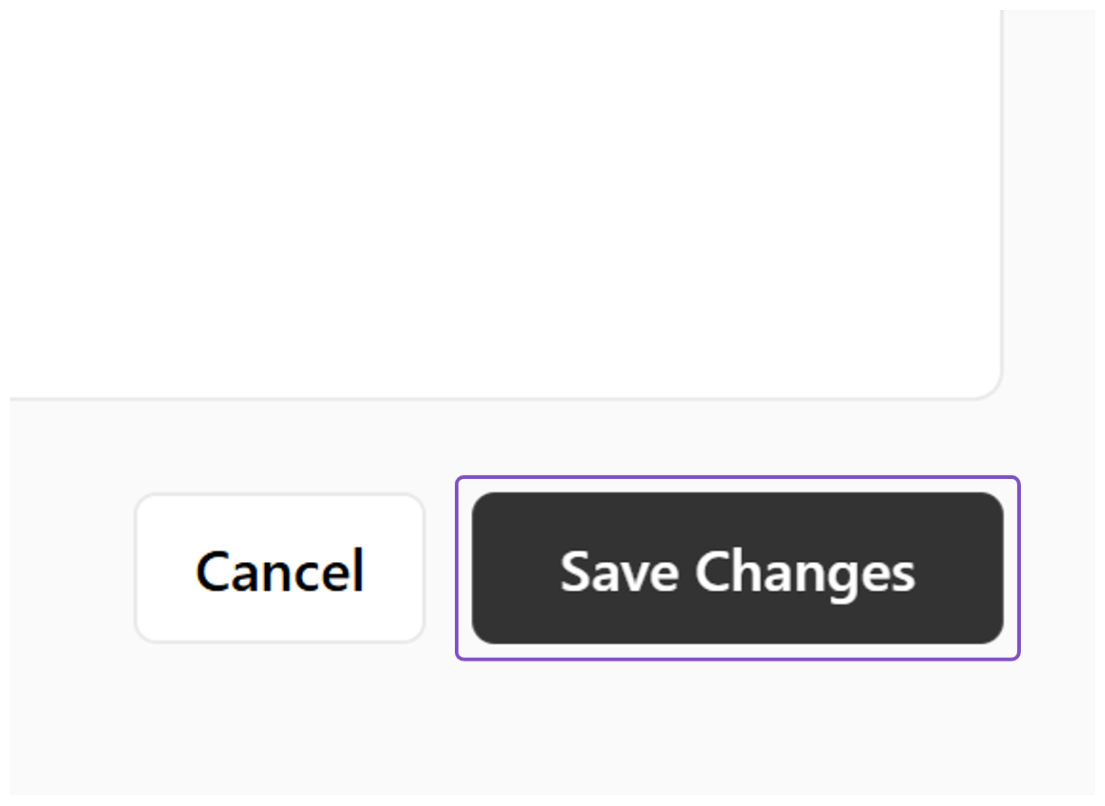 Save Changes
6Enable Common Floor
Turn on the Common Floor feature for a building so it appears on the Screen.
After you finish configuring a Common Floor, you also need to enable Common Floor in the corresponding Building on the Building management page. The steps below explain how.
Click on Buildings
Click the "Buildings" entry to open the Building management page.
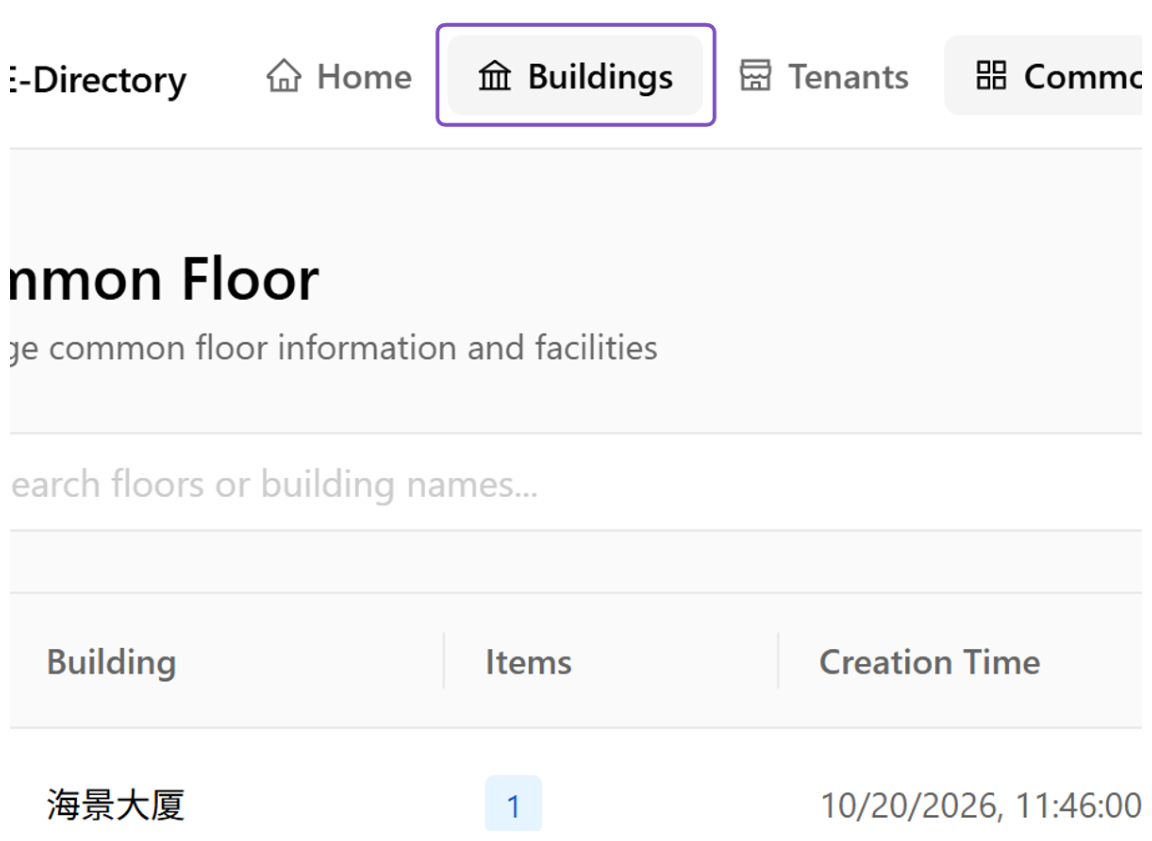 Buildings entry
Click on Edit icon
Click the Edit icon on the building row that should show the Common Floor.
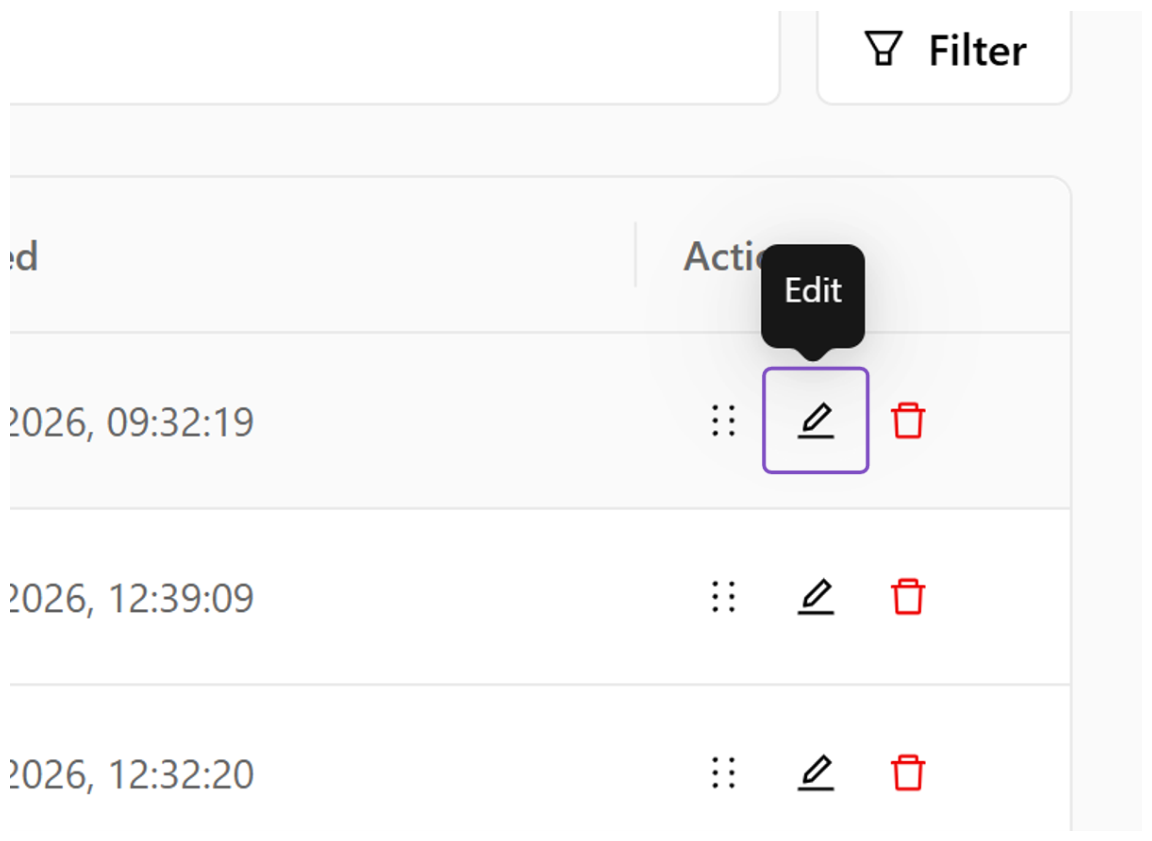 Edit the building
Select Enable Common Floor Info
Tick the "Enable Common Floor Info" checkbox to turn the feature on for this building.
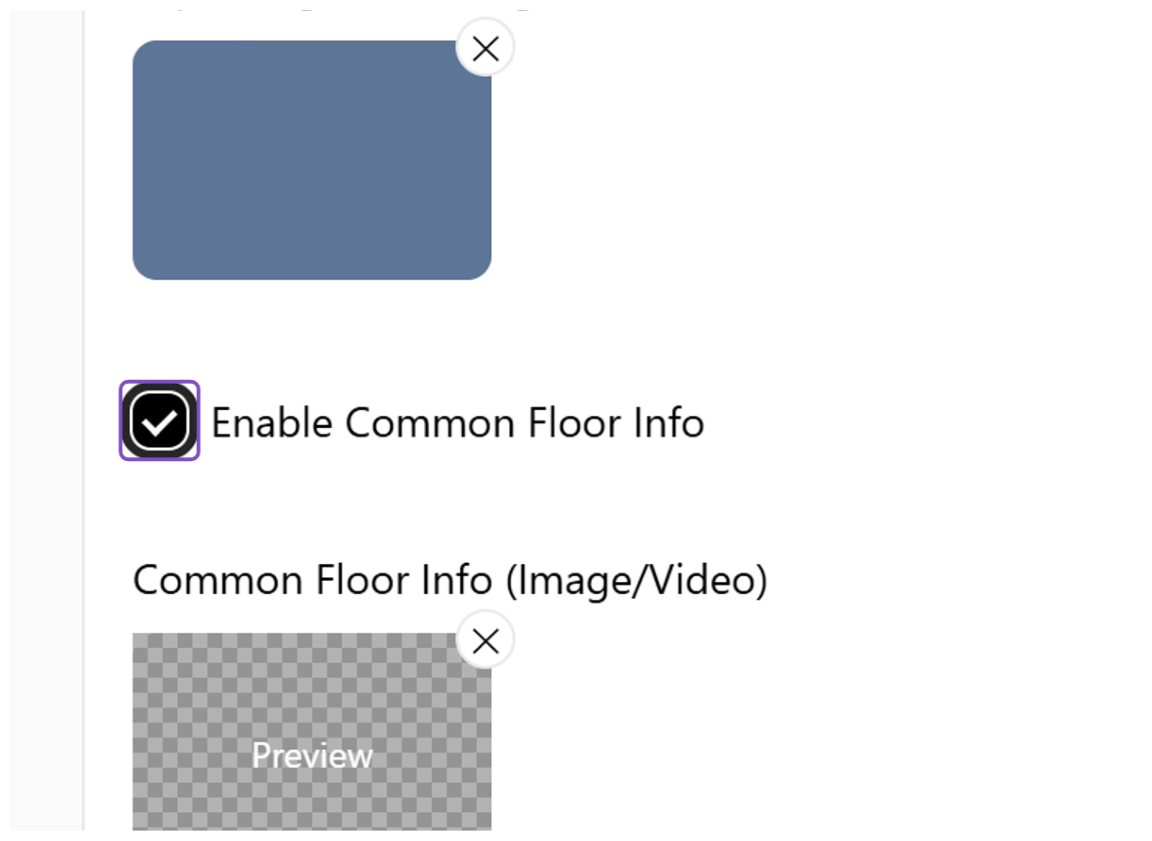 Enable Common Floor Info
Click on Click or drag to upload…
Configure the background image of the Common Floor by uploading it from your local computer.
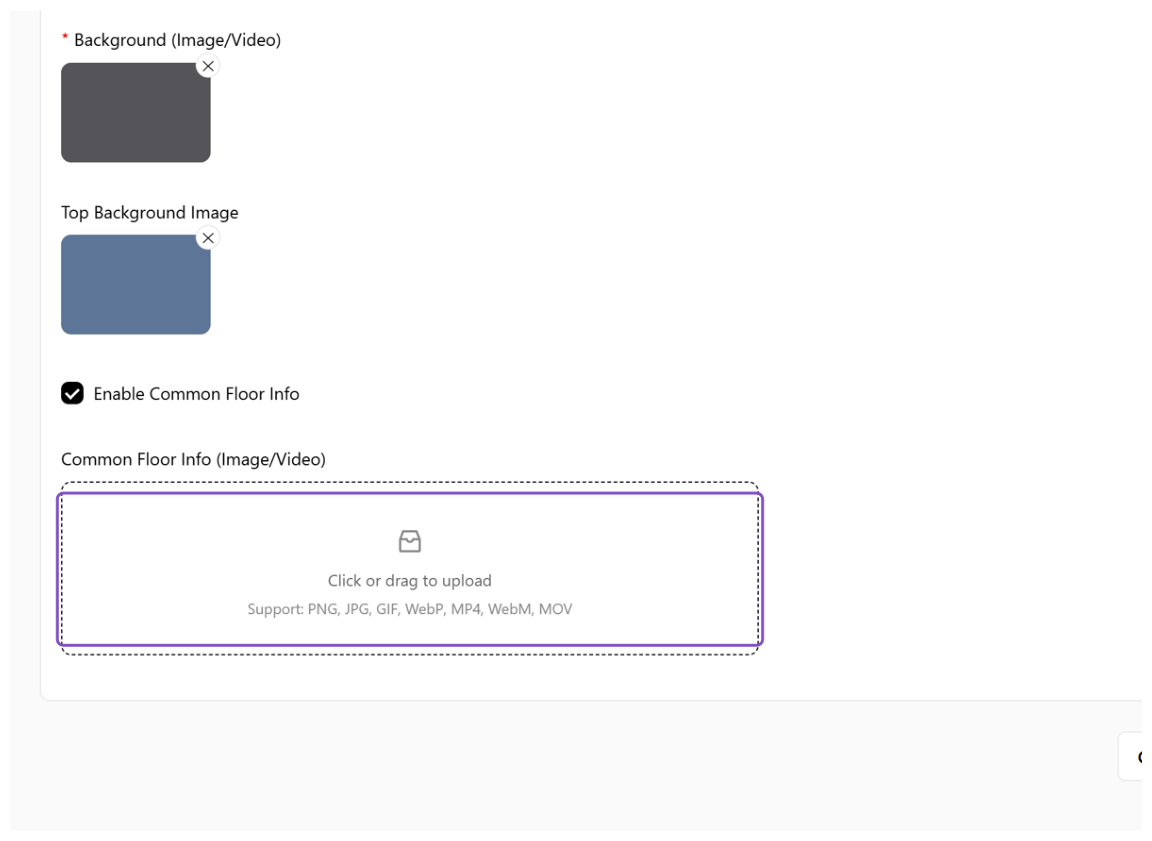 Upload the Common Floor background
Click on Save Changes
Click "Save Changes" to apply the changes to the building.
 Save Changes
7Preview in Screen Design
Check how the Common Floor appears on the Screen.
Click on Screen Design and open the Preview
A. Click on "Screen Design". B. Click the Preview icon on the design. After completing the above steps, you can preview the display effect of the Common Floor in Screen Design.
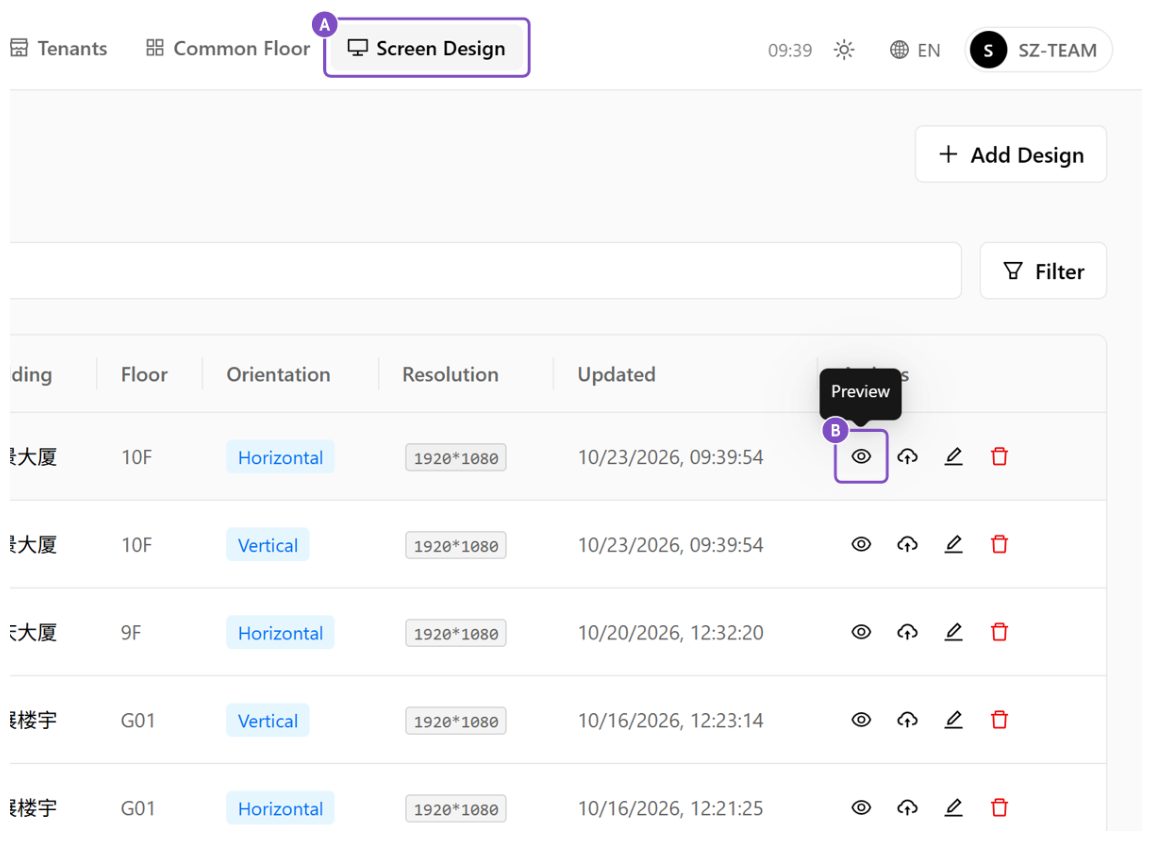 Open the preview in Screen Design
Preview
Common Floors will be displayed at the bottom of the Screen, as shown in the figure below.
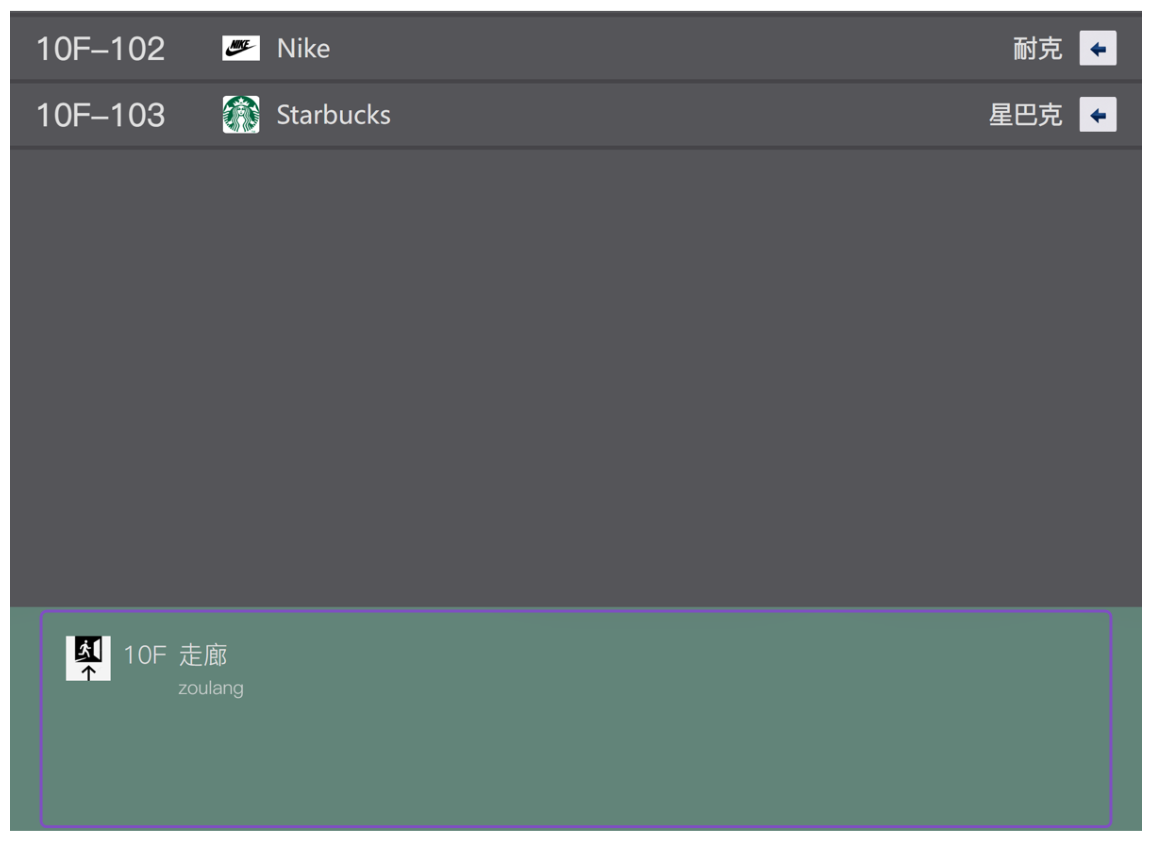 Common Floor at the bottom of the Screen