E-Directory Quick Start
1Overview
E-Directory is an advanced service offered by Vispoint.cloud that displays tenant information for each floor of a building on electronic screens for visitors. To use this service, you must request authorization from the Vispoint.cloud administrator.
This guide is designed to help you quickly get started with E-Directory by walking you through the complete core workflow:
Create Building & Add Floor → Create Tenant → Screen Design → Save to first Media Library folder
Workflow Overview
The core workflow: Create Building & Add Floor → Create Tenant → Screen Design → Save to first Media Library folder.
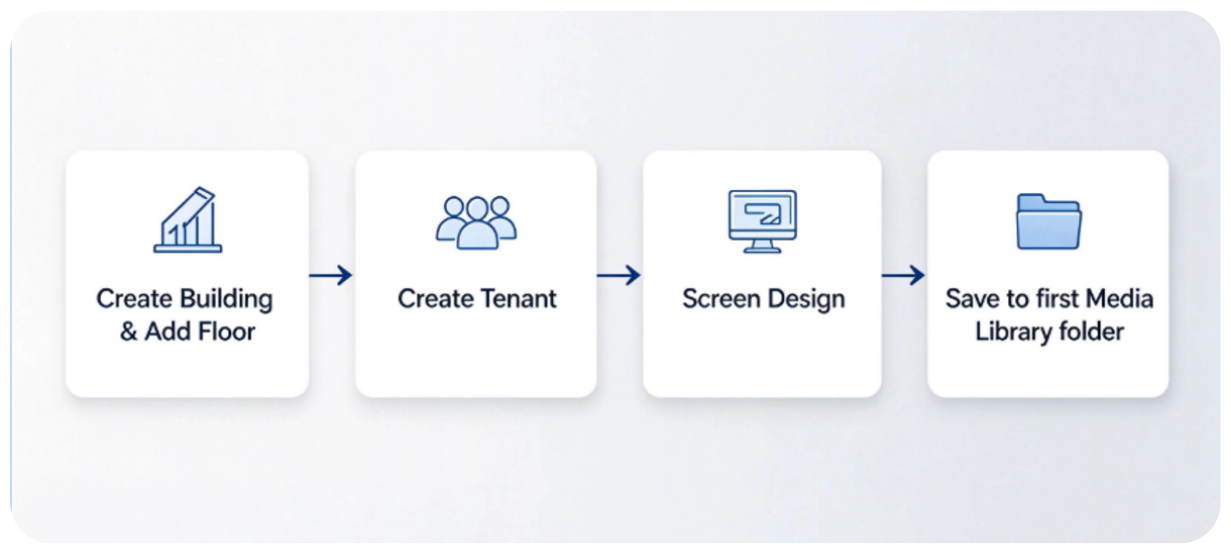 Core workflow
E-Directory Architecture Overview
A Building contains multiple Floors; each Floor contains multiple Tenants. Screens and Content Libraries carry the tenant information and the assets for display.
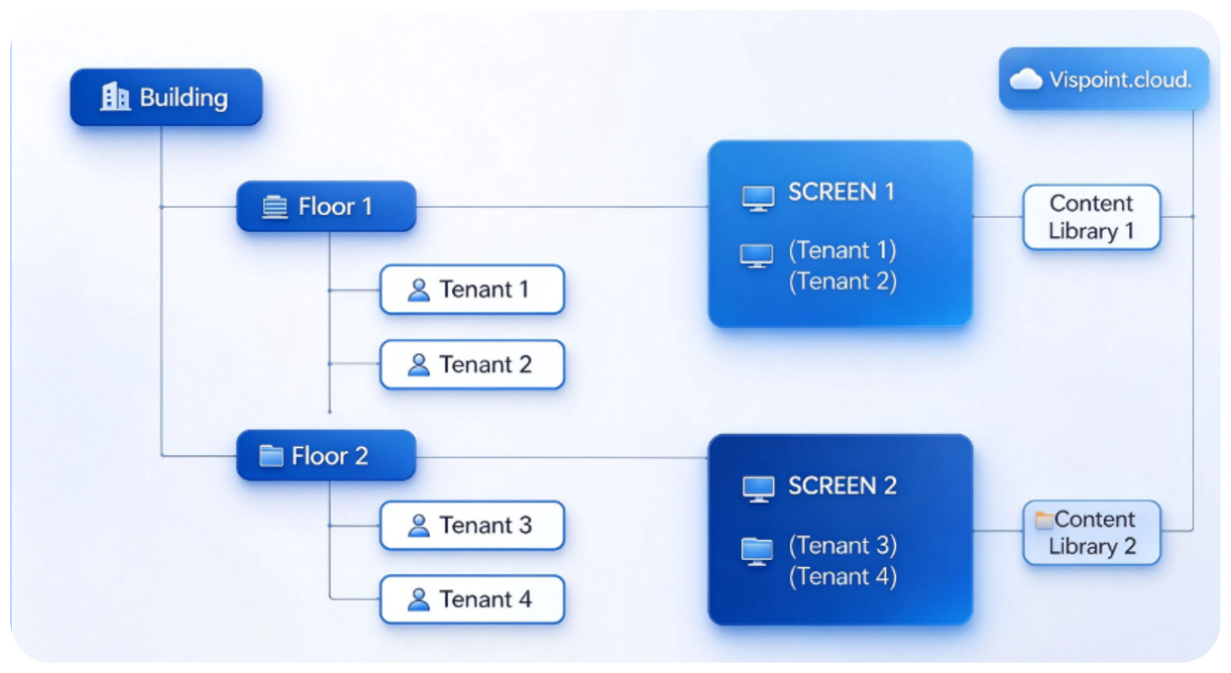 System architecture
The on-screen presentation
Tenant information for a floor is shown on the electronic screen (for example 10F-101, 10F-102, and 10F-103 on floor 10F).
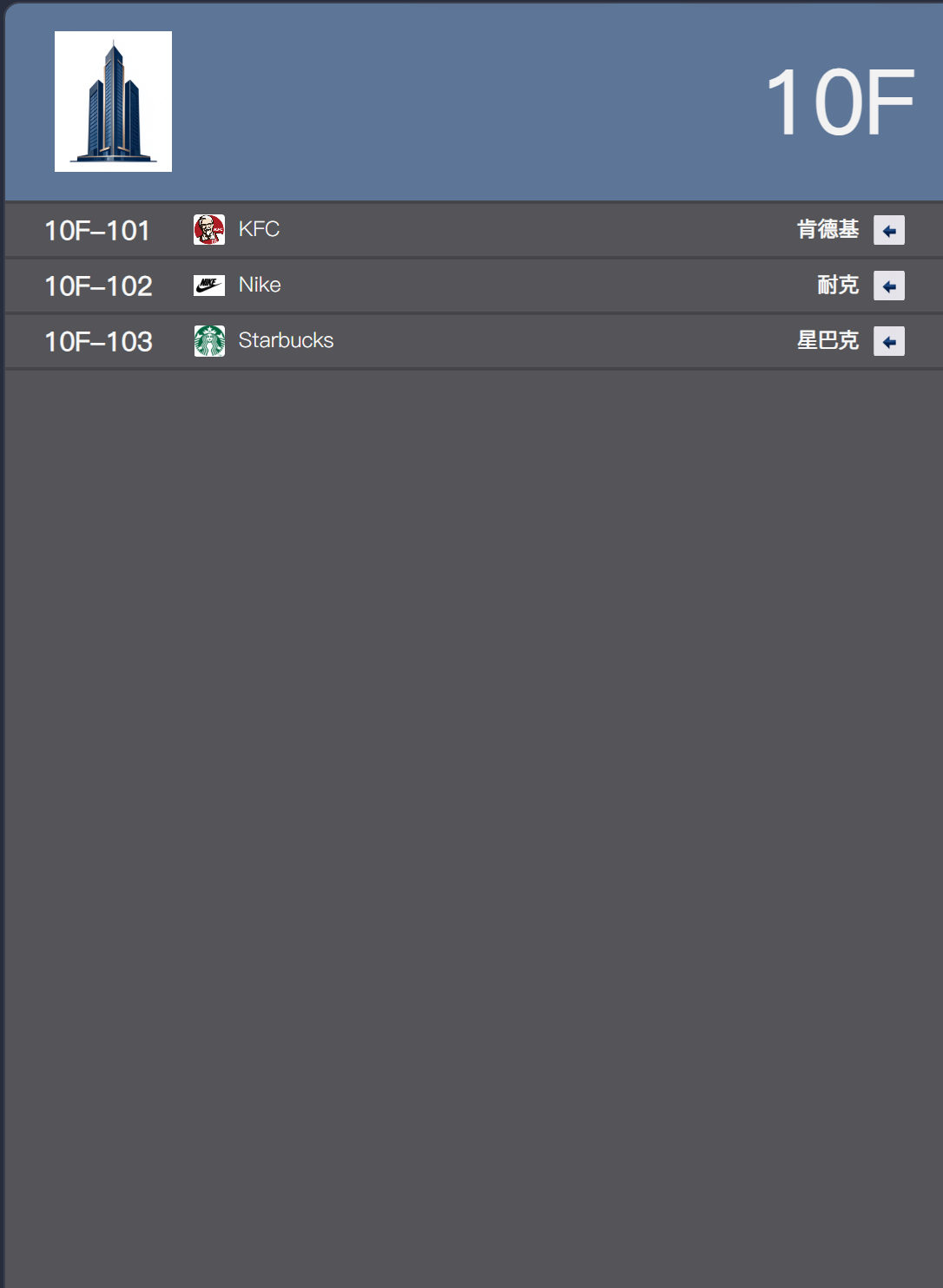 On-screen presentation (10F)
2Create Building
Here are the detailed steps to create the building.
Open Building management, create a new building, and upload its logo, background image, and top background image.
Click on Building
Click the Building entry to open building management.
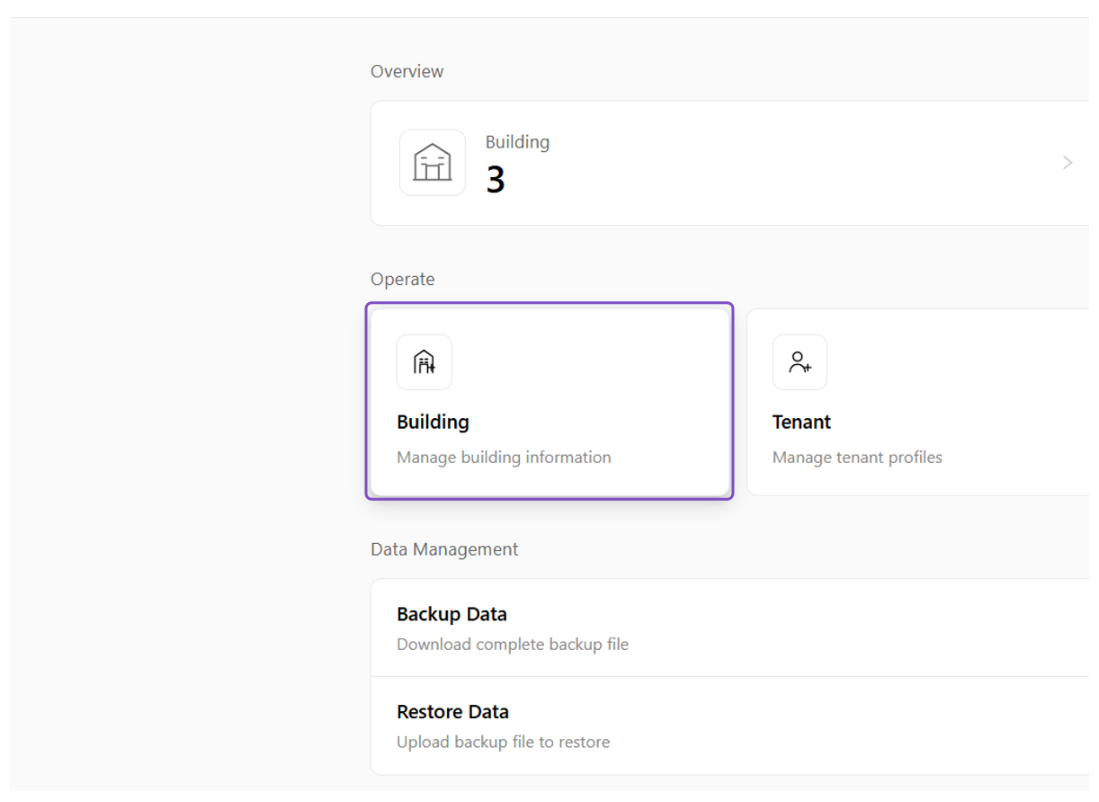 Building entry
Click on Add Building
Click the "+ Add Building" button.
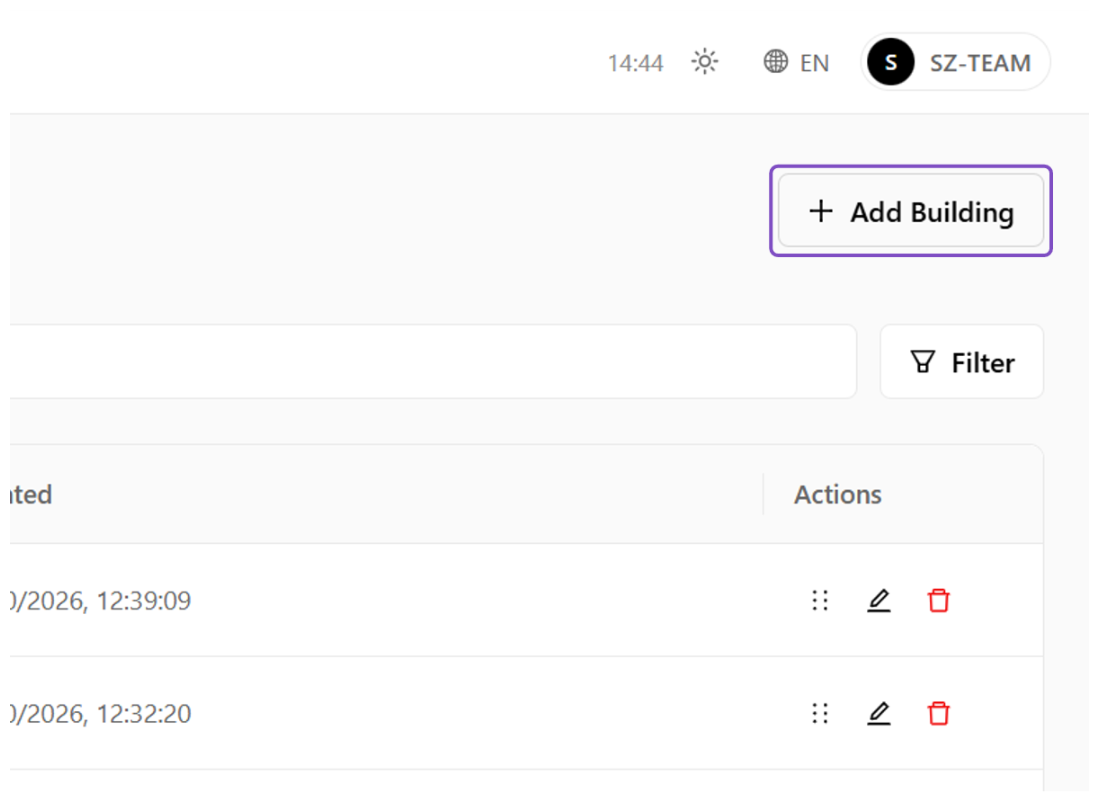 Add Building button
Type "海景大厦"
Enter the building's Chinese name (Chinese Name field).
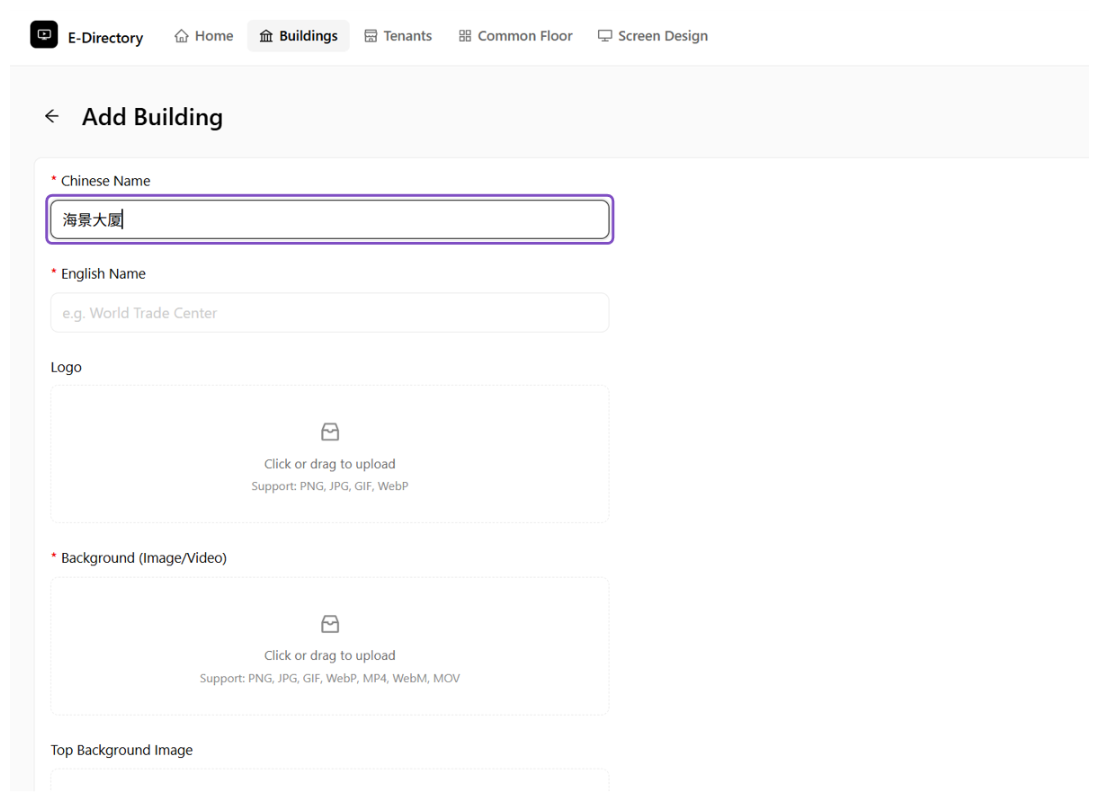 Enter the Chinese name
Type "Seaview Mansion"
Enter the building's English name (English Name field).
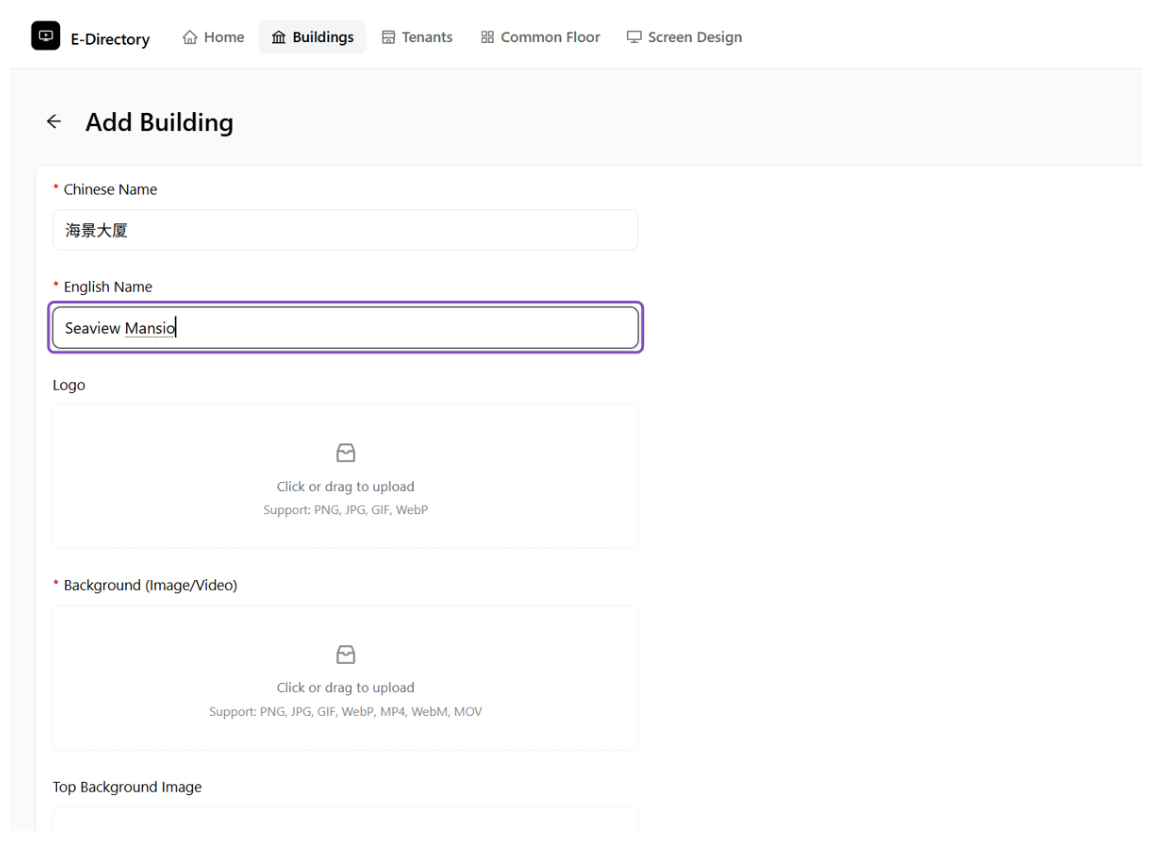 Enter the English name
Click "Click or drag to upload" under "Logo"
Click the upload area under "Logo".
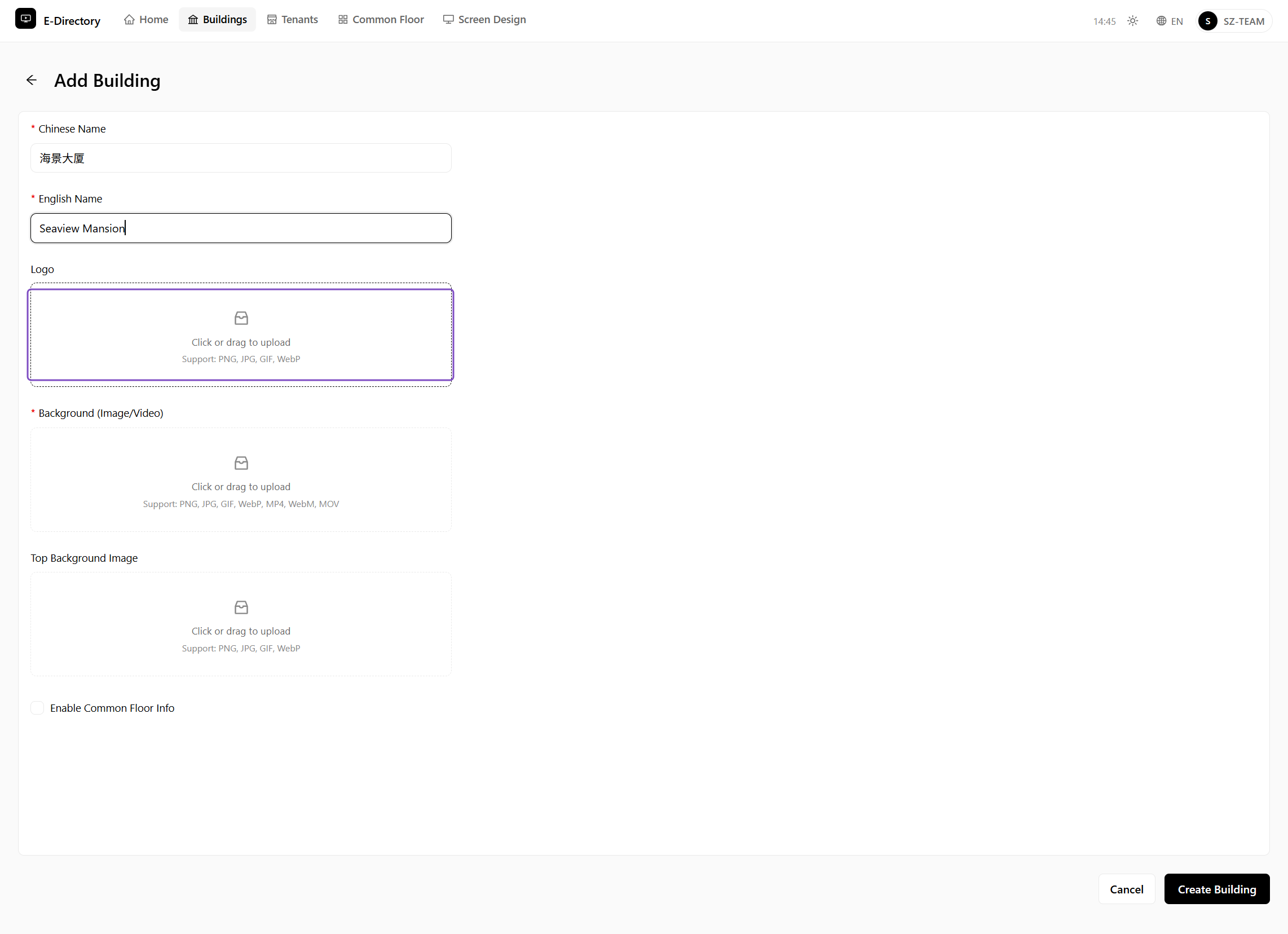 Logo upload area
Select "logo.png" from file upload menu
Upload the logo image from your local computer; the image name can be customized.
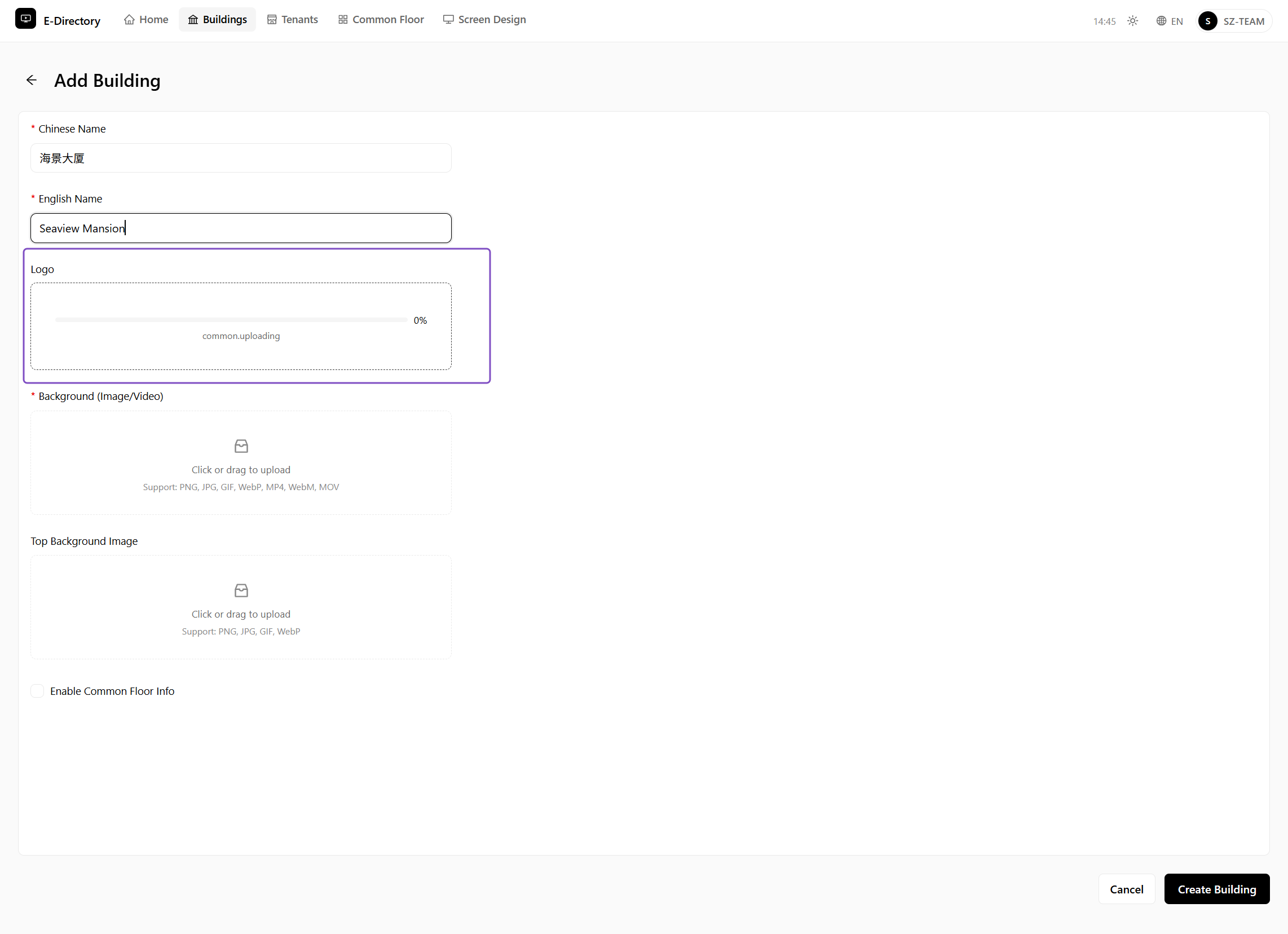 Select and upload logo.png
Click "Click or drag to upload" under "Background(Image/Video)"
Click the upload area under "Background(Image/Video)".
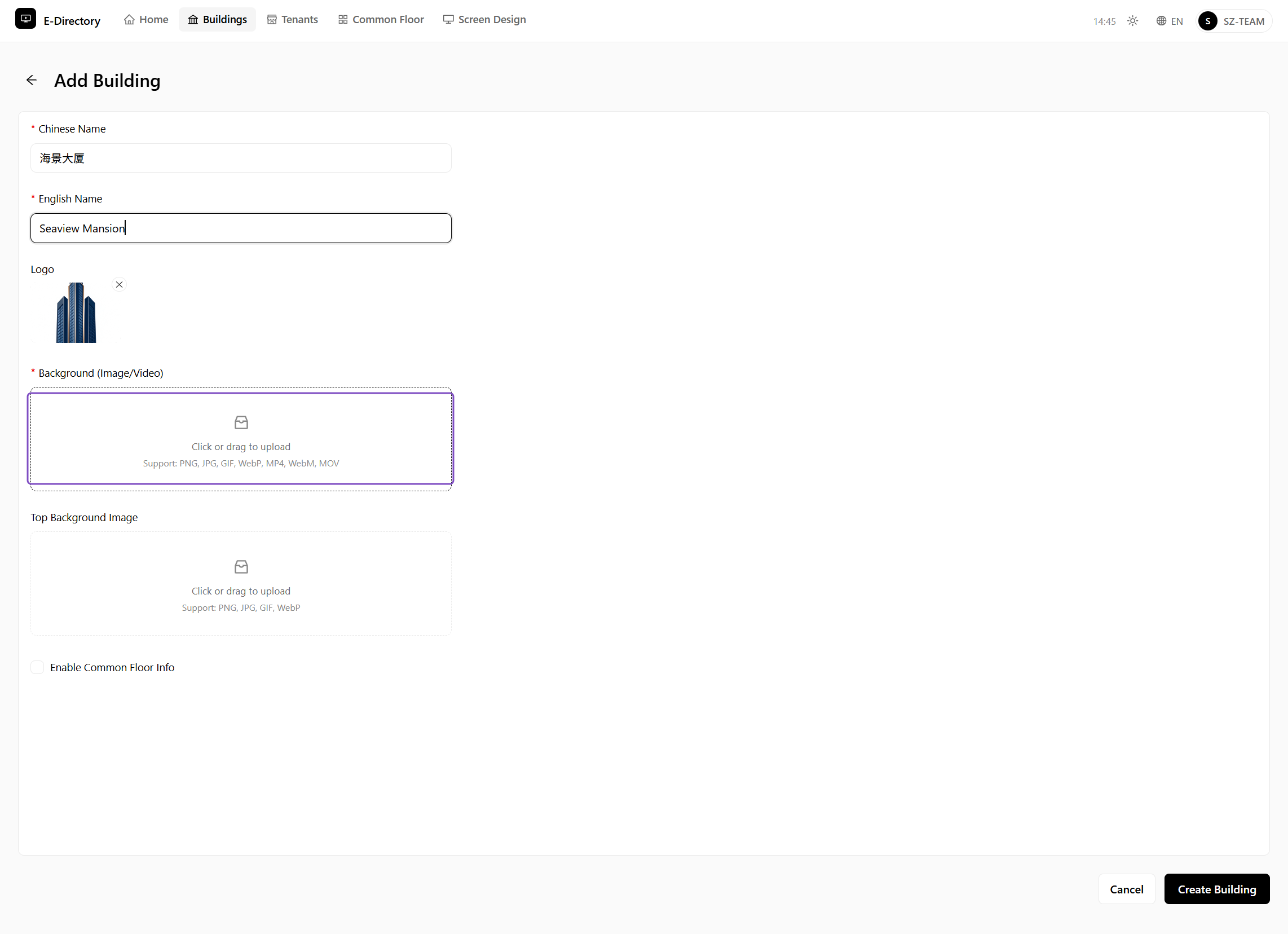 Background upload area
Select "backgroud.png" from file upload menu
Upload the background image from your local computer; the image name can be customized.
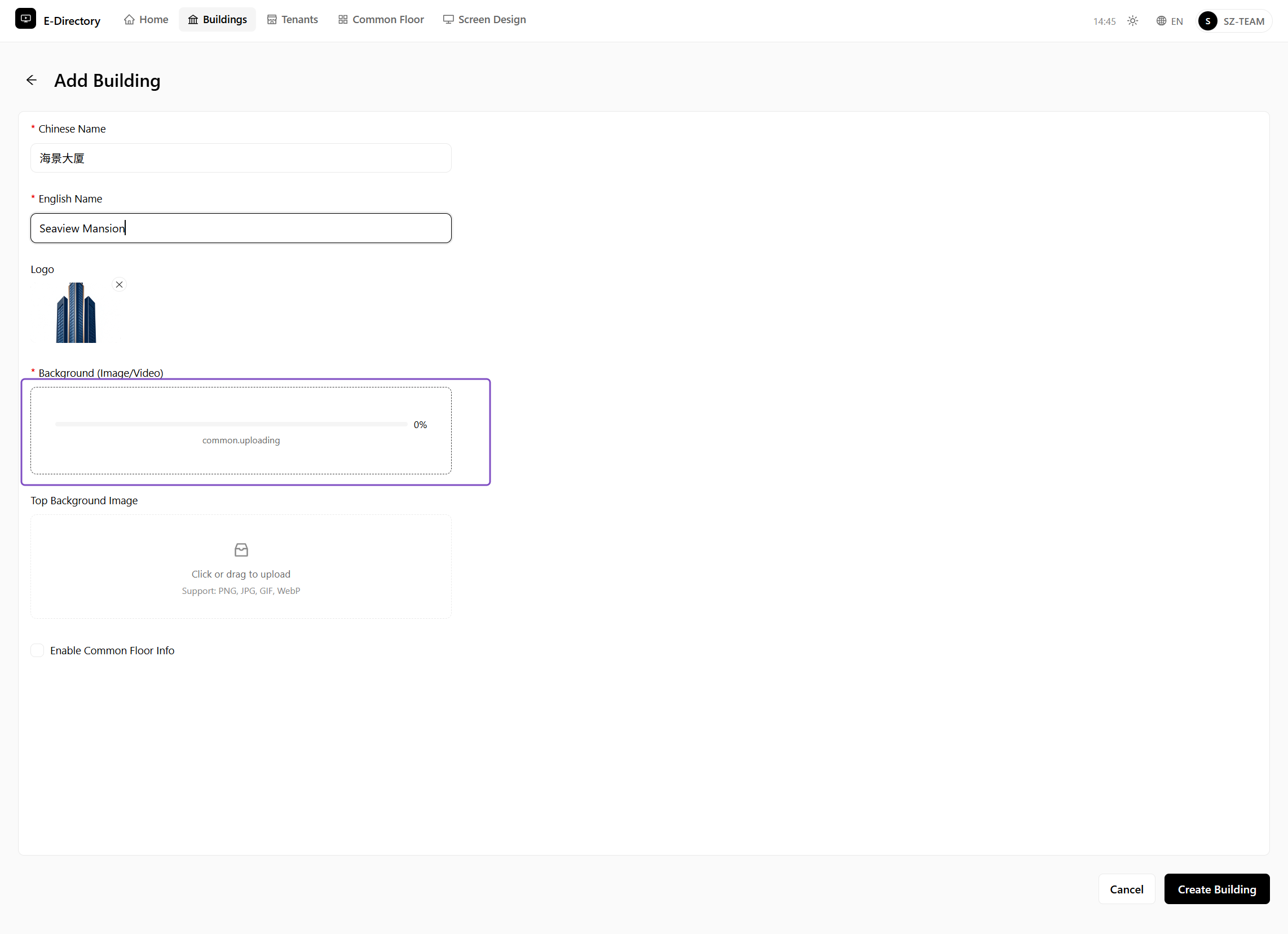 Select and upload background.png
Click "Click or drag to upload" under "Top Background Image"
Click the upload area under "Top Background Image".
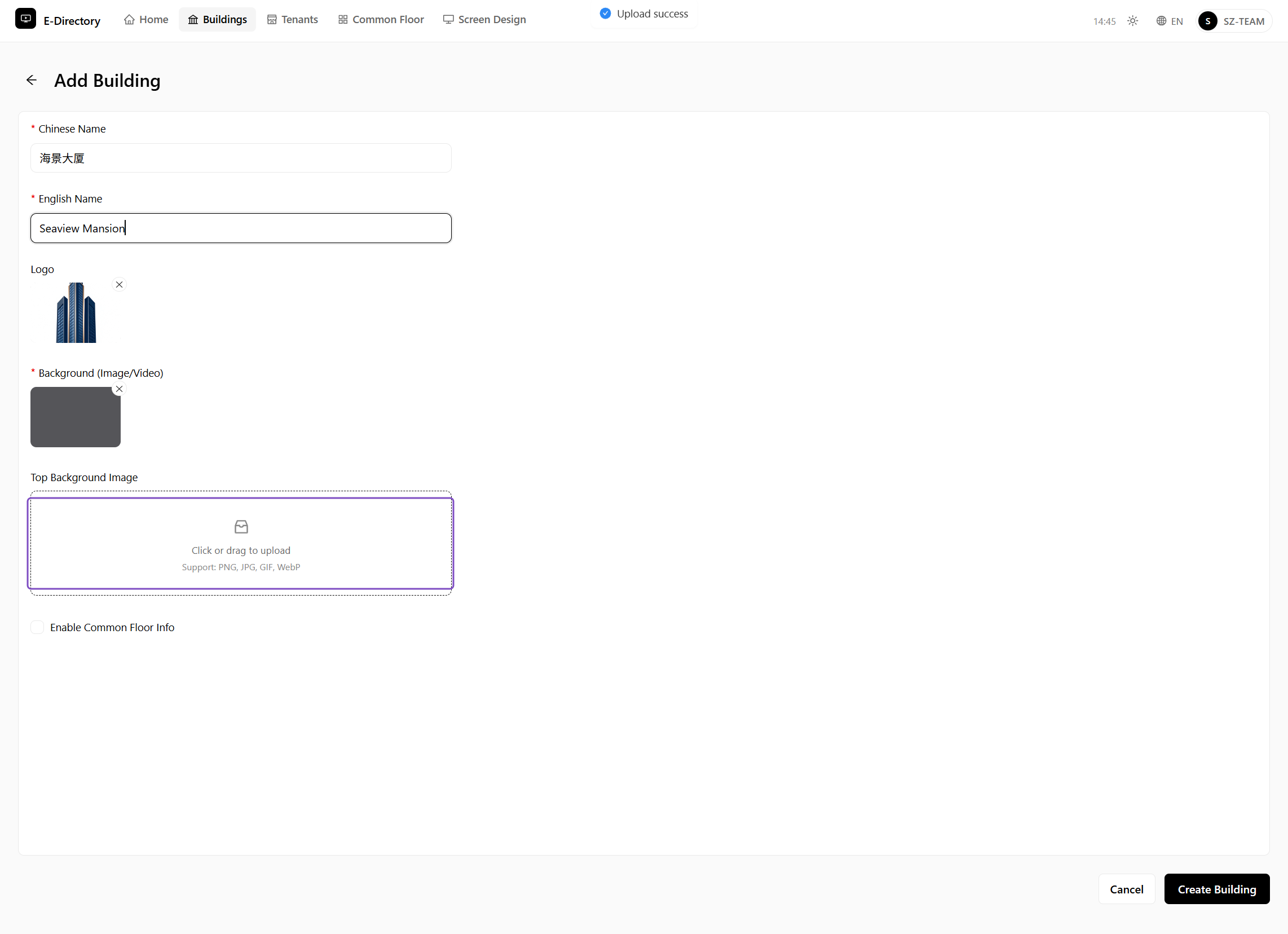 Top background upload area
Select "top_background.png" from file upload menu
Upload the top background image from your local computer; the image name can be customized.
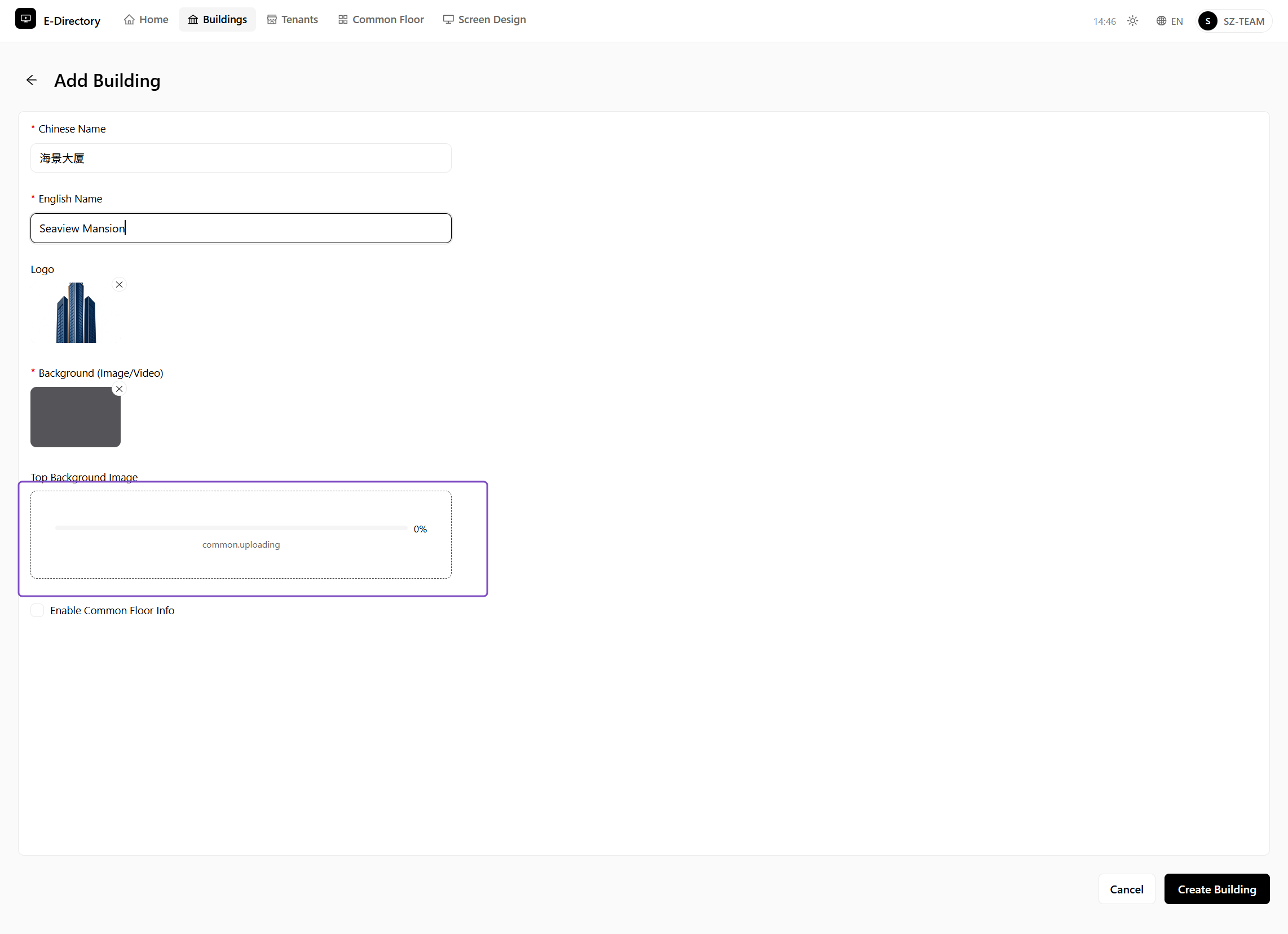 Select and upload top_background.png
Click on Create Building
After clicking "Create Building", you can see the building you created on the Buildings management page.
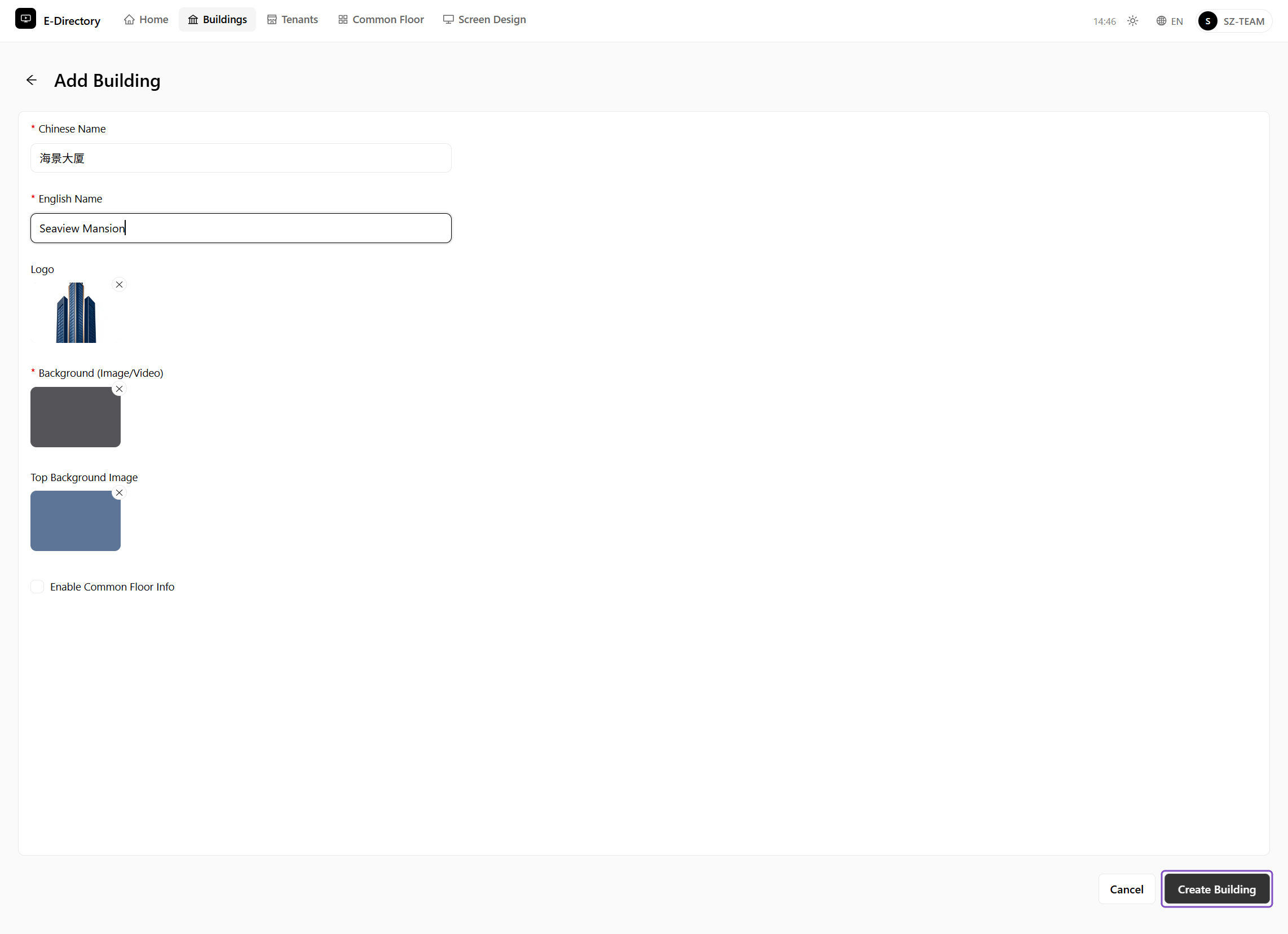 Building created
3Create Floor
Next, you can create floors under the building created in the previous step.
Enter Floor management from the right of the building column and add floor identifiers (for example 10F, 11F) according to the actual situation.
Click on Manage Floor List
Click "Manage Floor List" on the right side of the building column created in the previous step.
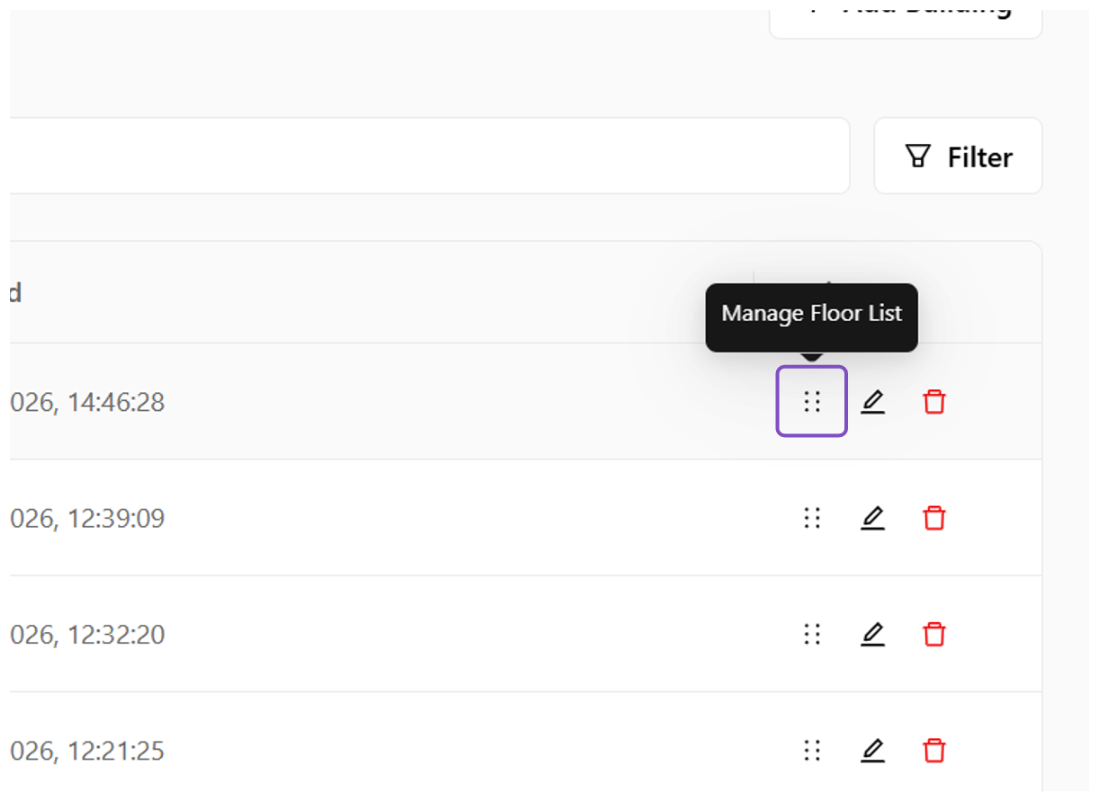 Manage Floor List entry
Type "10F"
Enter the corresponding floor identifier according to the actual situation; enter "10F" here.
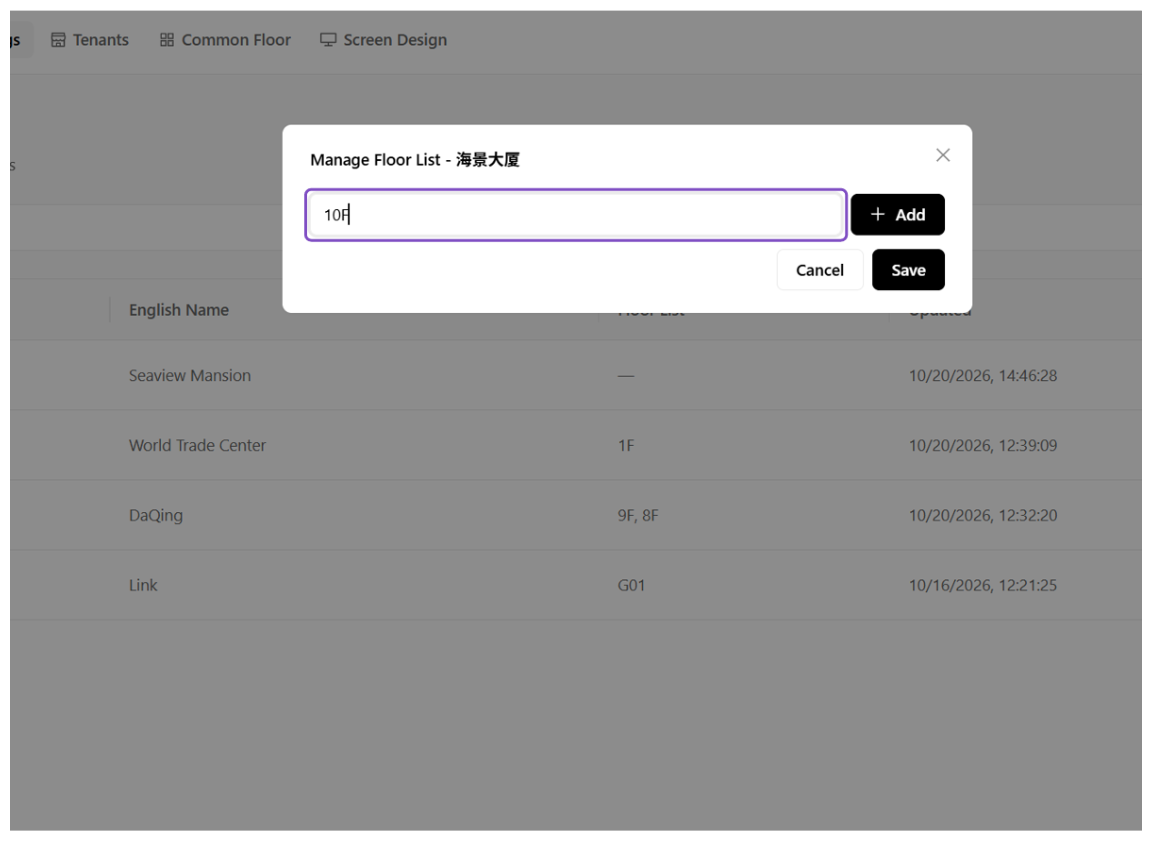 Enter floor 10F
Click on Add
Click "Add" to add this floor.
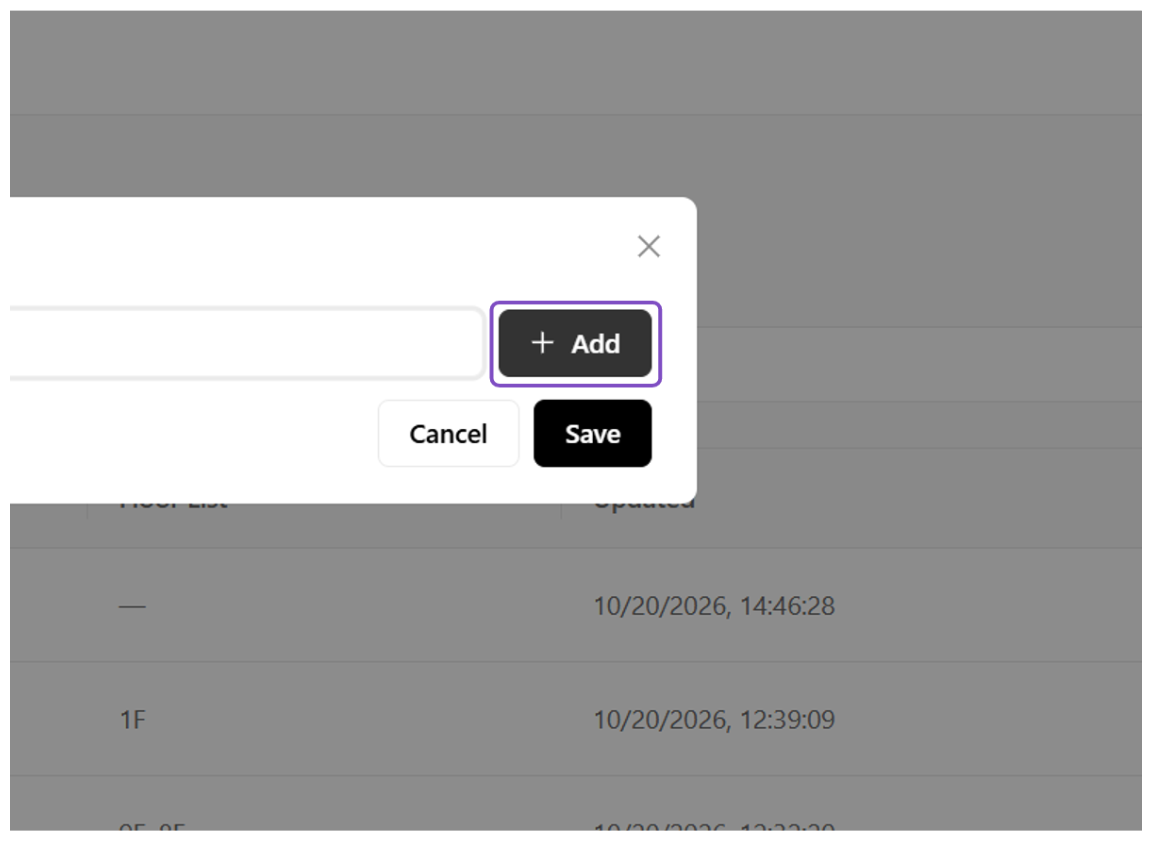 Add button
Type "11F"
You can continue to add floors, such as 11F or other floors.
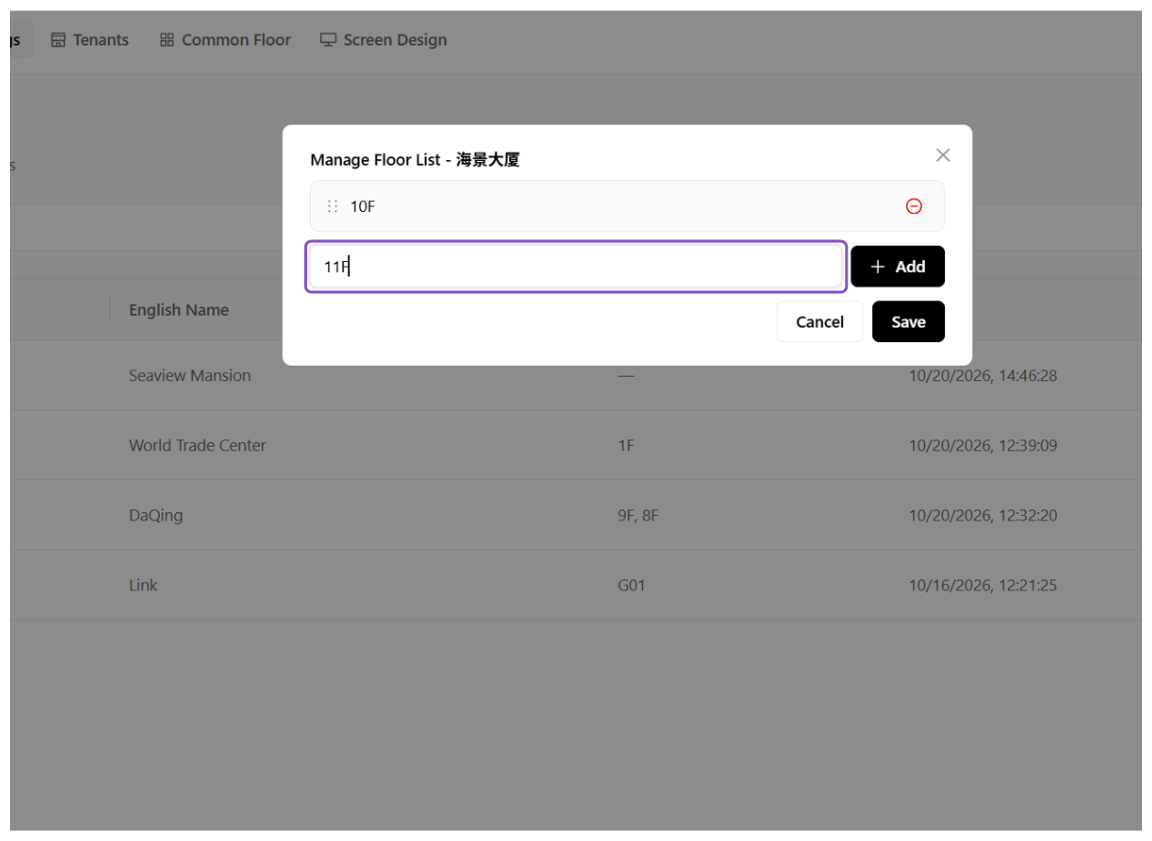 Continue adding 11F
Click on Add
Click "Add".
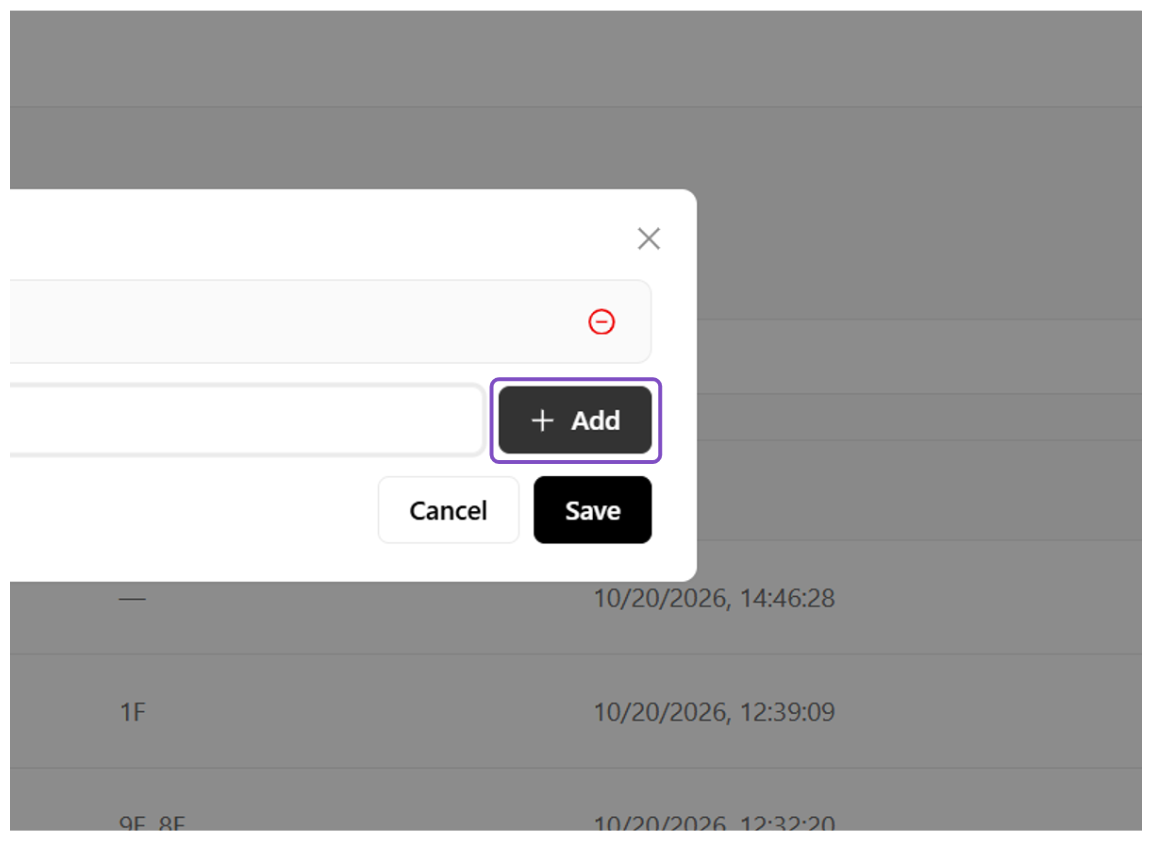 Add confirmation
Click on Save
Click "Save" to save the floor list.
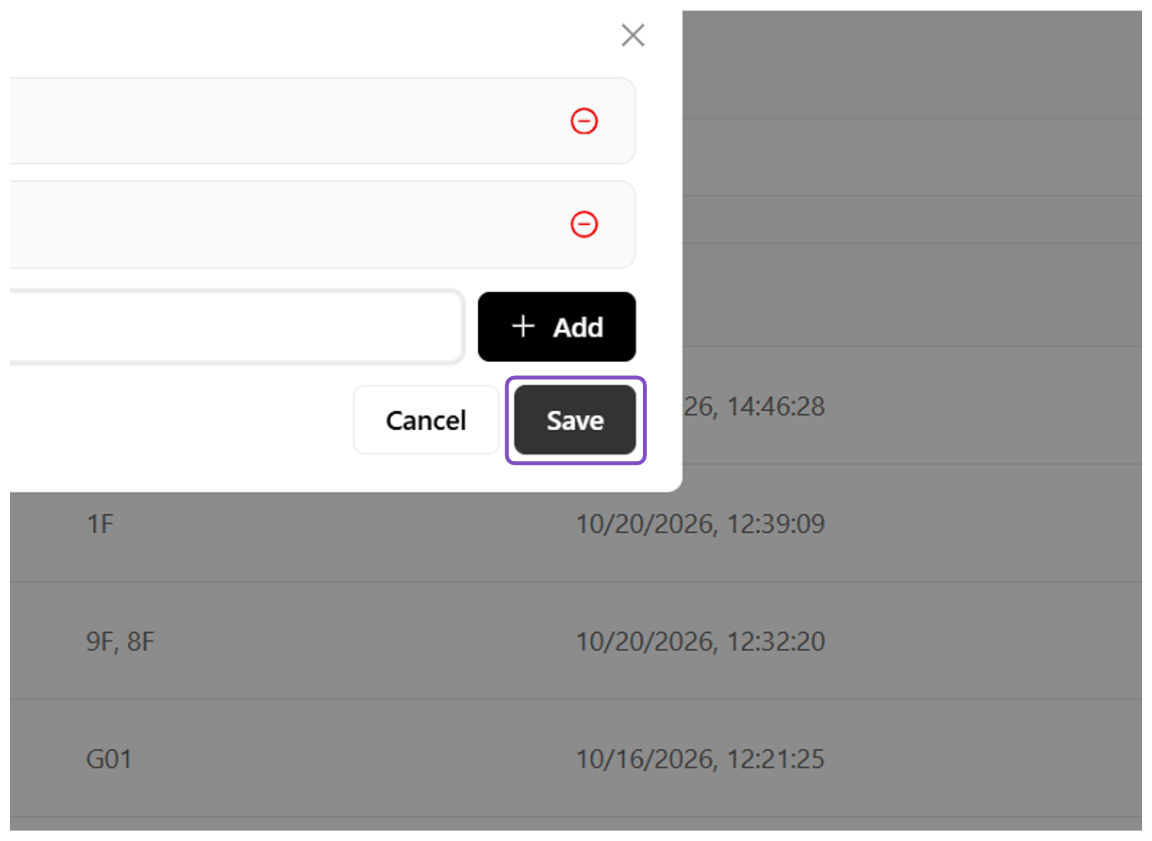 Save floors
4Create Tenants
The tenant refers to the occupying tenant within the building. During configuration, it is necessary to specify the corresponding building and the floor it belongs to.
A tenant is an occupant within the building; during configuration you must specify the building and the floor it belongs to. The steps below walk through creating several example tenants (肯德基/KFC, 星巴克/Starbucks, 耐克专卖店/Nike) to demonstrate the full tenant-creation flow.
Click on Tenants
Click the "Tenants" entry.
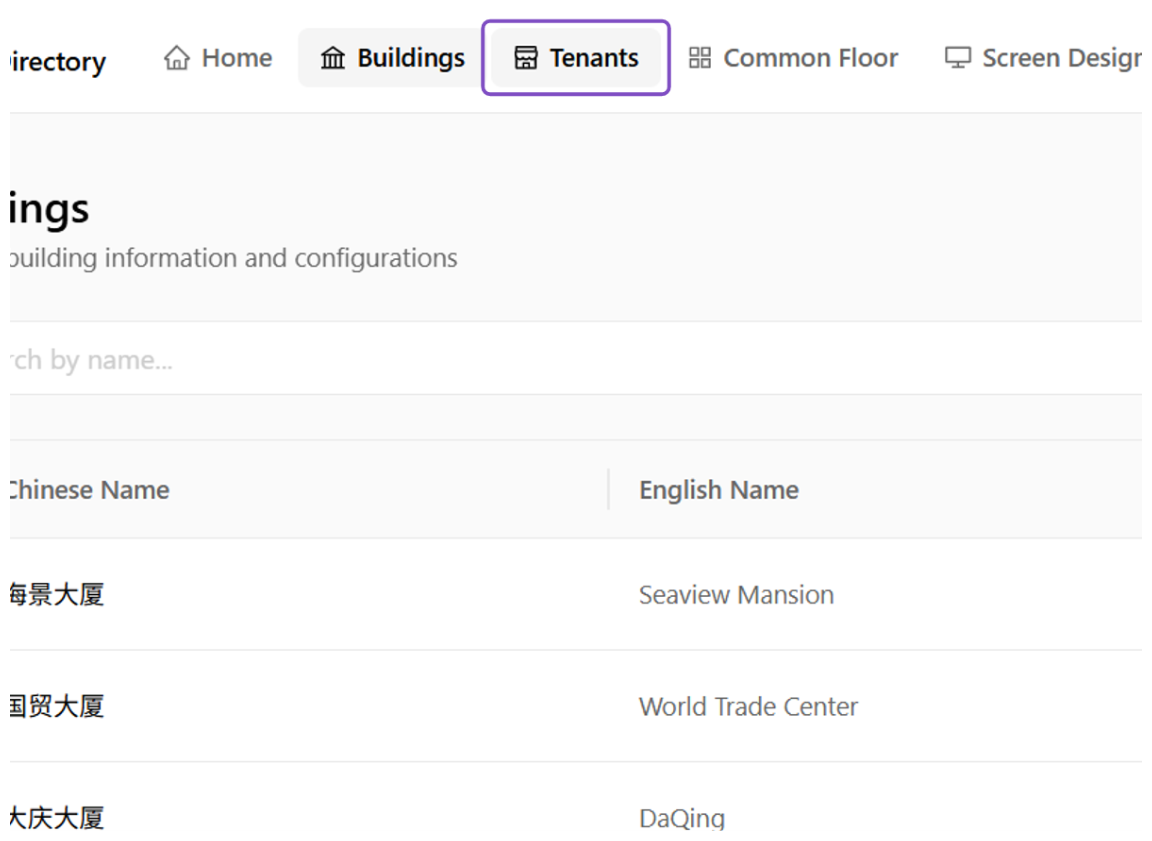 Tenants entry
Click on Add Tenant
Click the "+ Add Tenant" button.
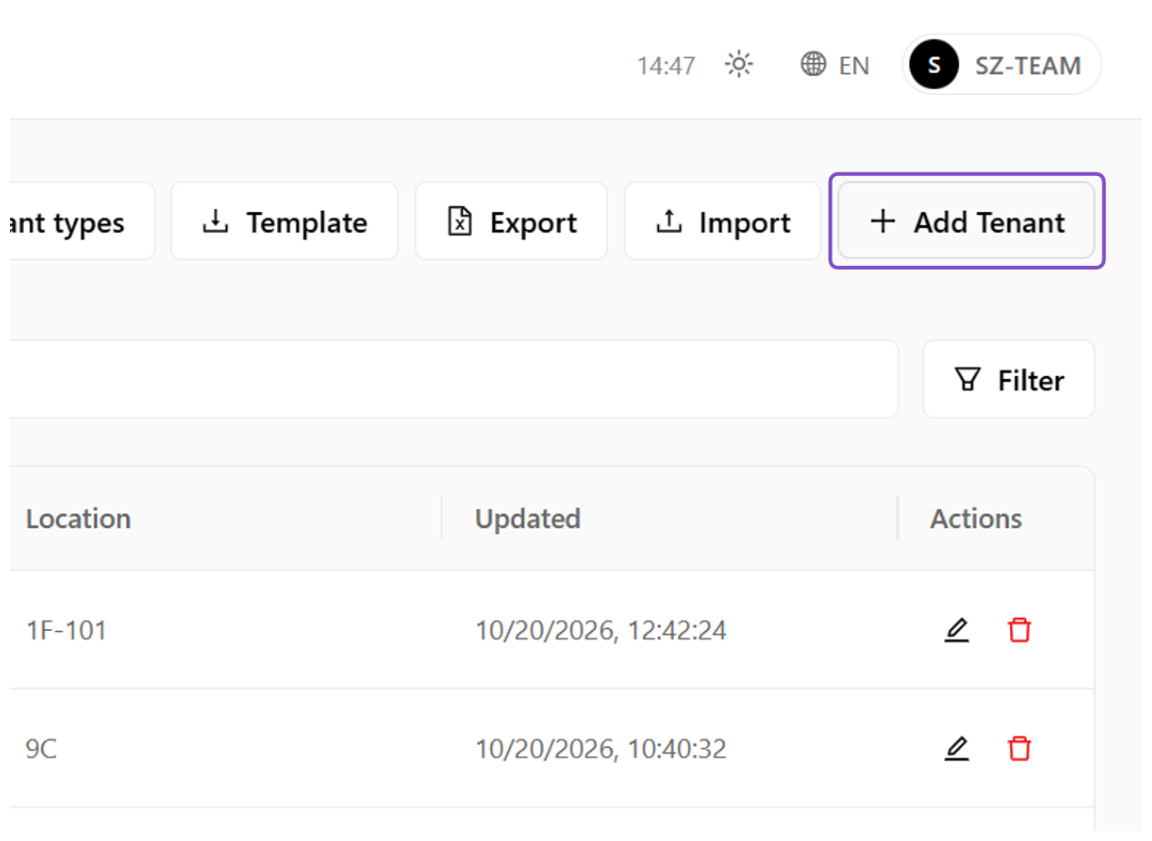 Add Tenant button
Type "肯德基"
Enter the corresponding name according to the actual on-site situation.
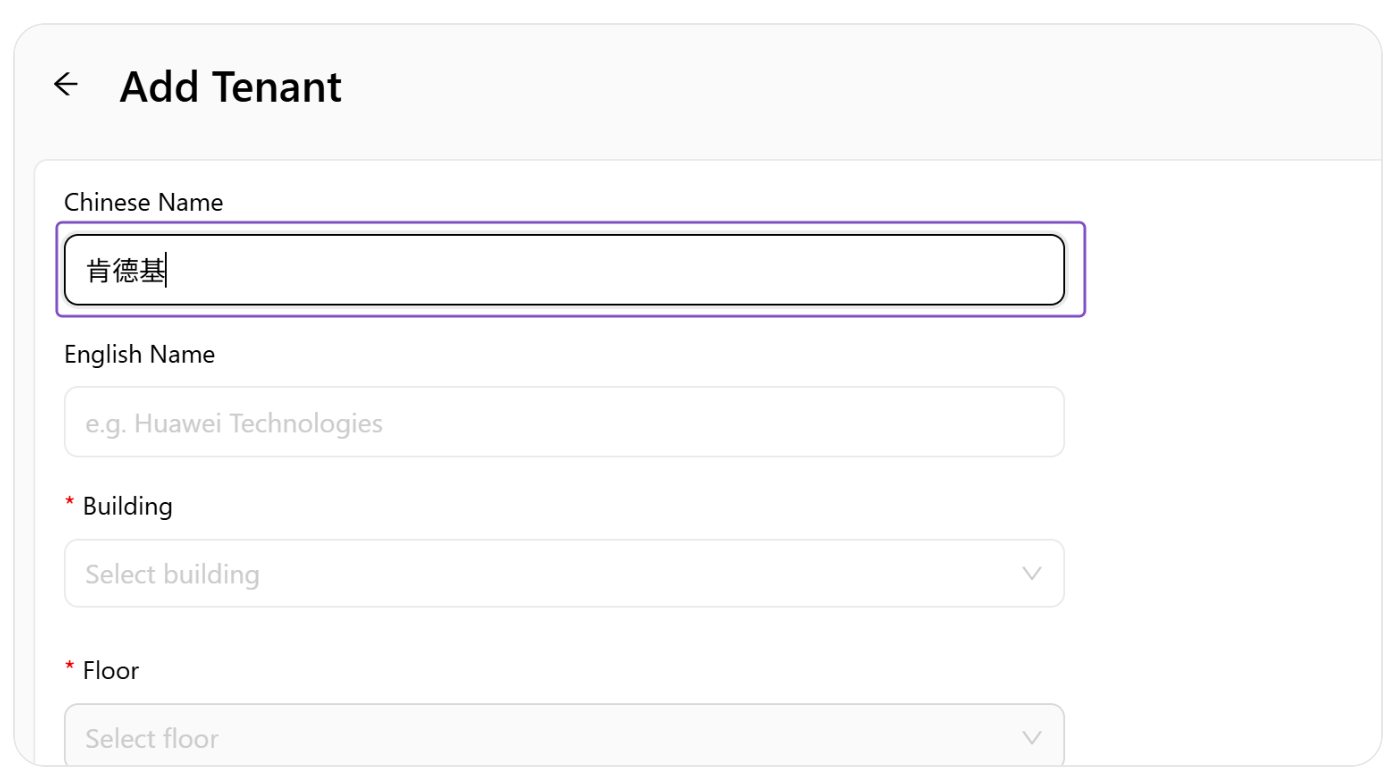 Enter the tenant name
Type "KFC"
Enter the corresponding name according to the actual on-site situation.
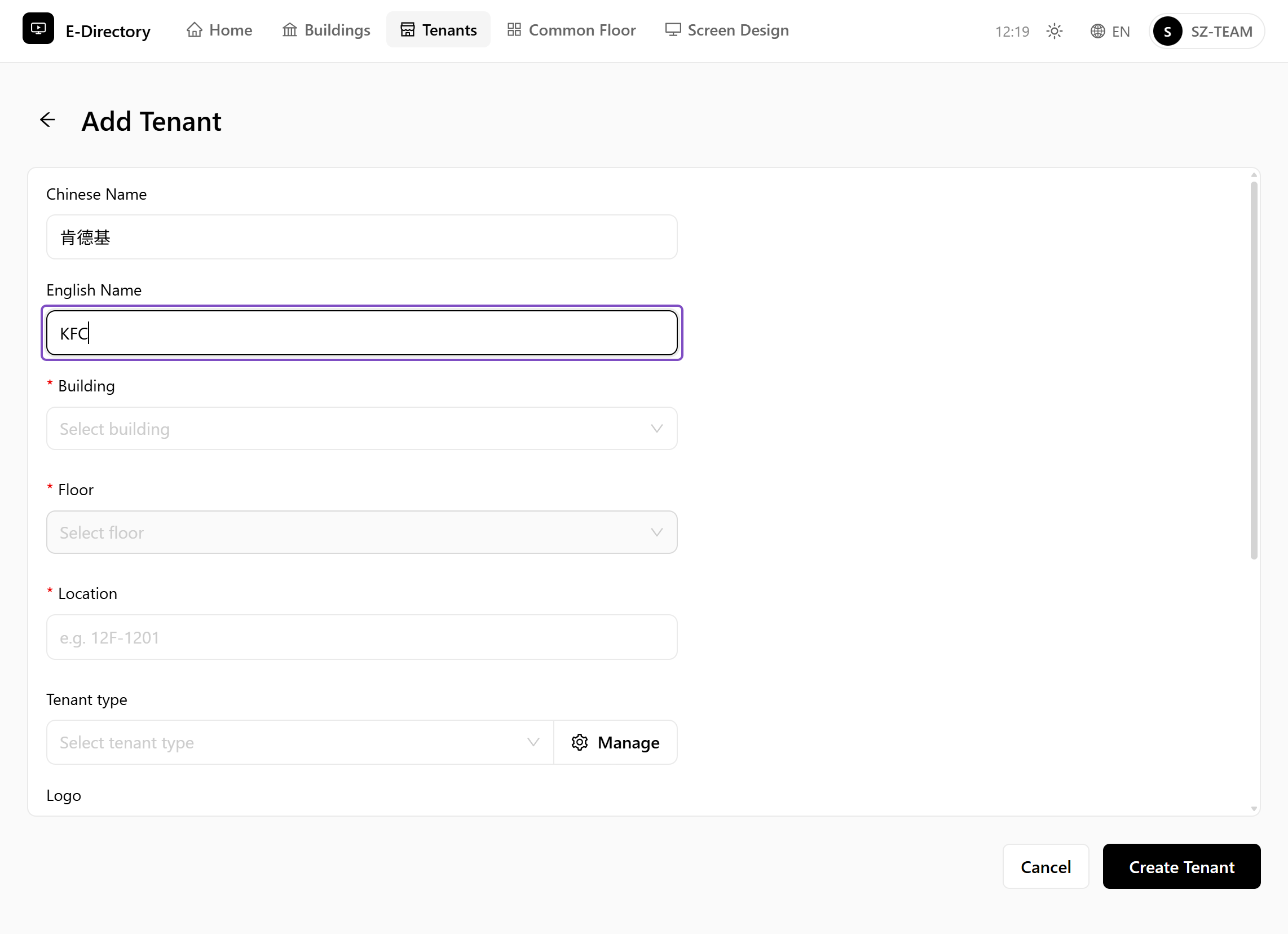 Enter the tenant's English name
Click on Building
Select the building this tenant belongs to.
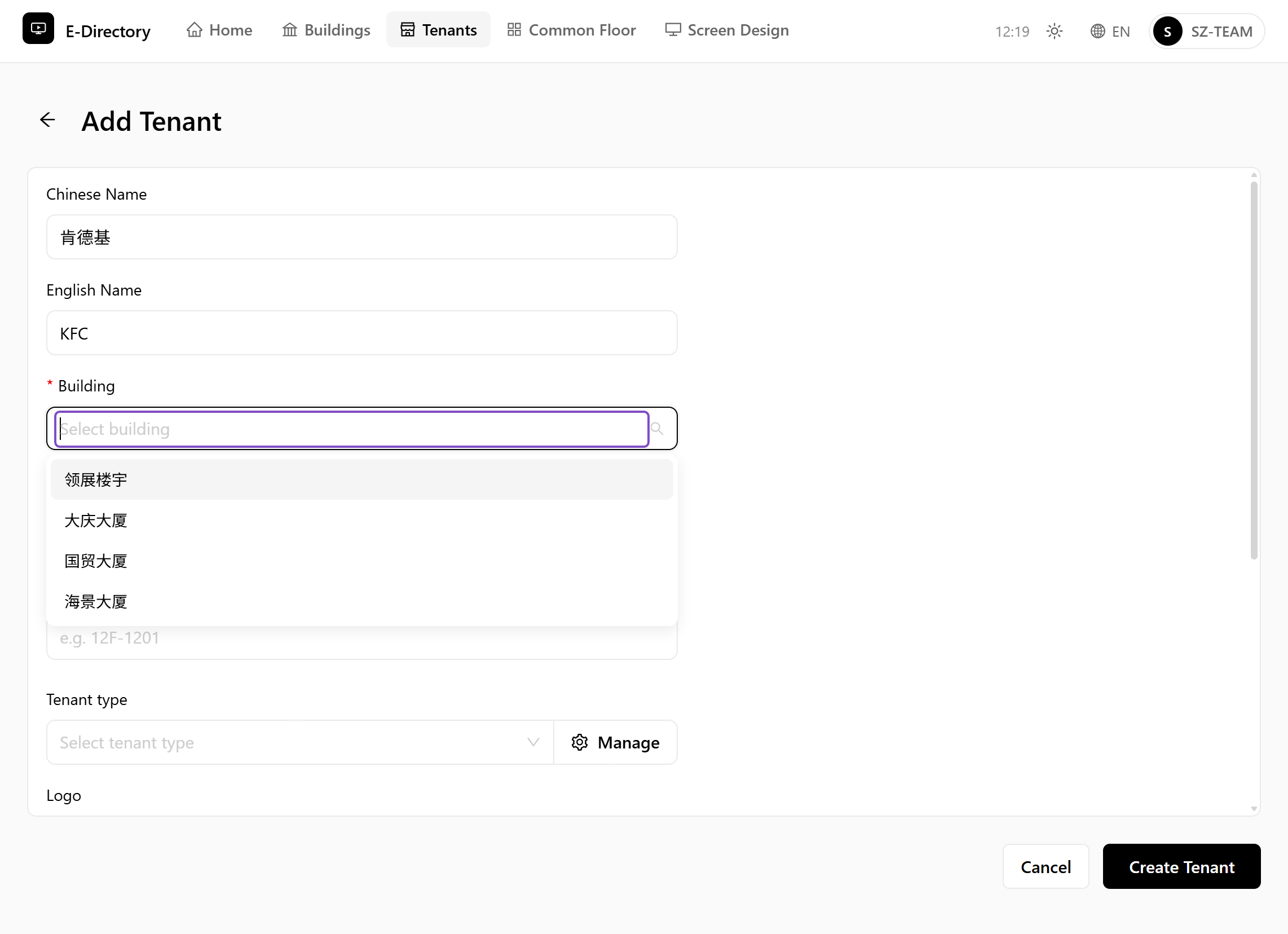 Select Building
Click on 海景大厦
Select the building "海景大厦".
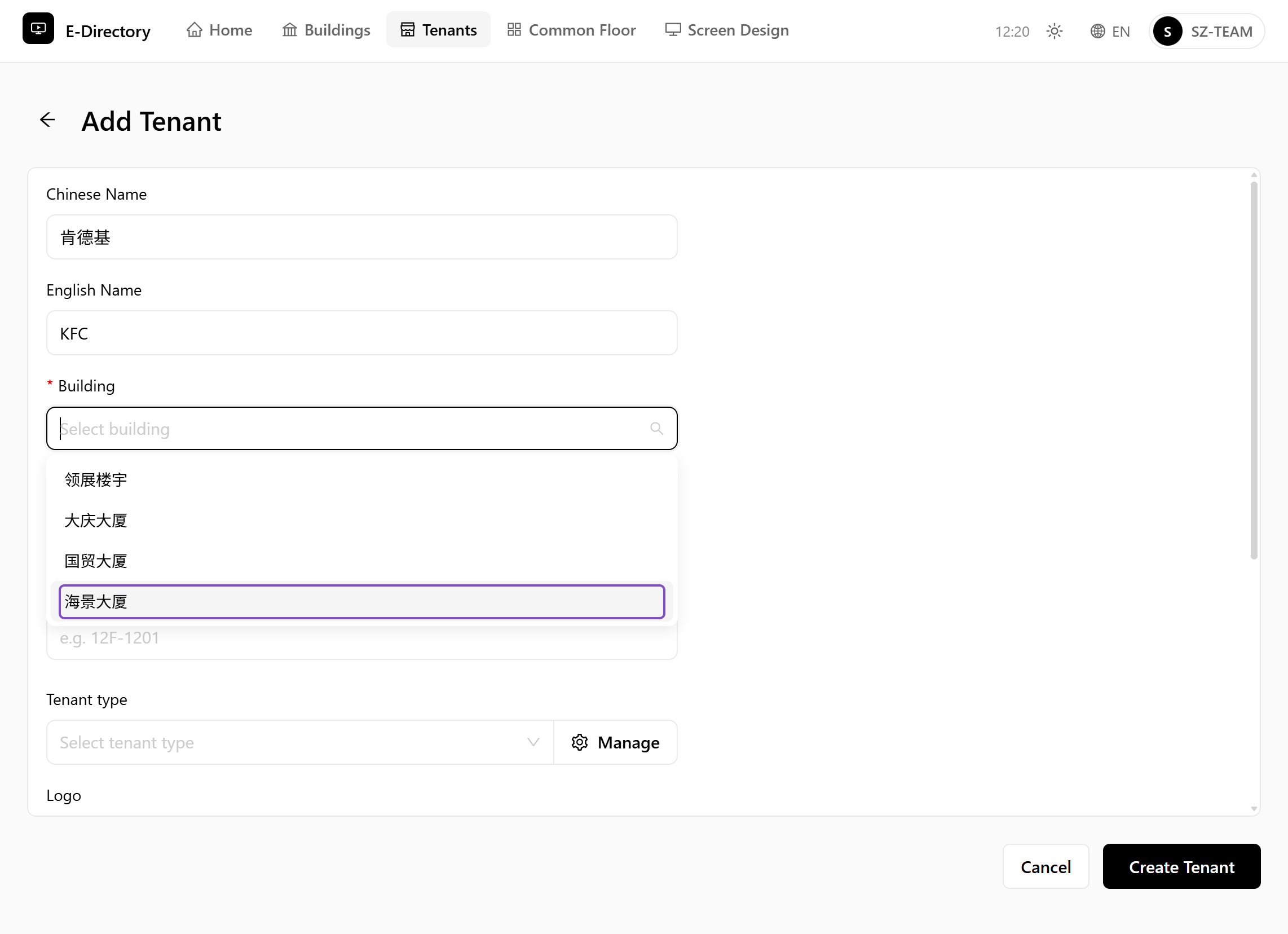 Select 海景大厦
Click on Floor
Select the corresponding floor.
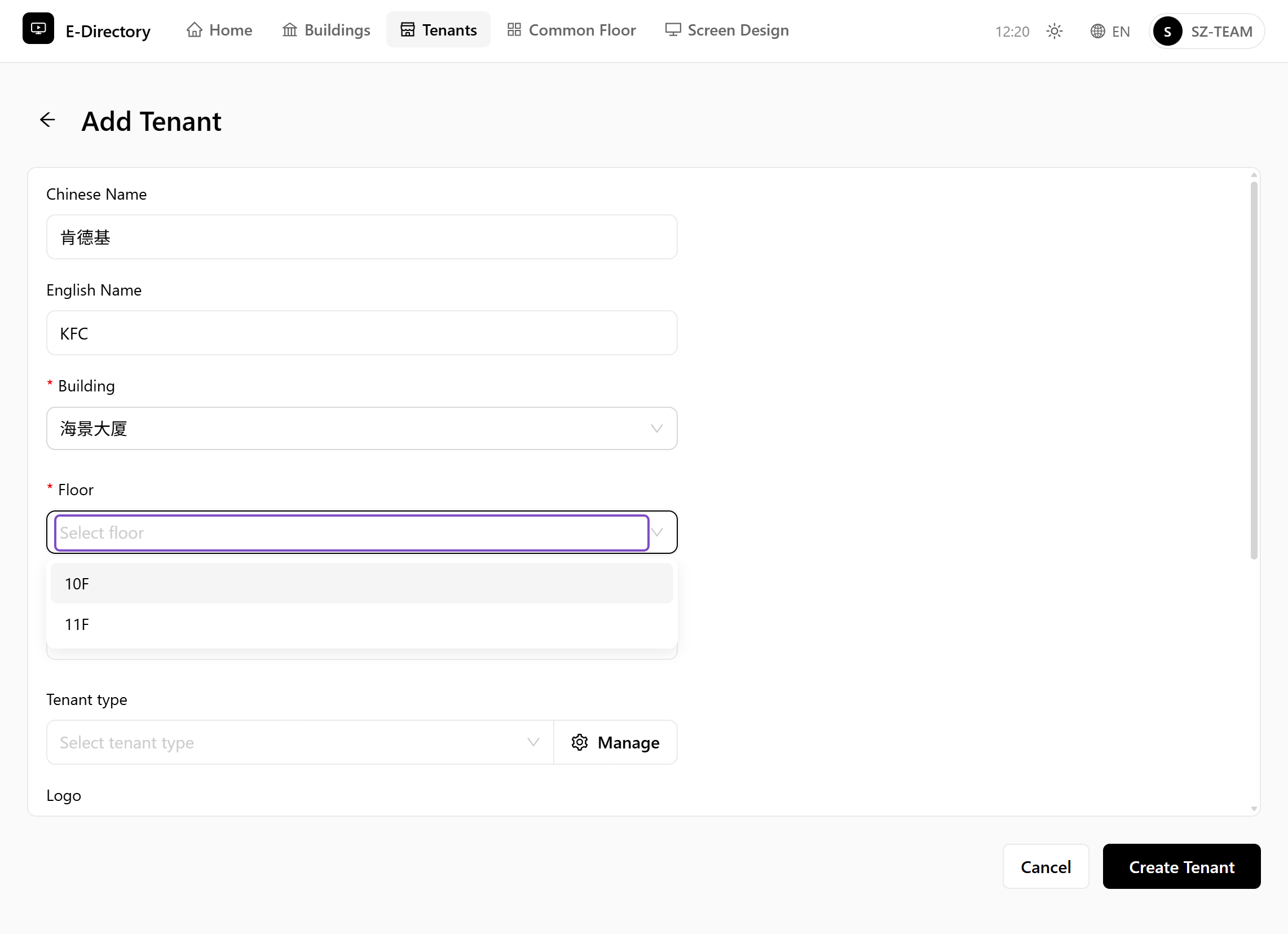 Select Floor
Click on 10F
Select the "10F" floor.
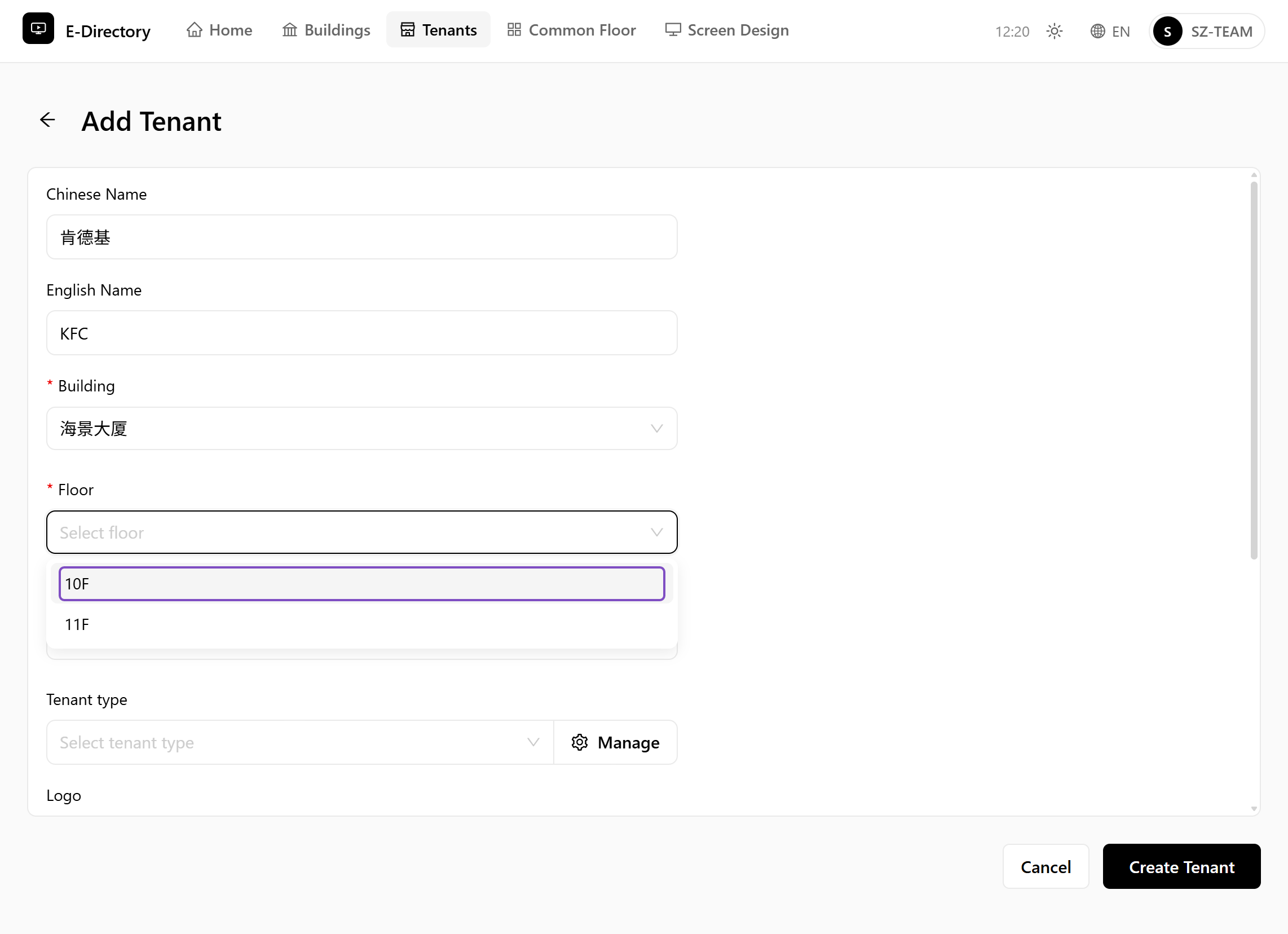 Select floor 10F
Type "10F-101"
Enter the location of this tenant (for example the room number).
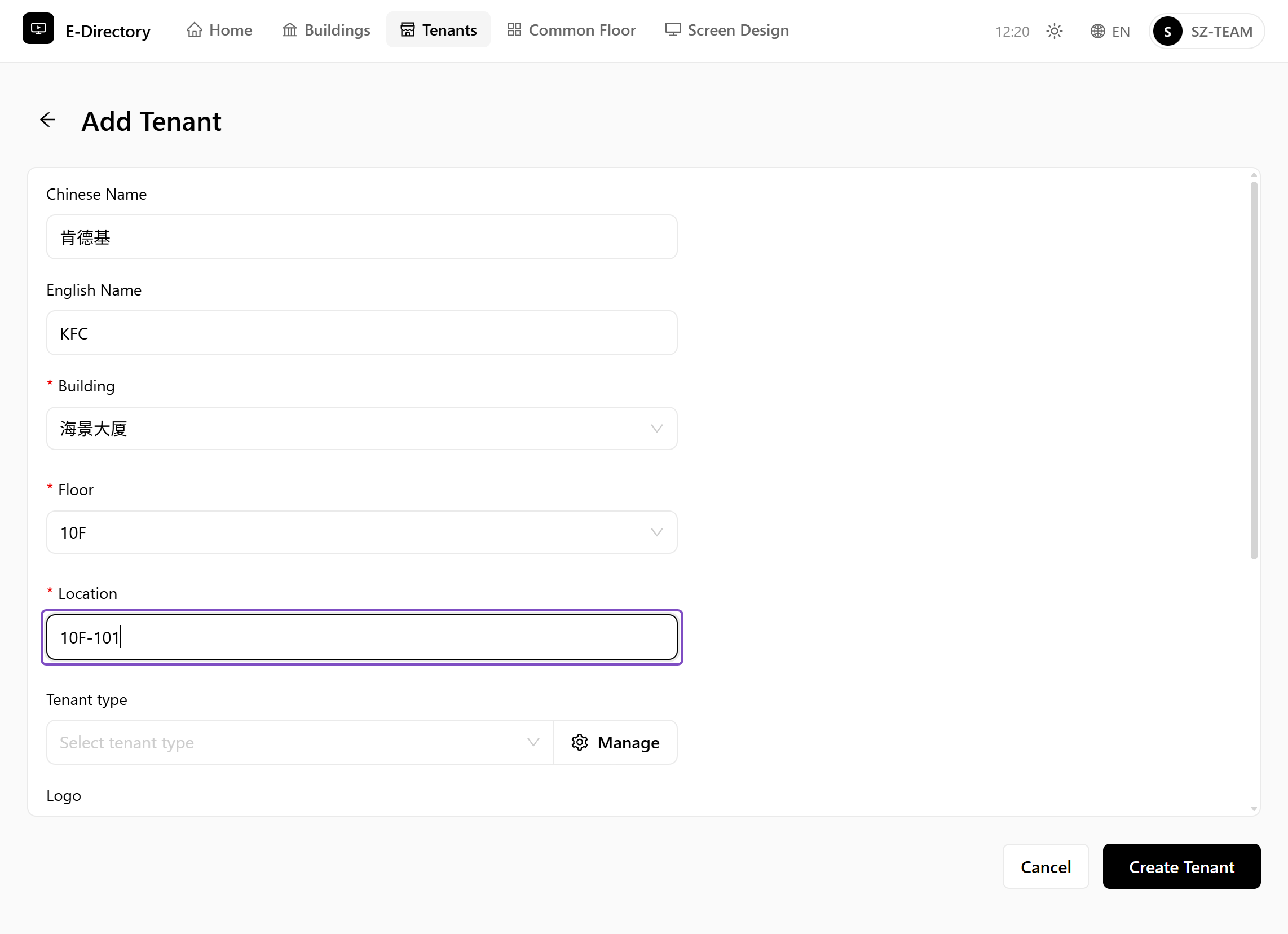 Enter location 10F-101
Click on 饮食/yinshi
You can select the tenant type. If the relevant type is not available in the list, click "Manage" to go to the Manage page and add it.
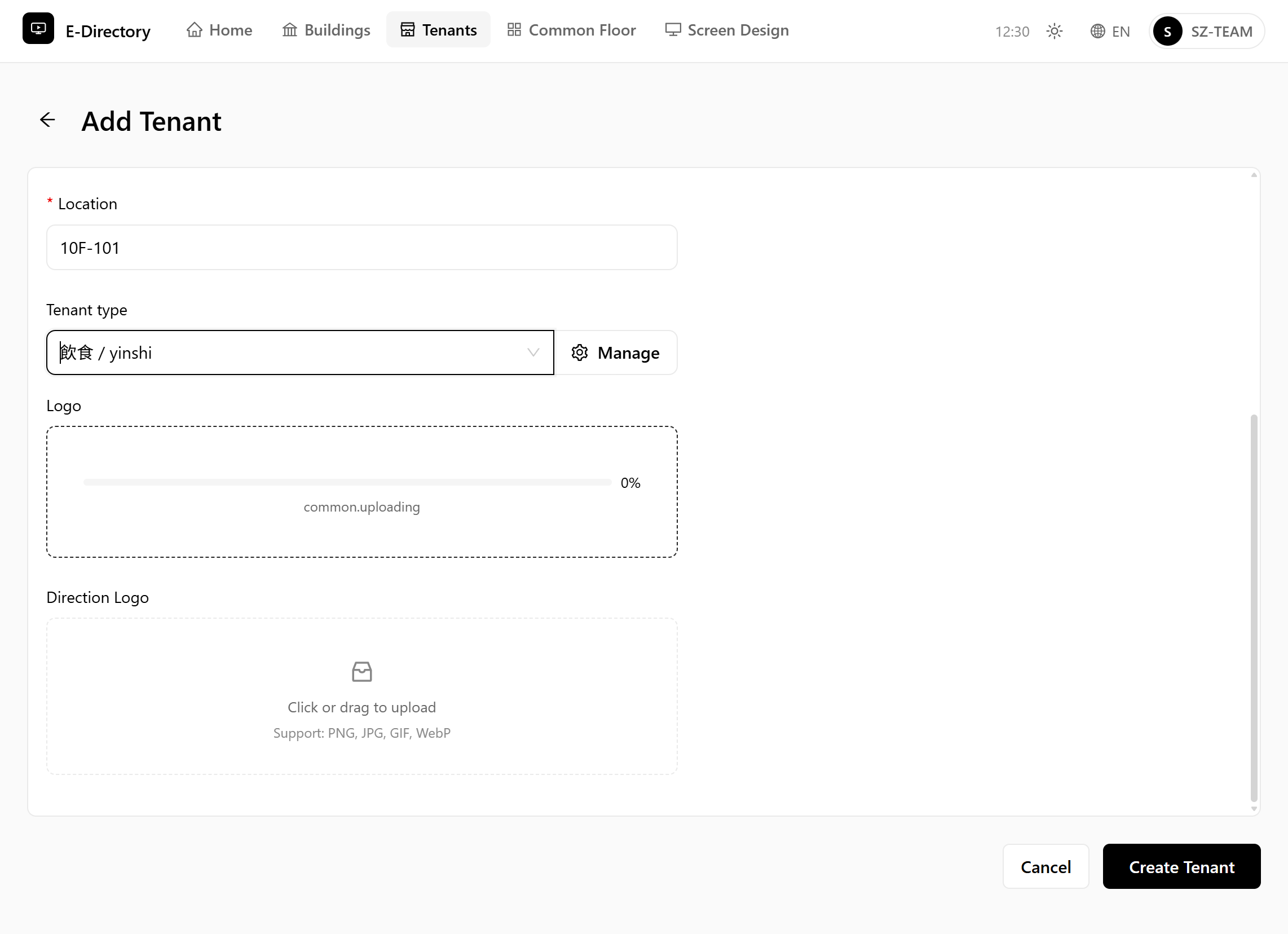 Select the tenant type
Click on Click or drag to upload...
Upload the tenant's logo (company or store logo).
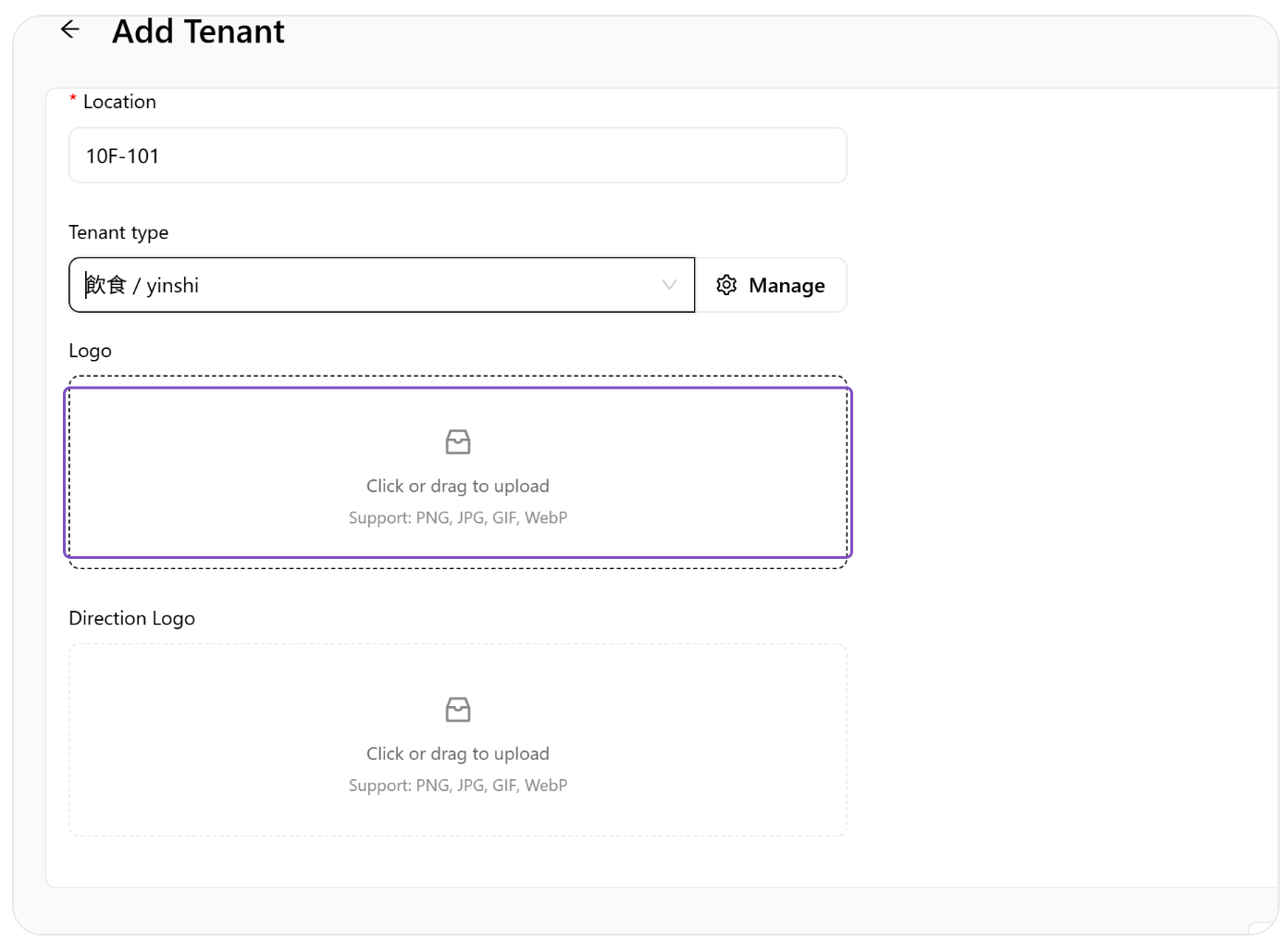 Upload the tenant logo
Select "schot-logo.png" from file upload menu
Upload the logo image from your local computer; the image name can be customized.
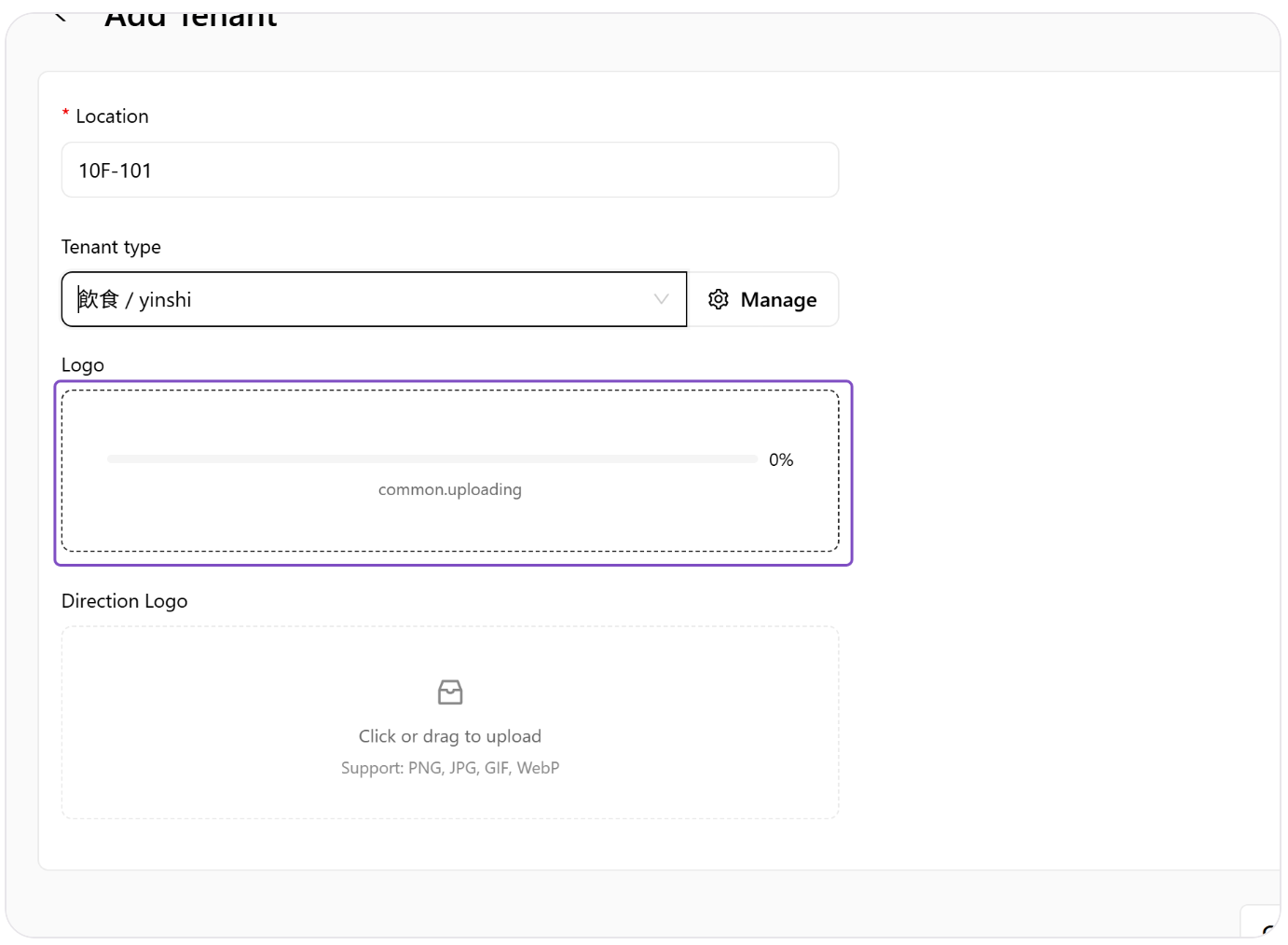 Select and upload schot-logo.png
Click on Click or drag to upload...
Direction Logo is used to indicate the directional location of tenants.
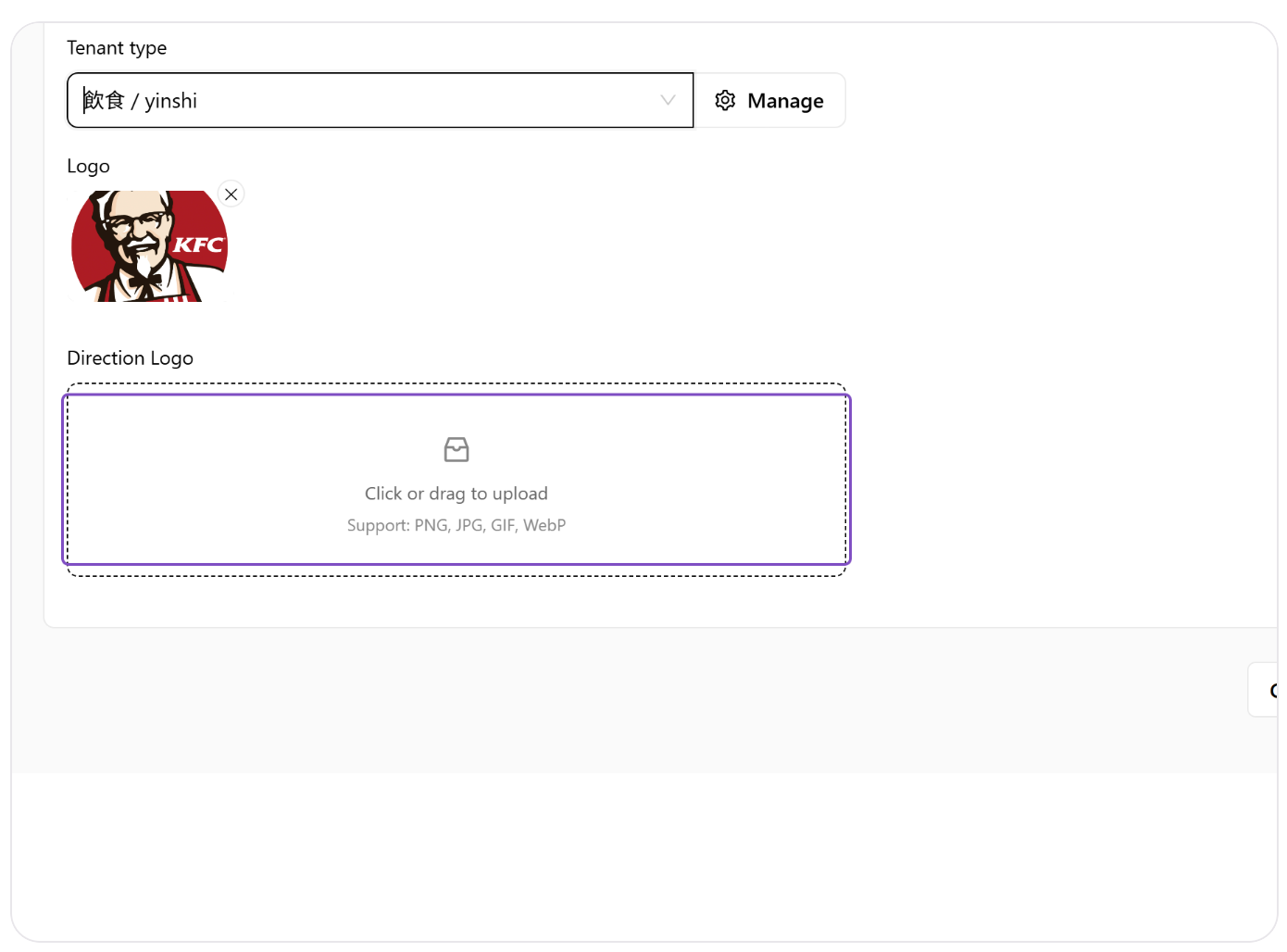 Upload the direction logo
Select "Direction Logo.png" from file upload menu
Select and upload the direction logo image.
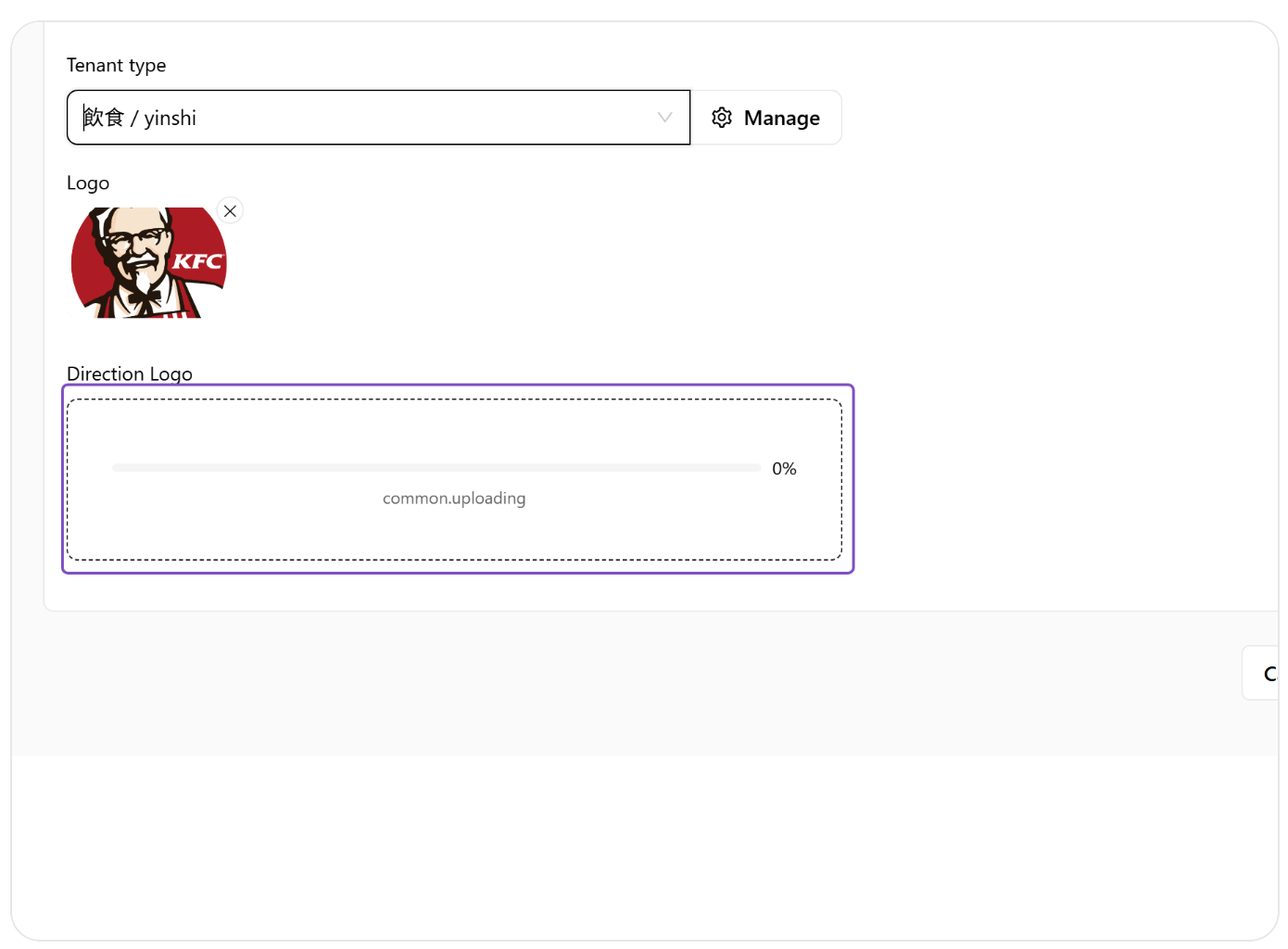 Select Direction Logo.png
Click on Create Tenant
Click "Create Tenant" to create this tenant.
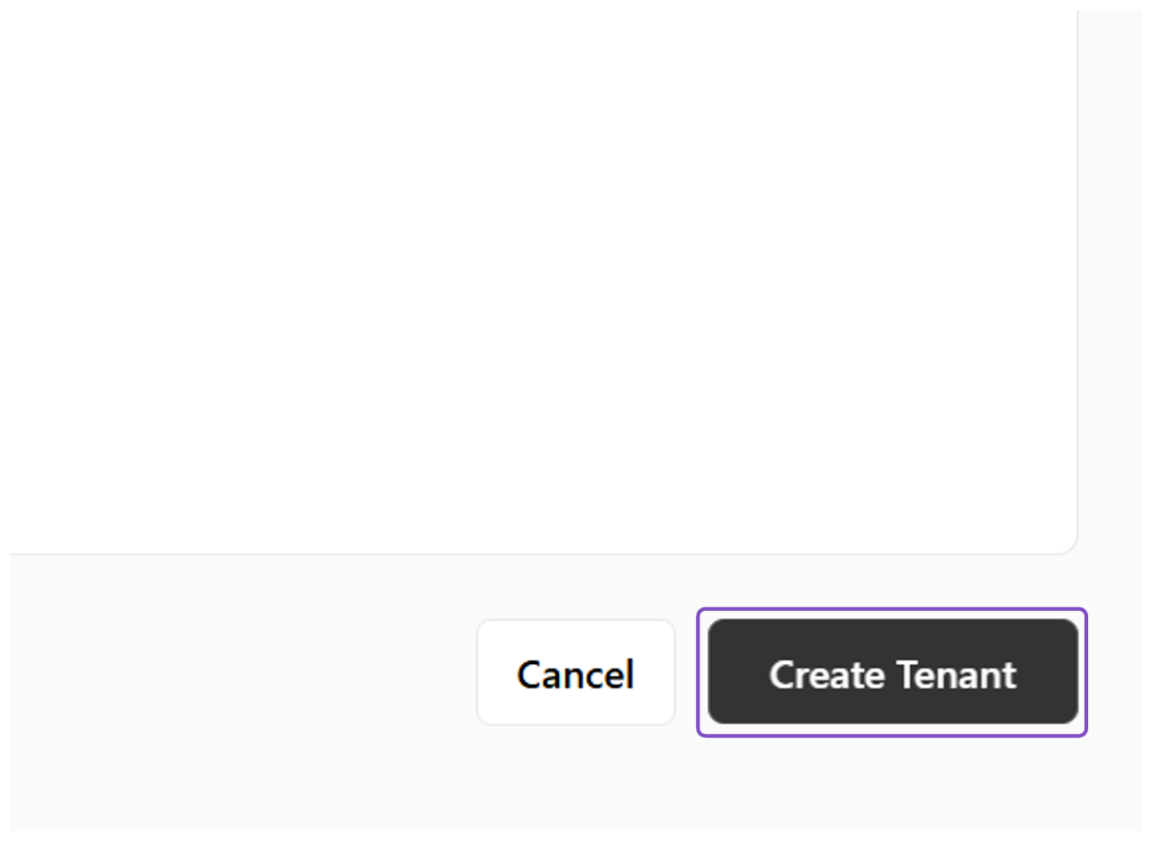 Create the tenant
Repeat the above steps to create other tenants within the building
To add more tenants, simply repeat steps 4.2–4.15 for each one — for example, 星巴克/Starbucks, 耐克/Nike, and so on. This lets the subsequent Screen Design step demonstrate the multi-tenant display effect for a single floor.
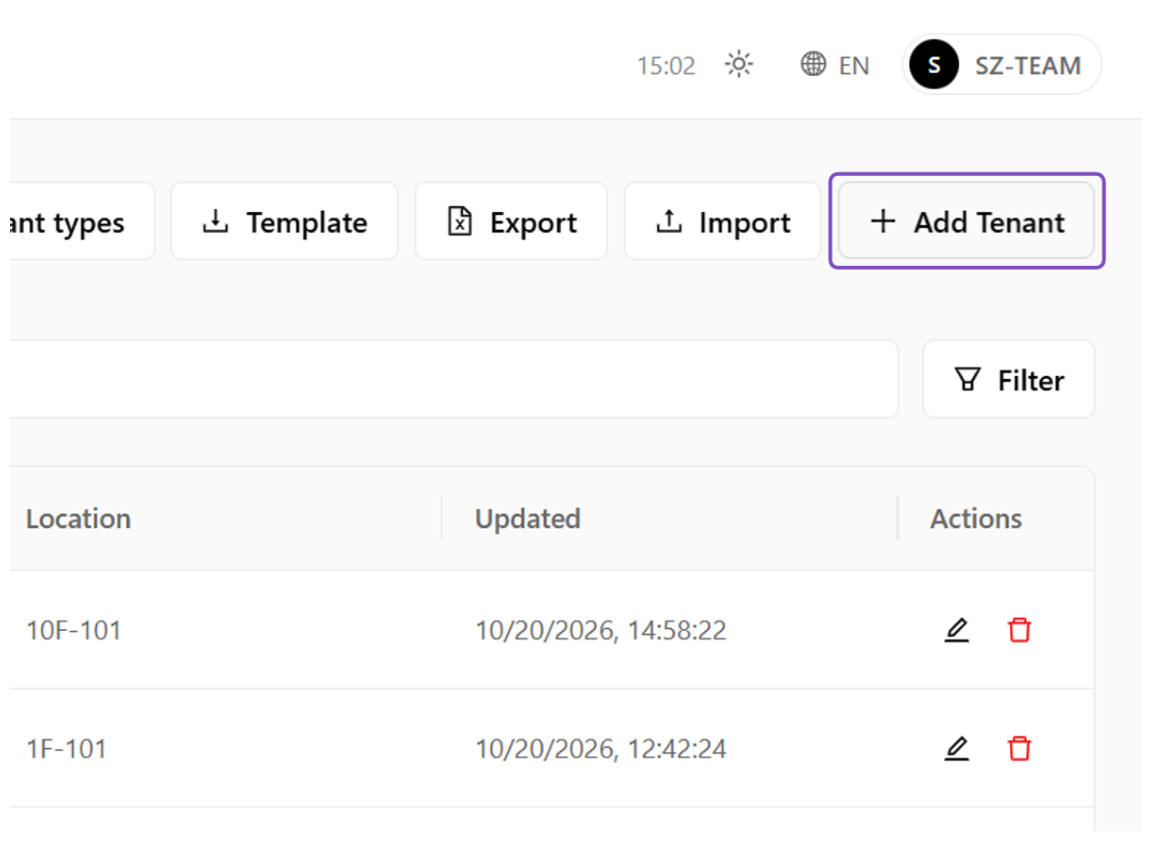 Repeat to create more tenants
5Screen Design
Screen Design means users can adjust the display effect of tenant information on the electronic directory board. In the current version, one Screen can only show tenants on one floor.
In this section you will create a Screen Design with the Classic template: give the screen a friendly name, select the building and the floor to display, set the orientation and resolution, fine-tune the logo size, position and font colors, then create and preview the finished design.
Click on Screen Design
Click the "Screen Design" entry.
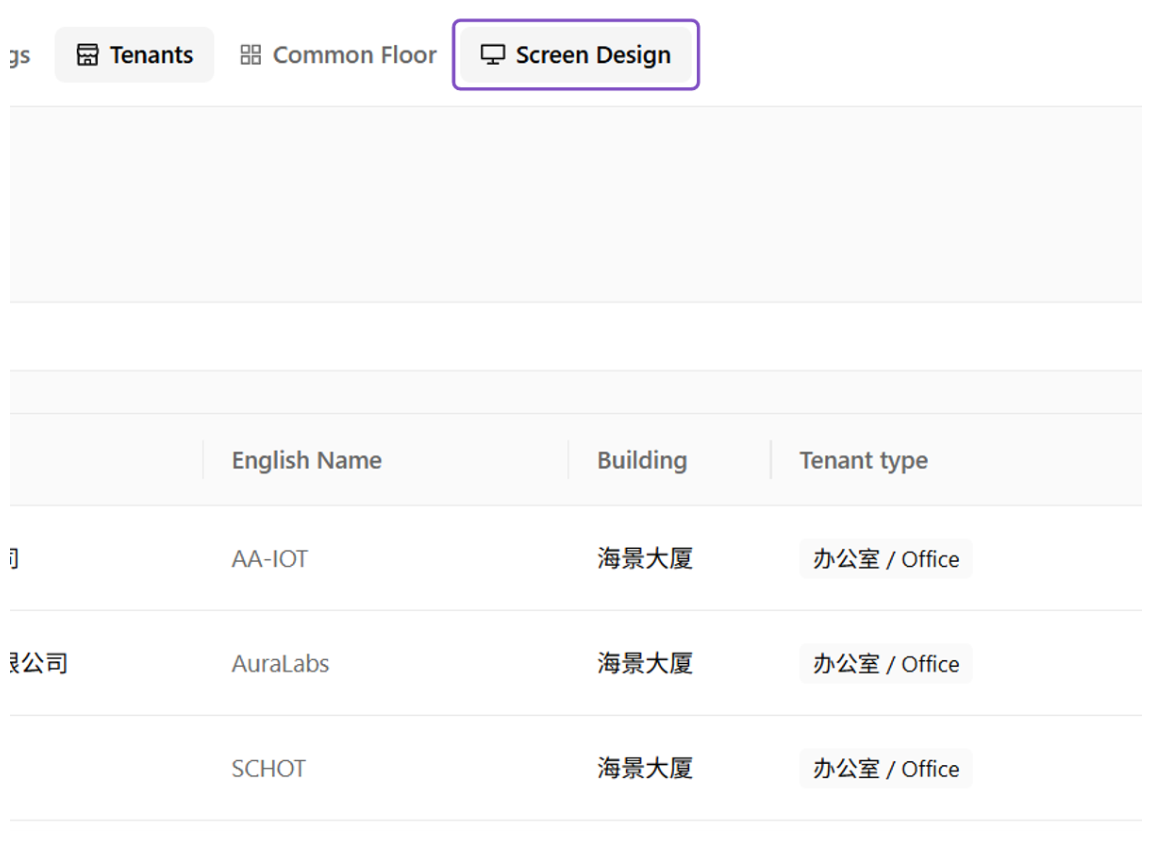 Screen Design entry
Click on Add Design
Click the "+ Add Design" button.
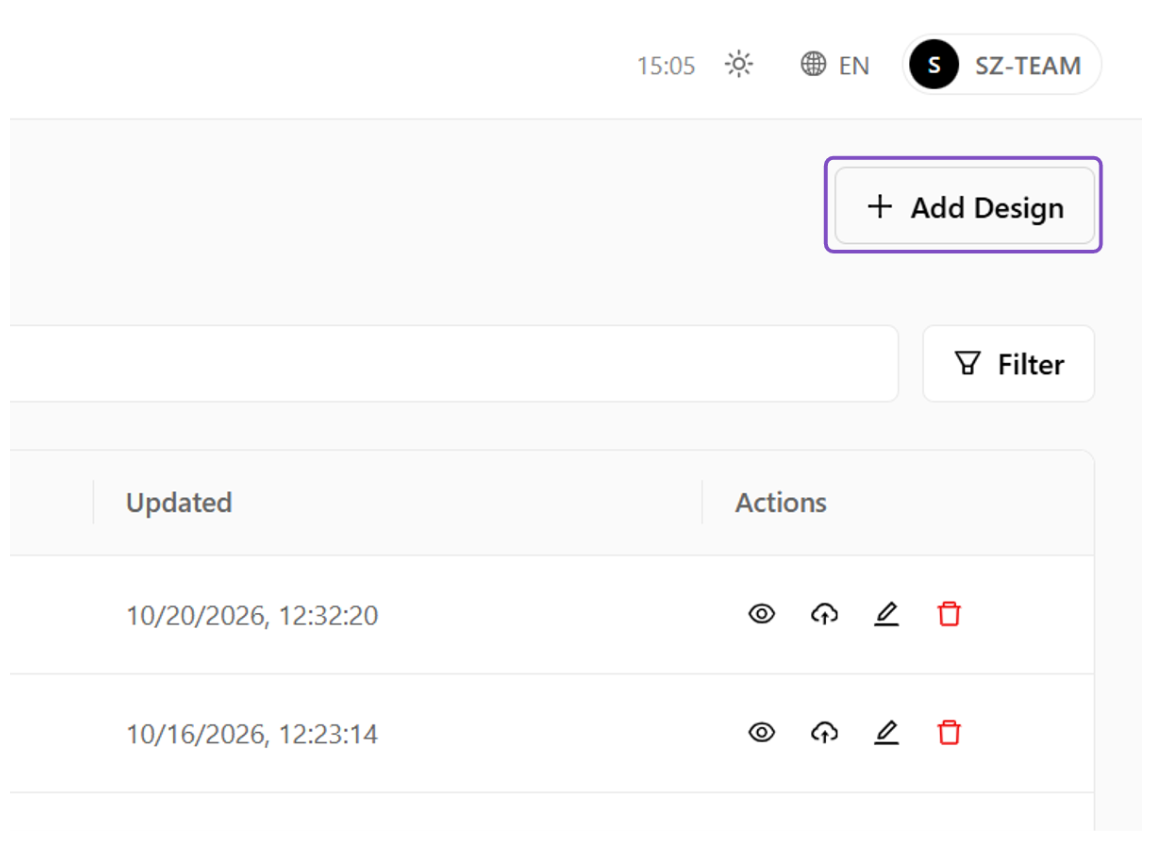 Add Design button
Click on Classic...
Here we temporarily take the Classic Template as an example for illustration; the Modern Template can be explored later.
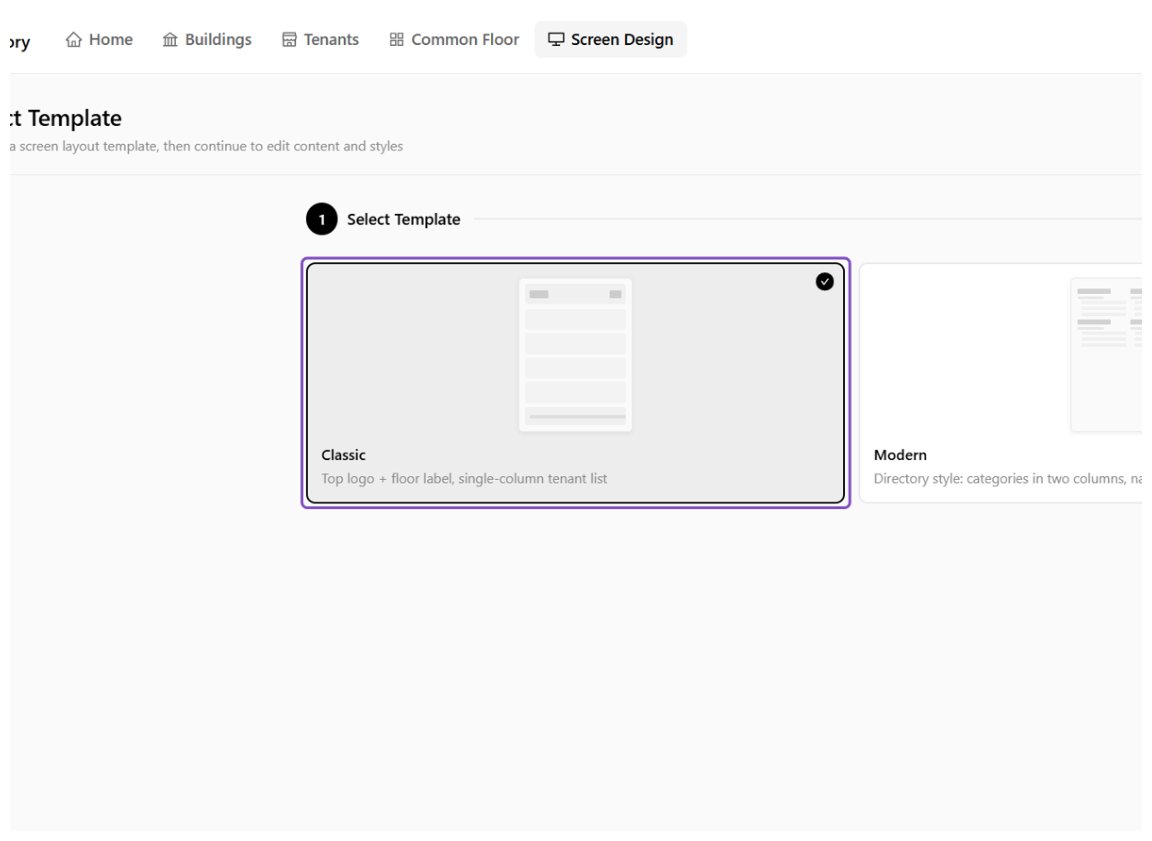 Select the Classic template
Click on Next
Click "Next" to proceed to the next step.
 Next button
Type "Lobby"
You can enter a friendly name for easy identification. For example, you can name it based on where the Screen is installed.
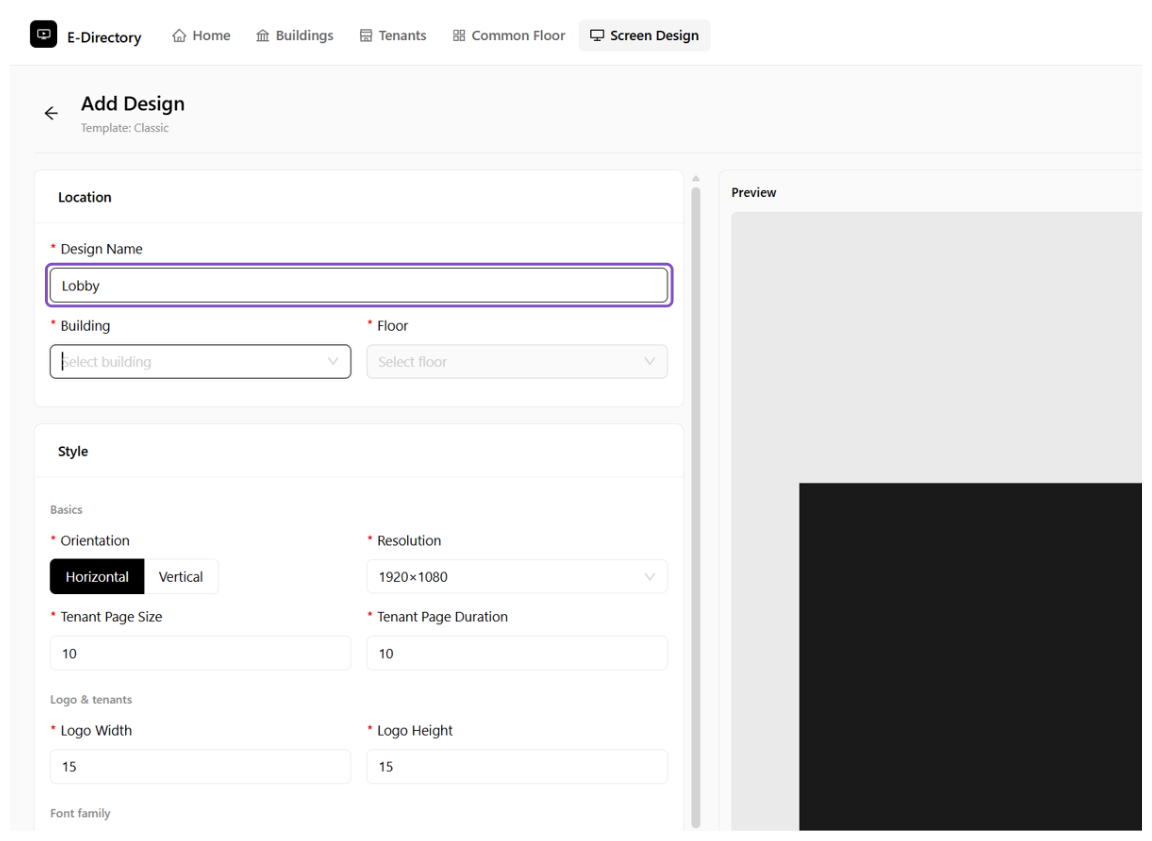 Enter the design name Lobby
Click on Building
Select the building that this Screen belongs to.
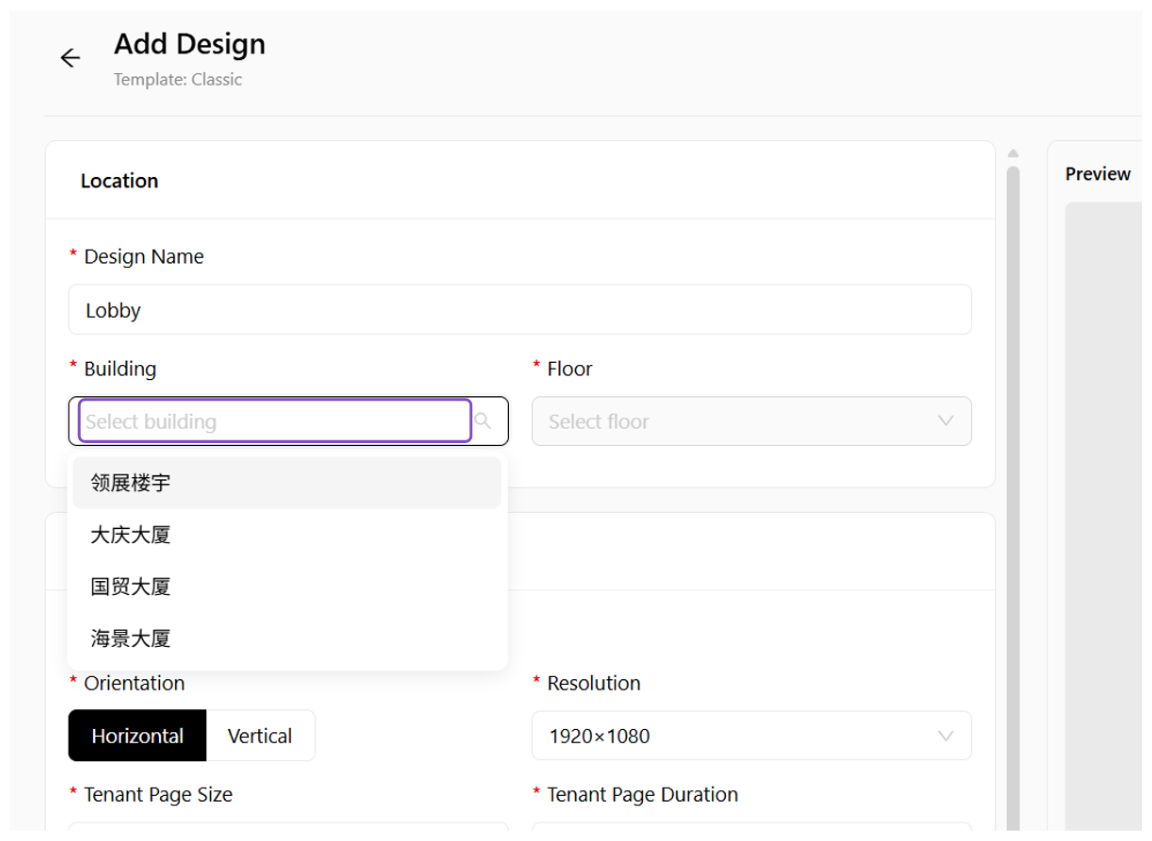 Select Building
Click on 海景大厦
Here we can select the previously created building "海景大厦".
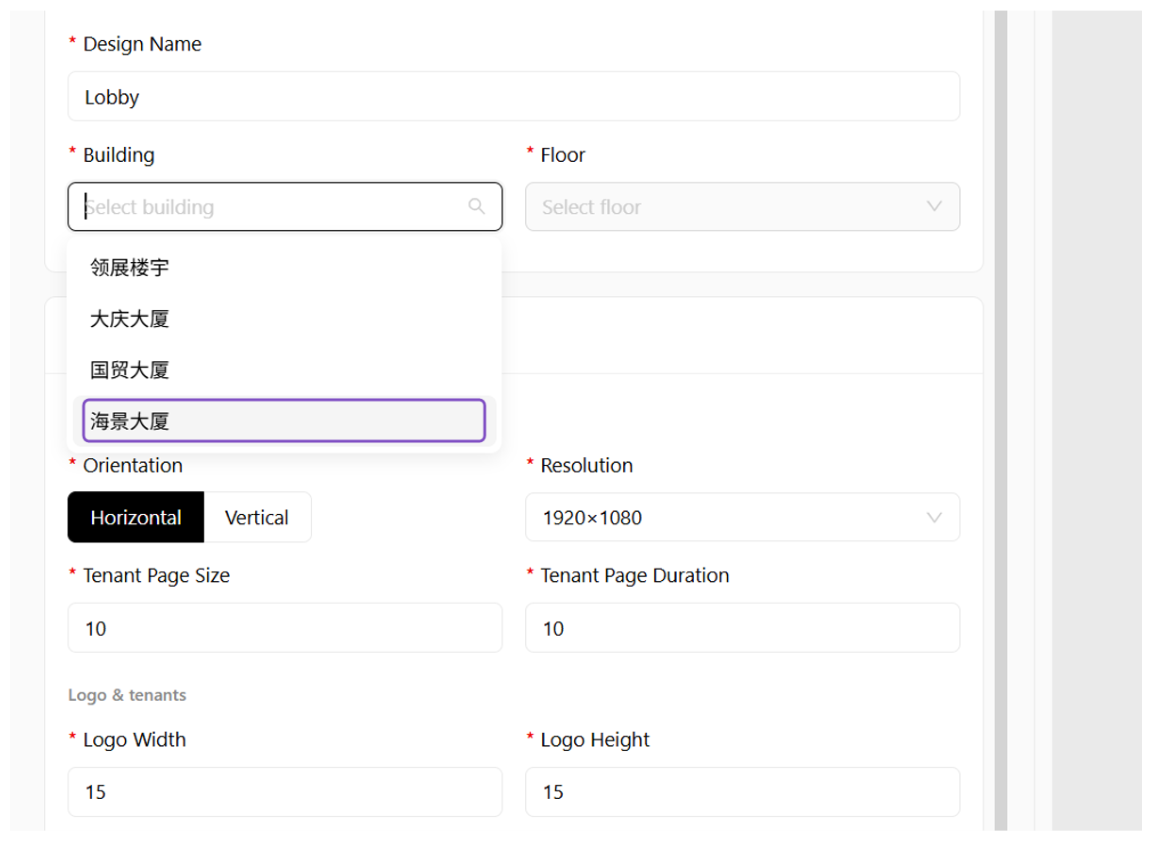 Select 海景大厦
Click on Floor
Select the floor to be displayed on the Screen.
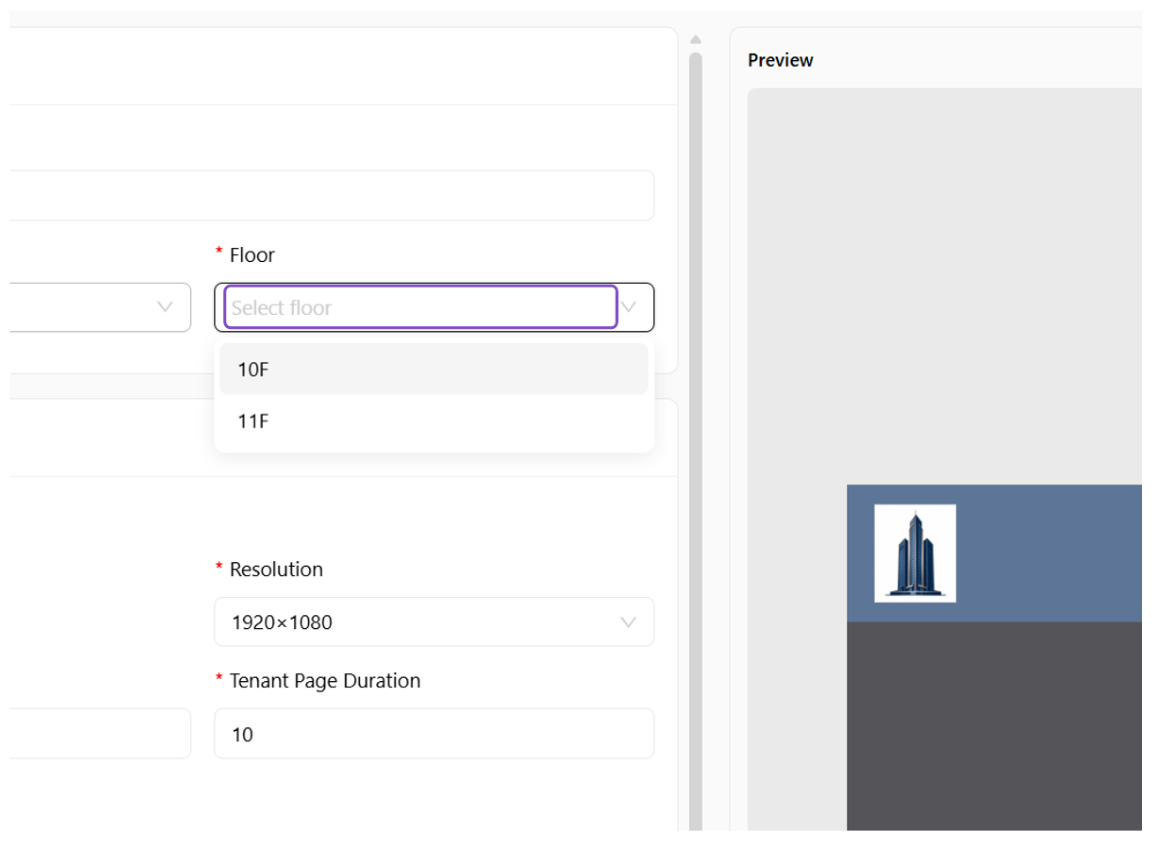 Select Floor
Click on 10F...
After selecting the floor, the Preview window on the right will display the temporary effect on the Screen.
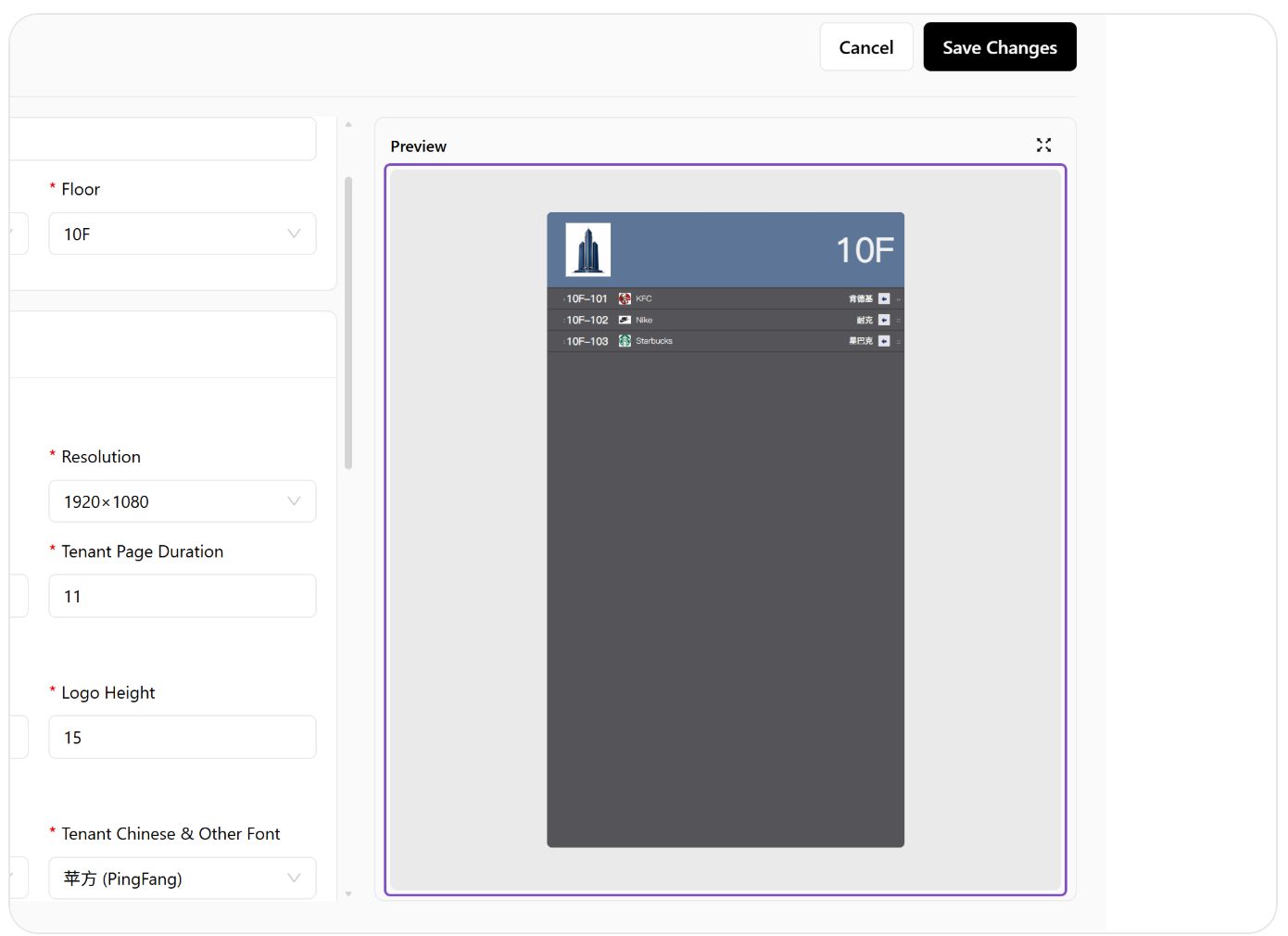 Select floor 10F and preview
Select Vertical
Orientation is used to configure landscape or portrait display, adjusted according to the installation method of the on-site monitor.
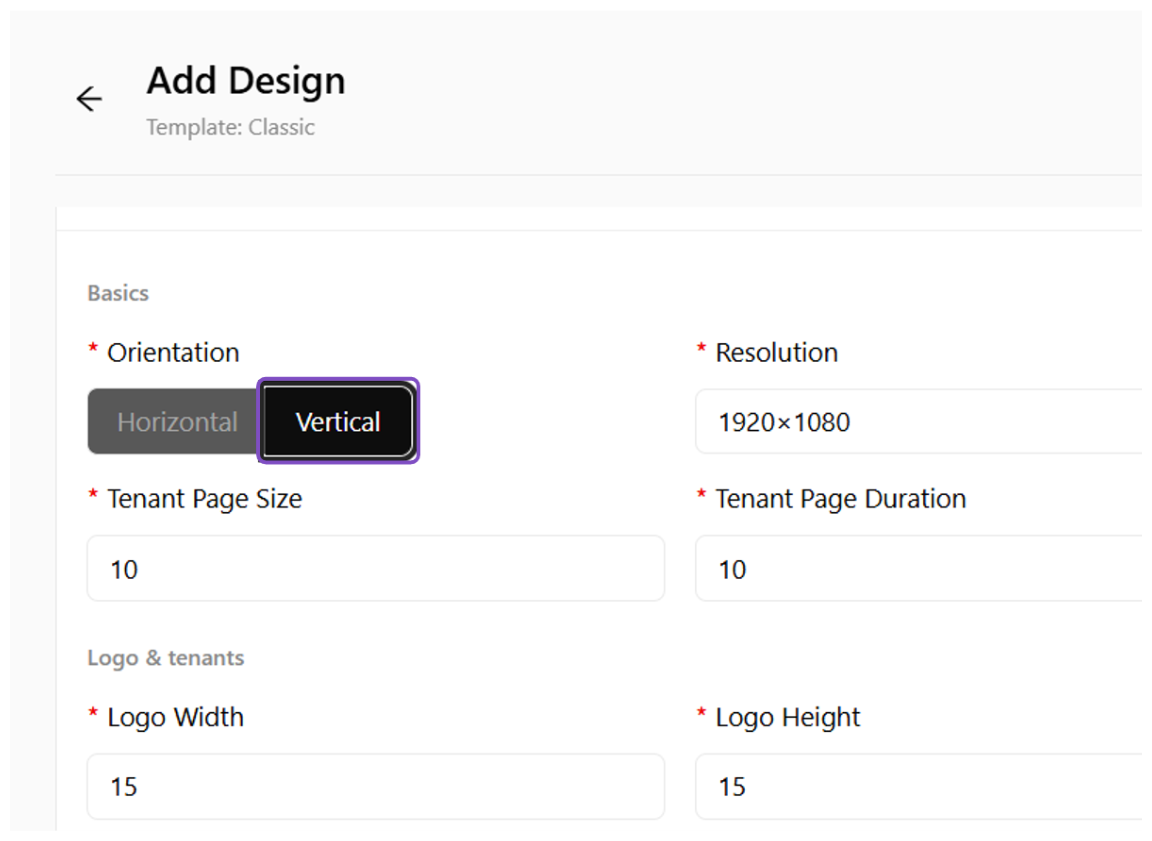 Select Vertical orientation
Click on Resolution
Click the resolution option.
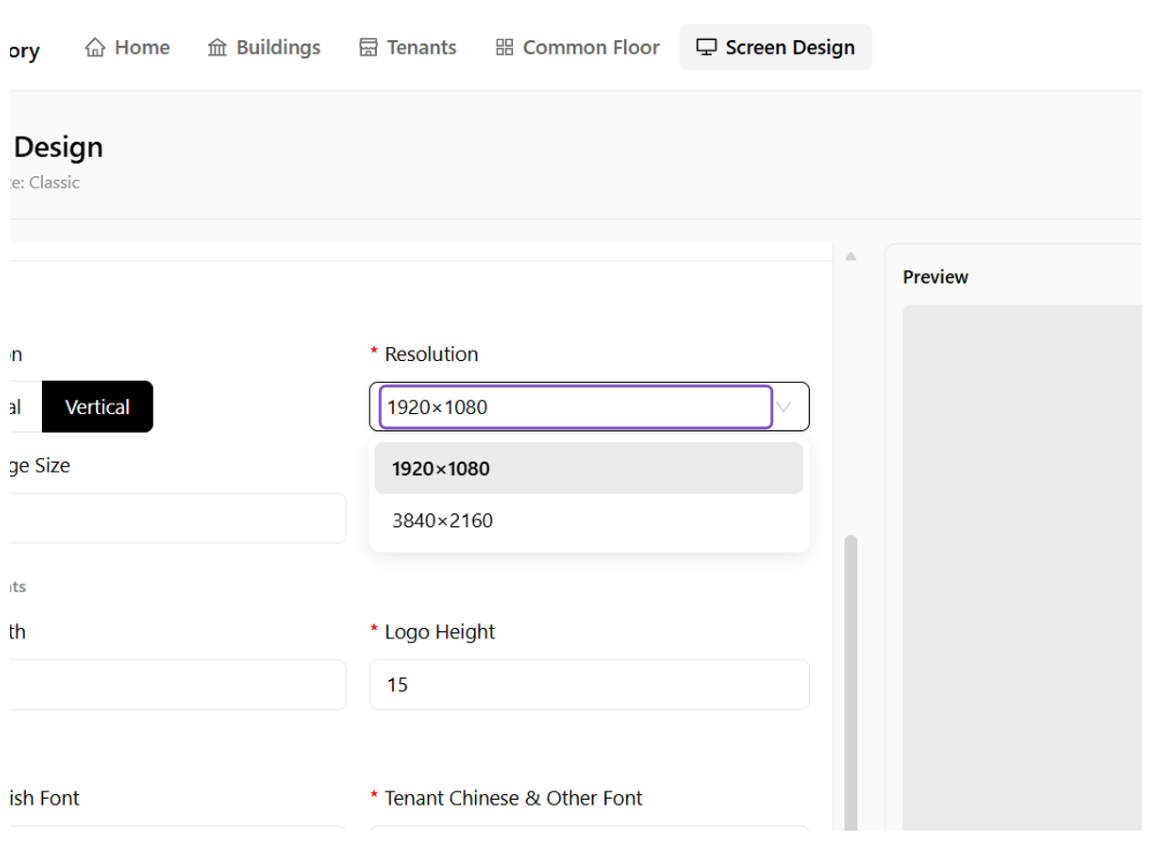 Select the resolution
Click on 1920×1080
Select the "1920×1080" resolution.
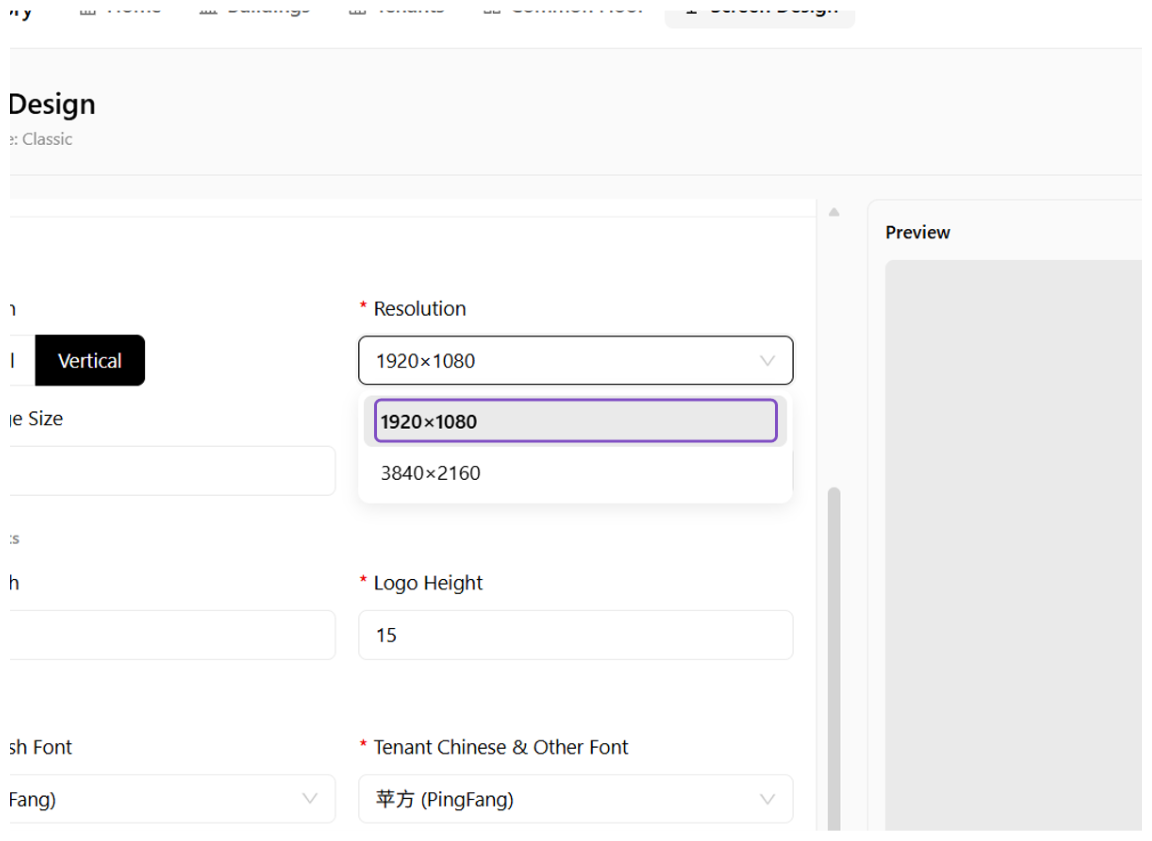 Select 1920×1080
Click on Increase Value
Click the control that increases the value (for example the tenant page duration).
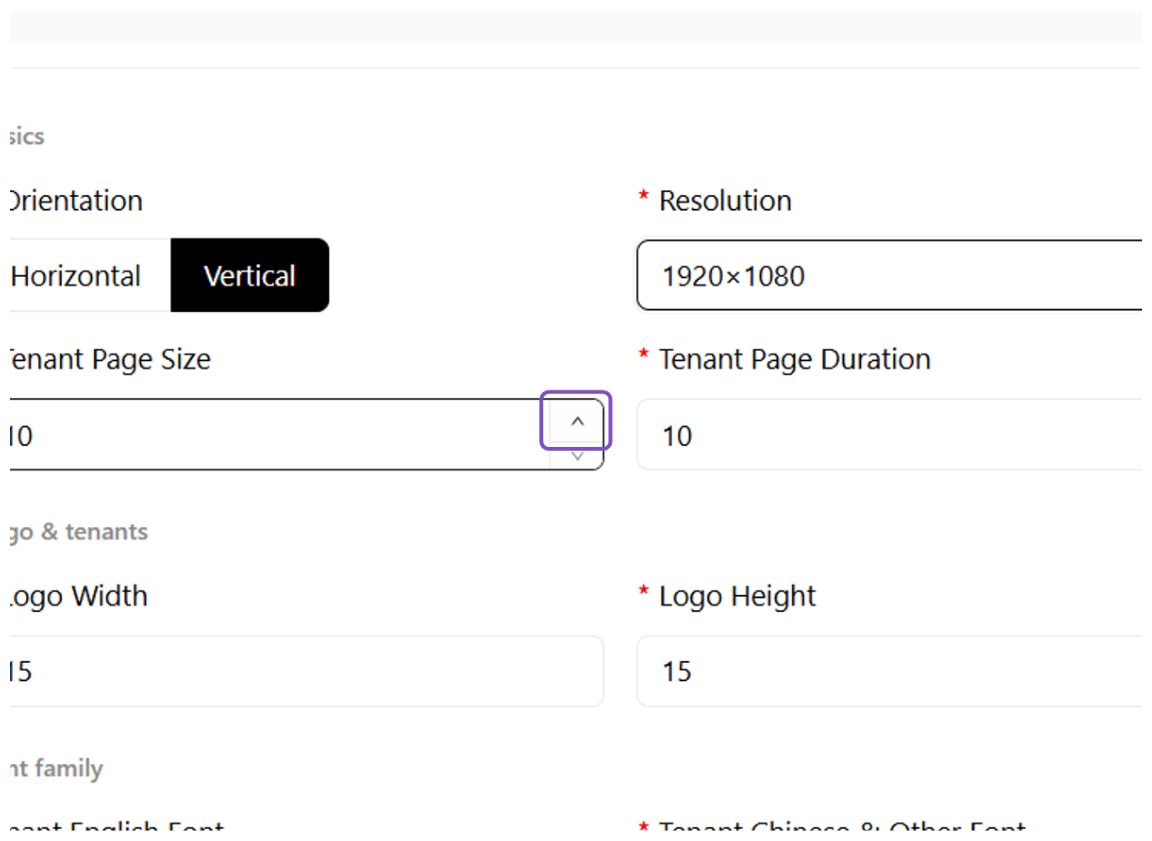 Increase the value
Click on Decrease Value
The display size and position of the logo can be adjusted.
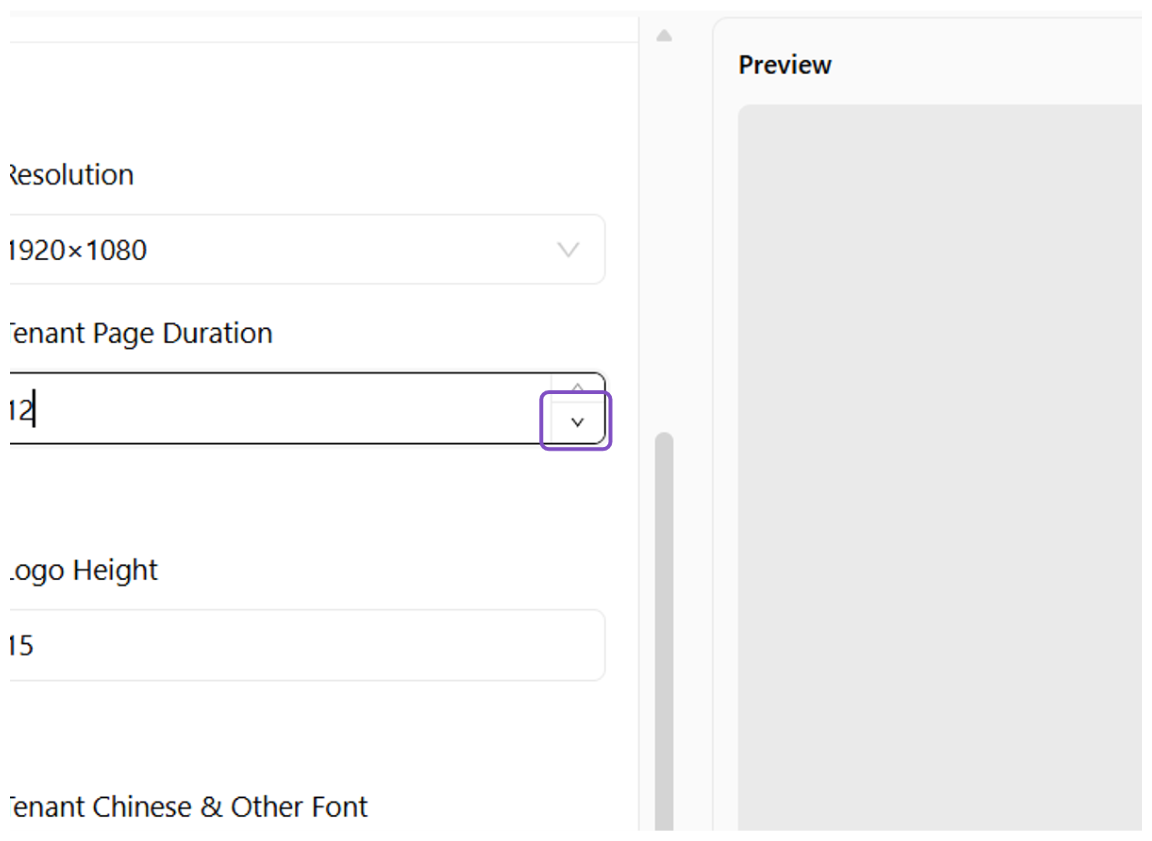 Decrease the value / logo settings
Type "#f2f2f2"
Font color can be adjusted.
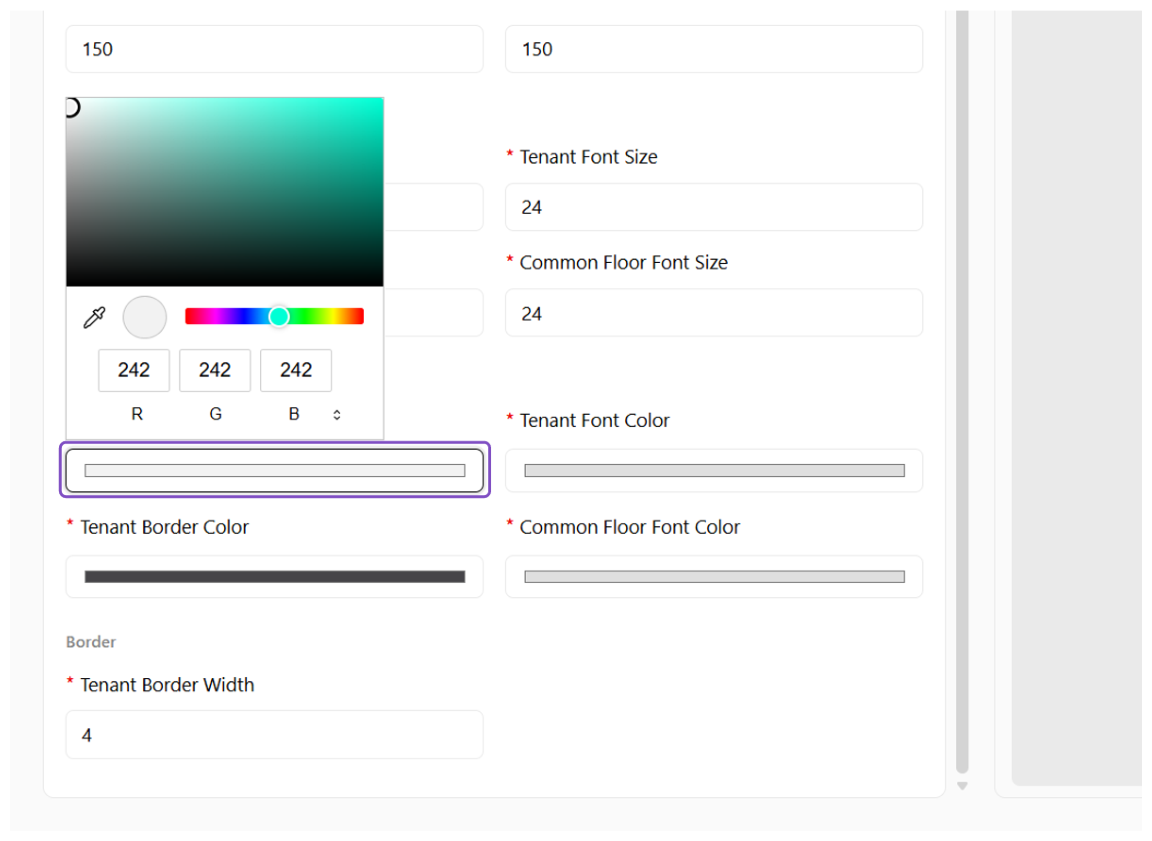 Adjust the font color
Type "#f7f7f7"
Continue to adjust other color parameters (for example the common-floor font color).
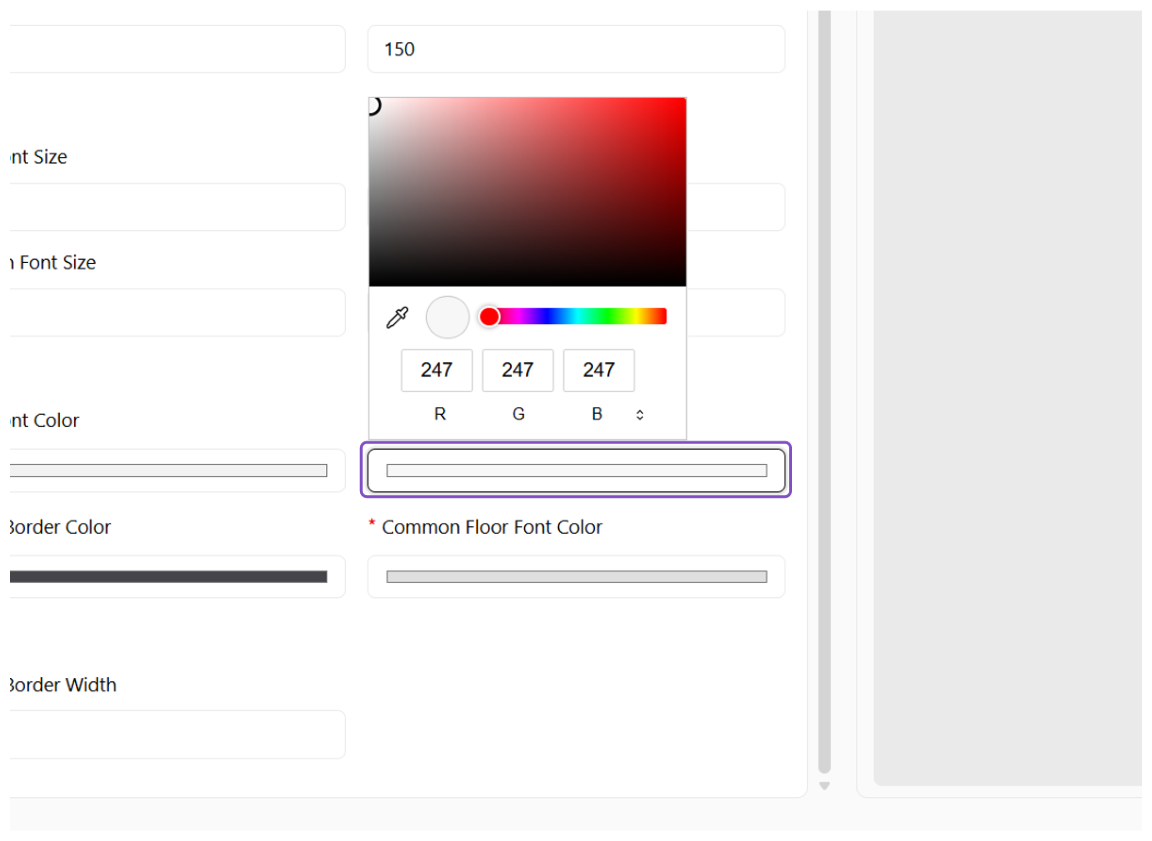 Adjust other colors
Click on Create Design
After adjusting the display effect, click "Create Design" to create and save the current Design.
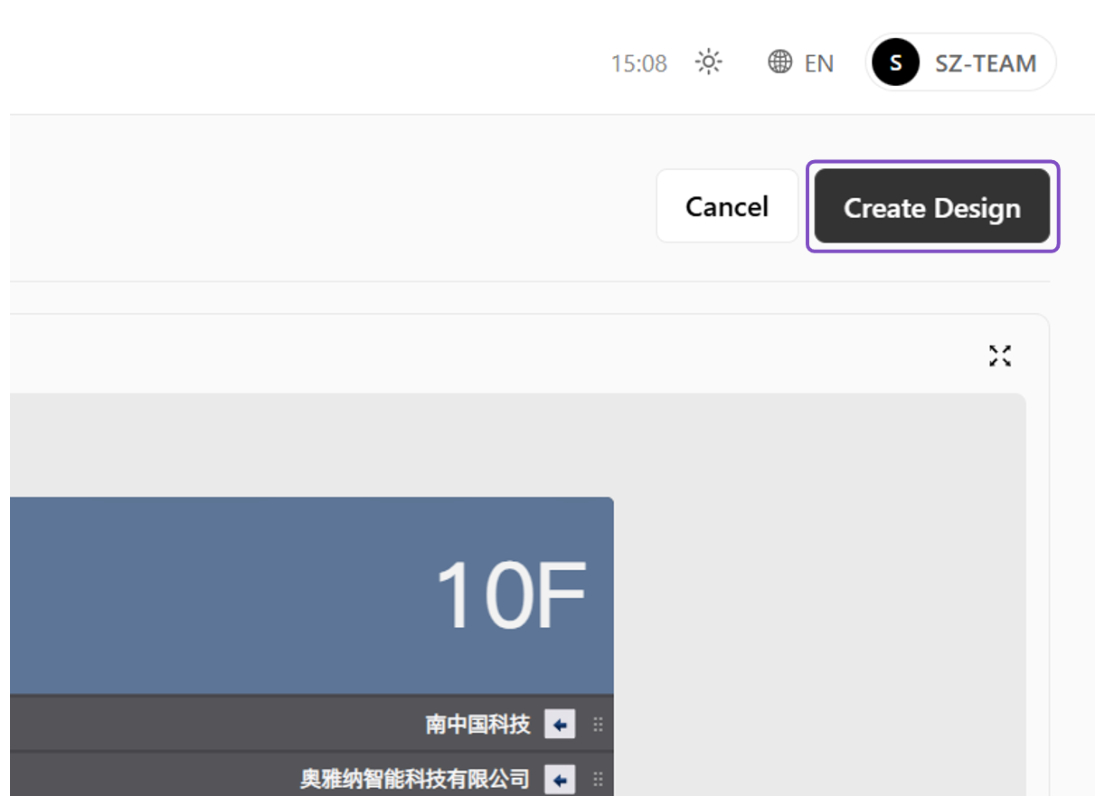 Create the Design
Click on Preview
Click the Preview icon of the Screen you just created to preview the playback effect published to the player.
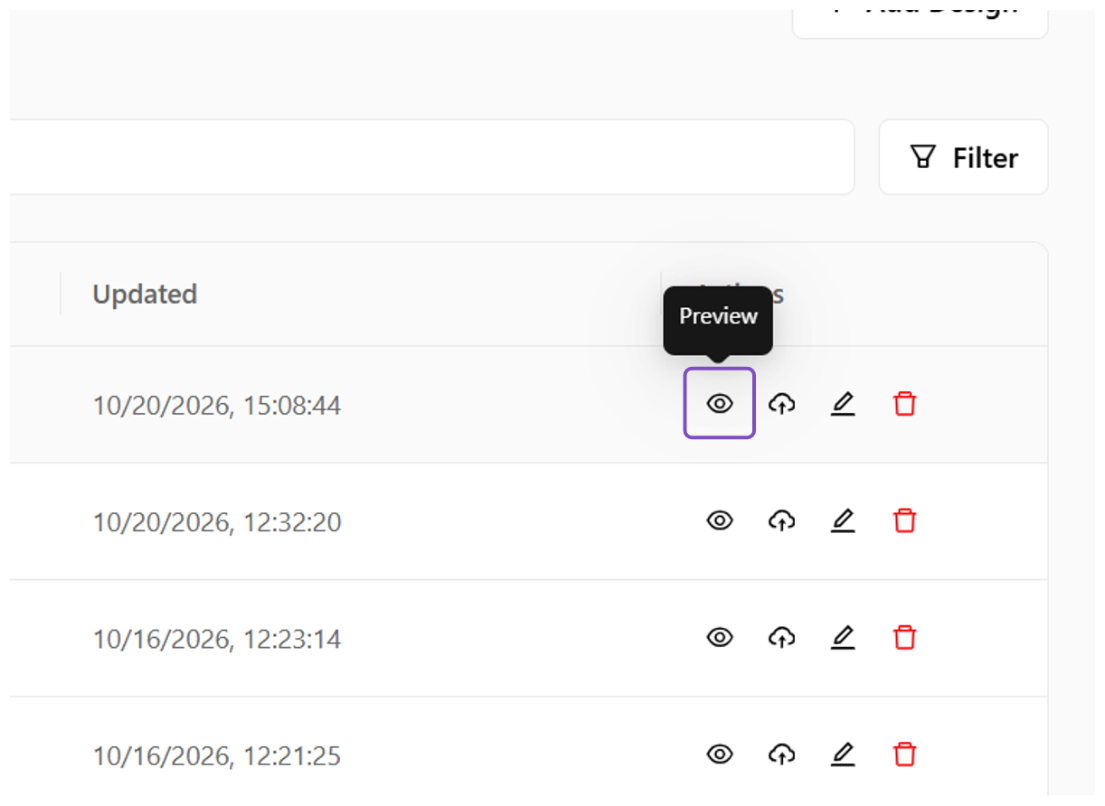 Preview the Screen
Preview
Preview the display effect of the floor-10F tenants (10F-101, 10F-102, 10F-103) on the Screen.
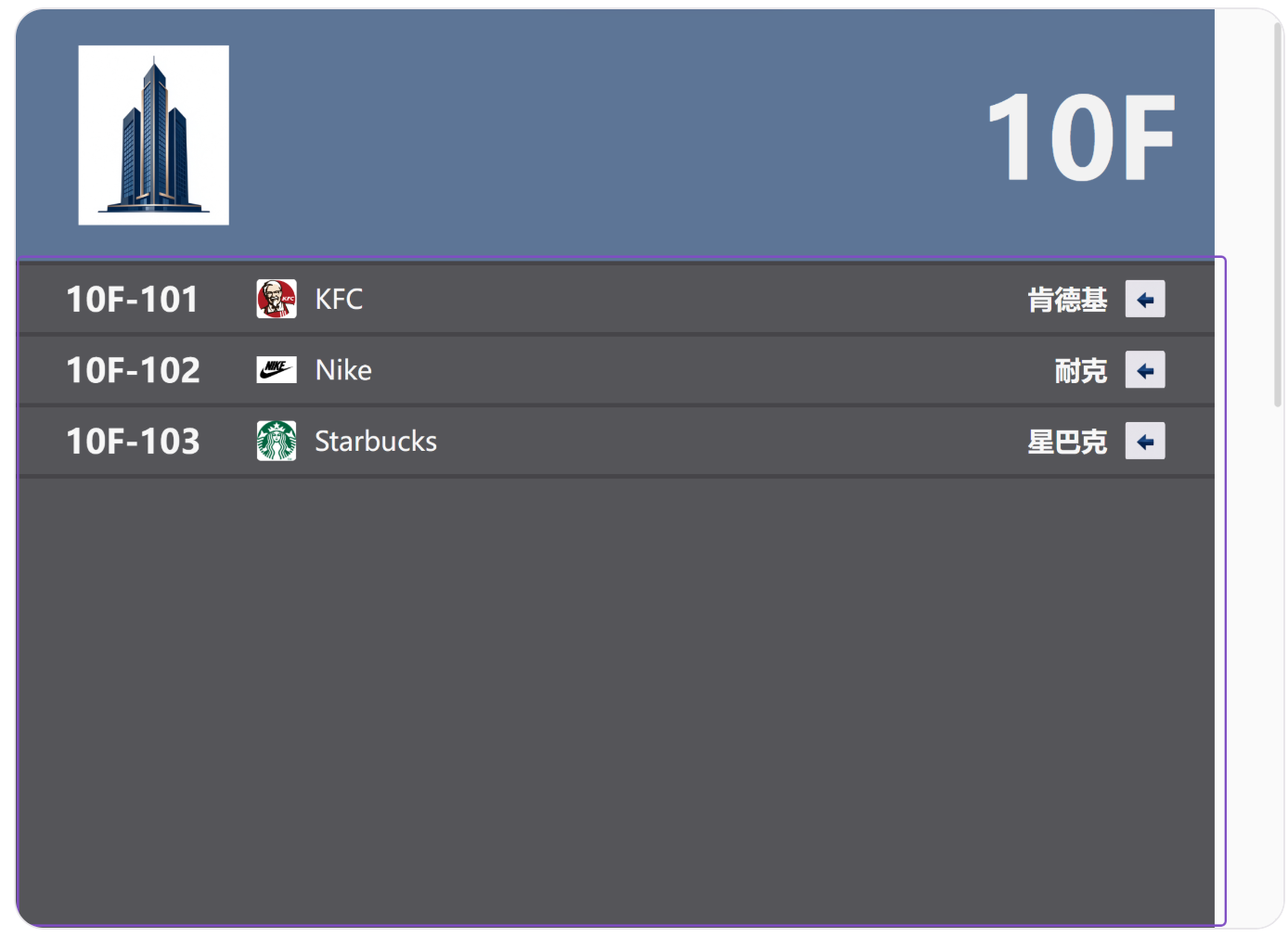 Screen preview effect
6Save to first Media Library folder
Save the designed E-Directory to the Media Library and publish it as a Vispoint resource.
Save the E-Directory you just created to the first Media Library folder so that you can publish it to the corresponding player.
Click on Save to first Media Library folder
Click "Save to first Media Library folder" to save it to the Media Library.
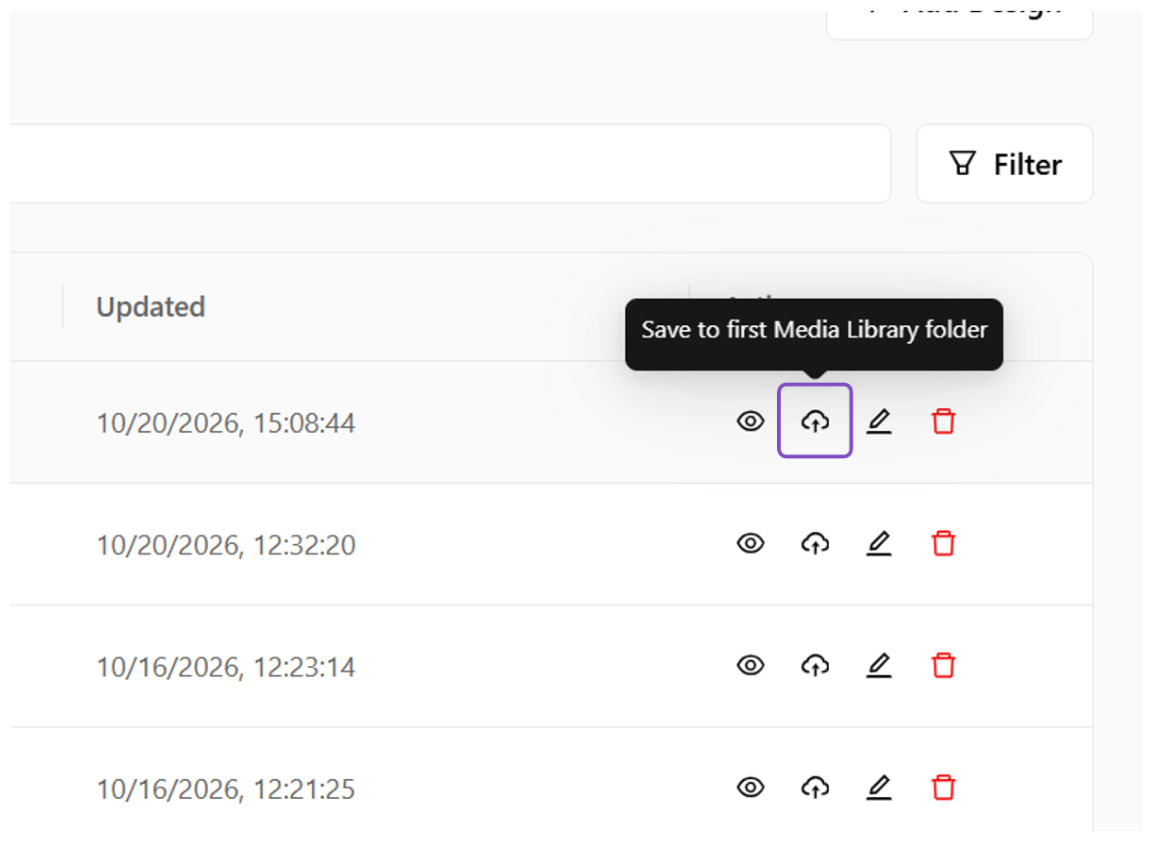 Save to the Media Library folder
Click on Content Library
Click the "Content Library" entry.
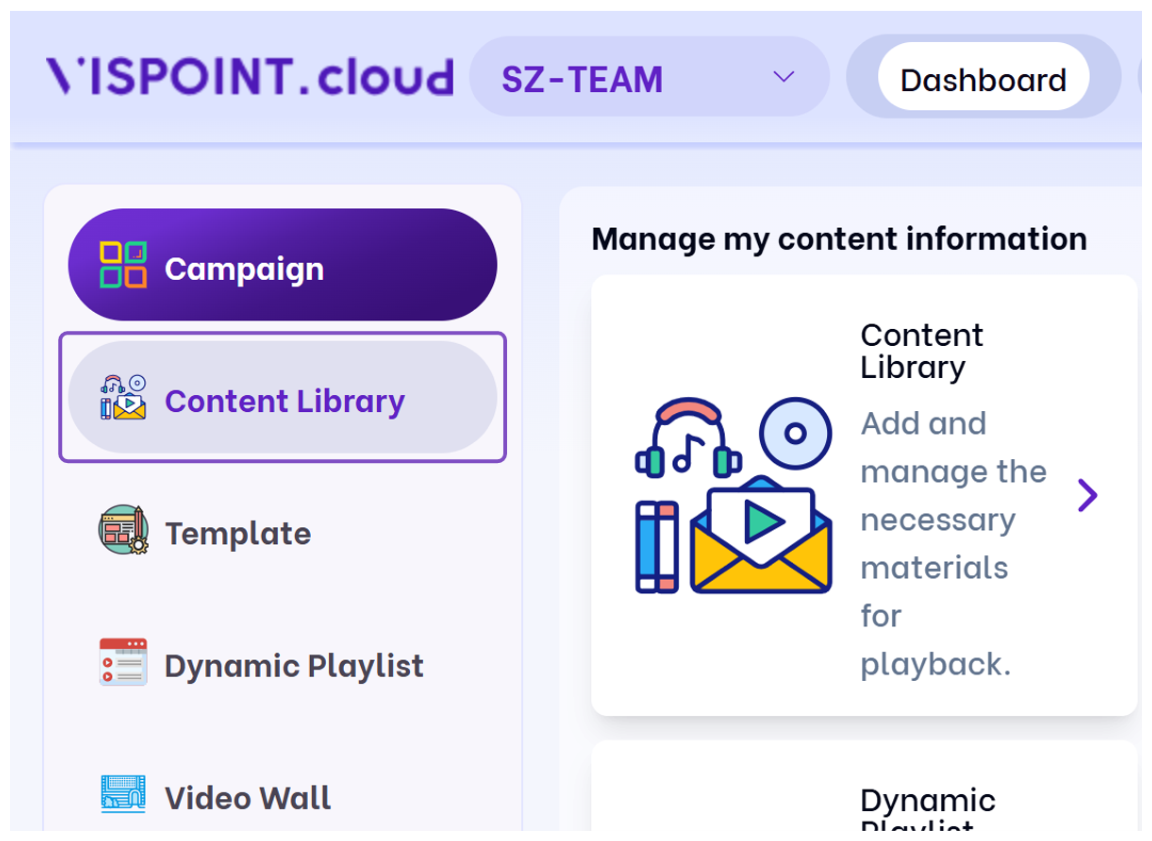 Open the Content Library
Content Library
The first item in the Content Library on Vispoint.cloud is the E-Directory you just created. You can publish it as a Vispoint resource to the corresponding player.
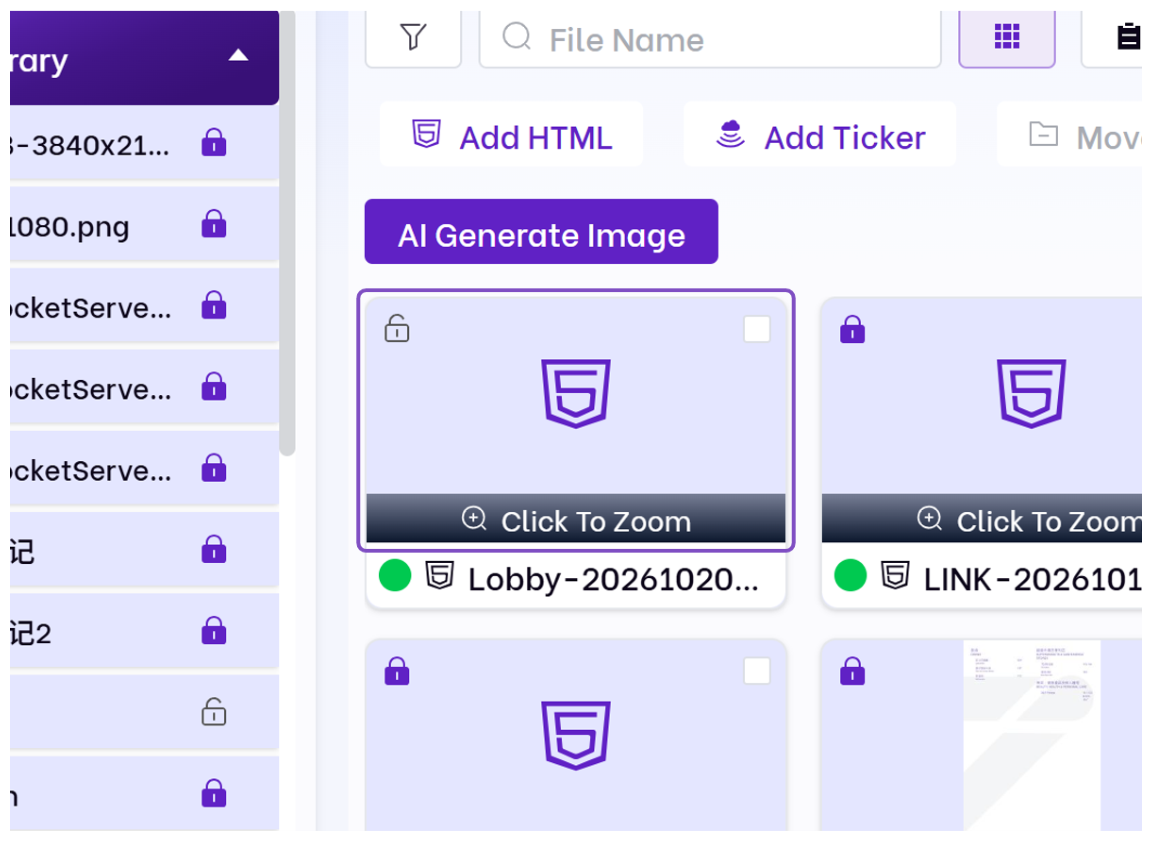 E-Directory in the Content Library